
How to Fix Mic Echo: Step-by-Step Guide to Clear Sound
A microphone echo can ruin online meetings, gaming sessions, live streams, and voice recordings. Instead of hearing your voice once, people hear it twice or hear a delayed version of it.
This problem often happens because of speaker feedback, incorrect sound settings, high microphone sensitivity, or software issues. The good news is that you can usually fix mic echo in just a few minutes without buying a new microphone.
In this guide, you will learn how to fix mic echo on Windows, Mac, Android, iPhone, Zoom, Discord, Microsoft Teams, and gaming apps with simple step-by-step solutions.
So, friends, let’s get started!
Signs Your Microphone Has Echo
Not sure if your microphone has an echo problem? Look for these common signs. If you notice one or more of them, your microphone may need a few quick adjustments.
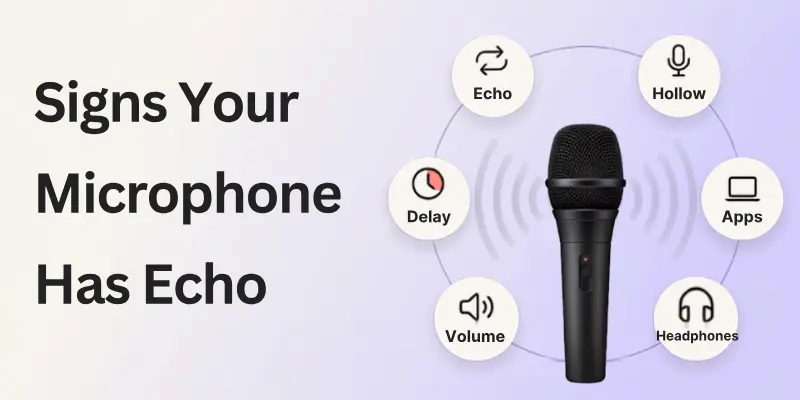
- People on calls hear their own voice after they speak.
- Your voice sounds like it repeats or bounces back.
- Your recordings sound hollow or doubled.
- There is a short delay before you hear your own voice.
- The echo happens only in certain apps like Zoom, Discord, or Microsoft Teams.
- Your voice becomes clearer when you use headphones instead of speakers.
- The echo gets worse when your speaker volume is high.
If you notice these signs, don’t worry. You can often fix mic echo with a few simple changes to your audio settings.
What Causes Mic Echo?
Before you fix the problem, it helps to understand why it happens. Common causes include:
- Speaker sound picked up by the mic: Your microphone might be catching your computer or phone speakers.
- Multiple mics active: Sometimes, extra microphones or audio devices are running in the background.
- Incorrect input/output settings: Your device may be using the wrong microphone or speaker.
- Software audio loops: Some apps accidentally create a loop where your mic audio feeds back into itself.
- Room acoustics: Echoes can also come from hard surfaces like walls, floors, or empty rooms.
Knowing the cause helps you choose the right solution.
Quick Fixes You Can Try First
Before changing advanced settings, try these quick solutions. In many cases, they stop mic echo within a few minutes.
1. Use Headphones Instead of Speakers: Headphones keep your computer’s sound away from your microphone. This is one of the easiest ways to stop echo during calls, gaming, or recording.
2. Lower Your Speaker Volume: If you use speakers, turn the volume down. Loud speakers can send sound back into your microphone and create an echo.
3. Check Which Microphone Is Active: Your computer may have more than one microphone connected. Make sure your device uses only the microphone you want, and disable any extra microphones.
4. Move Your Microphone Away from Speakers: Keep your microphone away from your speakers. This helps prevent your microphone from picking up the sound coming from them.
5. Restart Your Device: A simple restart can fix temporary audio problems. Restart your computer, phone, or tablet before trying more advanced solutions.
6. Close Apps Using Your Microphone: If more than one app uses your microphone at the same time, audio problems can happen. Close any apps that do not need microphone access.
7. Test Your Microphone: Make a short voice recording or use your app’s microphone test feature. If the echo is gone, you have found the right fix. If not, continue with the detailed solutions below.
Fix Echo on Your Device (Step‑by‑Step)
If your mic keeps echoing, don’t worry! Follow these steps for your device to get clear, echo-free sound quickly.
1. Windows / PC
Follow these steps if you are using a Windows computer.
Step 1: Check Your Microphone
- Right-click the speaker icon in the taskbar → Sounds → Recording tab.
- Make sure only your primary microphone is enabled; disable extras to prevent conflicts.
Step 2: Adjust Mic Input Level
- Select your mic → Properties → Levels.
- Reduce the microphone sensitivity to stop it from picking up background sounds or speaker output.
Step 3: Disable “Listen to This Device”
- In the same mic properties → Listen tab.
- Uncheck “Listen to this device”. This prevents your own voice from playing back through your speakers.
Step 4: Turn Off Audio Enhancements
- Go to the Enhancements tab → check Disable all sound effects or Disable audio enhancements.
- Some features like “Stereo Mix” can create feedback loops, so disable them.
Step 5: Update Audio Drivers
- Press Windows + X → Device Manager → Sound, video and game controllers.
- Right-click your audio device → Update driver.
- Updated drivers fix glitches that may cause echo.

2. Mac
Use these steps if you are on a Mac computer.
Step 1: Select the correct microphone
- Go to System Settings → Sound → Input.
- Choose the mic you actually use, not the built-in mic, if using a headset.
Step 2: Lower Input Volume
- Adjust the input volume slider so your mic doesn’t pick up excess sound.
Step 3: Check App Settings
- Apps like Zoom or Discord may override system settings.
- Enable Echo Cancellation or Noise Suppression in the app.
3. Mobile Devices (iOS / Android)
Follow these steps if you are using a smartphone or tablet.
- Step 1: Use Headphones: Built-in speakers can feed back into the mic. Headphones prevent echo instantly.
- Step 2: Close Background Apps: Make sure no other apps are using the mic simultaneously.
- Step 3: Adjust App Audio Settings: Many apps (Zoom, Teams, WhatsApp calls) have built-in echo cancellation. Enable it.
- Step 4: Restart Device: Sometimes, temporary software issues cause an echo. A restart resets audio drivers and clears glitches.
Pro Tip: After making these changes, always do a quick test call or recording to confirm the echo is gone. Small tweaks like lowering volume slightly or changing mic position can make a big difference.
App-Specific Echo Fixes
Sometimes, echo isn’t caused by your hardware; it comes from the app itself. Each platform has settings to reduce or remove echo. Follow these tips for the most common apps:
Zoom, Microsoft Teams, Discord
- Enable Echo Cancellation: Go to audio settings → turn on Echo Cancellation. This prevents your mic from picking up your own voice.
- Enable Noise Suppression: Reduces background sounds that can contribute to echo.
- Test Your Mic Before Calls: Use the app’s Test Mic feature to check if echo is still present.
- Close Extra Audio Apps: Having multiple apps using your mic at the same time can cause feedback loops.
Gaming Consoles (PS5, Xbox, PC Games)
- Use a Dedicated Headset: Built-in TV or console speakers often feed sound back into your mic.
- Adjust Mic Sensitivity: Reduce input level in console or game settings.
- Disable TV/Console Speakers: Keep sound in your headset only to avoid echo.
- Check Game Chat Settings: Some games have built-in voice processing—turn on echo cancellation if available.
Other Video Call Apps (WhatsApp, RingCentral, Whereby)
- Enable Built-In Echo Cancellation: Most video call apps include this under audio or call settings.
- Mute Extra Devices: If multiple devices are logged into the same call, mute the others.
- Check Network Quality: Poor connections can create delayed audio that sounds like an echo.
- Restart App if Needed: Temporary glitches can cause echo; closing and reopening often solves it.

Preventing Mic Echo in the Future
Once you fix the echo, take a few simple steps to make sure it doesn’t come back during your next call, stream, or recording.
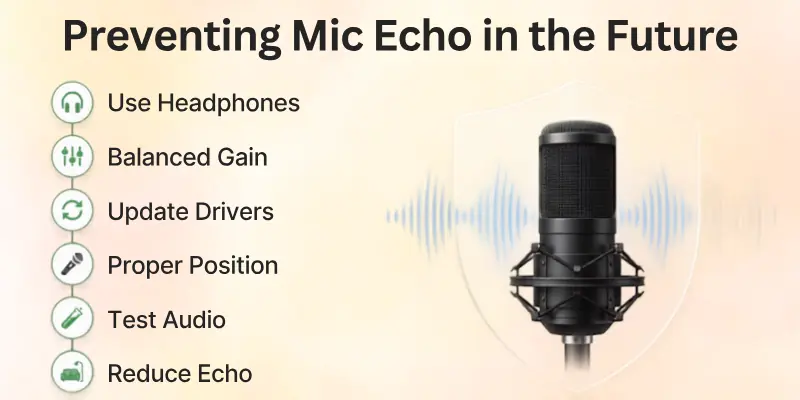
- Use headphones instead of speakers to stop sound from feeding back into your mic.
- Keep your mic sensitivity balanced so it captures your voice clearly but not background noise.
- Update audio drivers and apps regularly to avoid software glitches.
- Stick to one microphone setup to prevent device conflicts.
- Test your audio before important calls to catch issues early.
- Position your mic properly away from speakers and reflective surfaces.
- Improve your room setup with curtains, carpets, or soft furniture to reduce sound bounce.
Small habits like these protect your audio quality and help you sound clear and professional every time.
Conclusion
So, guys, it’s time to wrap up. In this article, we’ve covered how to fix microphone echo in detail. You learned what causes echo, how to fix it on different devices, and how to prevent it in the future.
In my experience, keeping your setup simple and using only one active microphone makes the biggest difference. Small adjustments often solve big audio problems.
Don’t wait for your next important meeting; apply these fixes now and make your sound crystal clear.
Helpful FAQs
Here are clear and simple answers to the most common doubts people face when trying to fix echo issues:
Your microphone usually echoes because it picks up sound from your speakers. High microphone sensitivity, incorrect audio settings, multiple active microphones, or room acoustics can also cause the problem. Using headphones and checking your audio settings often fixes it.
Try these simple fixes:
- Use headphones instead of speakers.
- Lower your speaker volume.
- Turn on echo cancellation.
- Reduce microphone sensitivity.
- Disable extra microphones.
- Update your audio drivers.
People hear themselves because your microphone picks up the sound coming from your speakers. This creates a feedback loop that sends their voice back to them.
Using headphones or lowering your speaker volume usually solves the problem.
Yes, lowering microphone sensitivity can reduce echo. It helps your microphone focus on your voice instead of picking up speaker sound or background noise. Adjust it carefully so your voice still sounds clear.
Yes. Headphones prevent your microphone from picking up audio from your speakers. They are one of the easiest and most effective ways to stop mic echo during calls, meetings, and gaming.
If the echo happens only in Discord, try these fixes:
- Turn on Echo Cancellation.
- Enable Noise Suppression.
- Select the correct microphone.
- Restart Discord after making changes.
Zoom echo is often caused by speaker feedback or incorrect audio settings. Turn on Zoom’s echo cancellation, lower your speaker volume, and use headphones for the best audio quality.
Yes. A damaged or low-quality microphone may pick up extra sound and create echo. If the problem continues after changing your settings, test another microphone to see if the issue is hardware-related.
Yes. Empty rooms with hard walls and floors reflect sound, making your voice echo. Adding curtains, rugs, or soft furniture can improve your recording quality.
You can test your microphone by:
- Recording your voice.
- Using your app’s mic test feature.
- Joining a test call.
- Asking someone if they still hear an echo.


- Be Respectful
- Stay Relevant
- Stay Positive
- True Feedback
- Encourage Discussion
- Avoid Spamming
- No Fake News
- Don't Copy-Paste
- No Personal Attacks
- Be Respectful
- Stay Relevant
- Stay Positive
- True Feedback
- Encourage Discussion
- Avoid Spamming
- No Fake News
- Don't Copy-Paste
- No Personal Attacks









