
How to Improve Webcam Video Quality for Sharp Videos in 2026
Struggling with blurry or low-quality video on your webcam? Learning how to improve webcam video quality can make a big difference for online meetings, video calls, streaming, or recording content.
Poor webcam video can look unprofessional, but with the right lighting, camera position, settings, and small upgrades, you can make your videos clear and sharp.
In this guide, I will show you simple steps to improve webcam video quality, including cleaning your camera, adjusting your background, using helpful software tools, and troubleshooting common problems.
By following these tips, you can make every video look professional and crisp, even with a basic webcam.
How to Improve Webcam Video Quality
You do not always need to buy a new webcam to get better video quality. In many cases, small changes can make a big difference. Better lighting, the right camera settings, and a clean webcam can help you get a sharper and more professional-looking video.
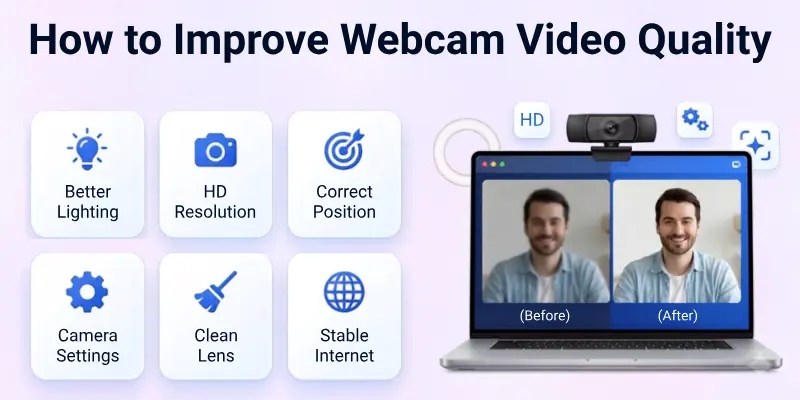
Follow the tips below to improve your webcam video quality:
1. Clean Your Webcam Lens
A dirty webcam lens is one of the most common reasons for blurry video. Dust, fingerprints, and smudges can block the camera and reduce image quality. Even a small mark on the lens can make your video look unclear.
Use a soft microfiber cloth to gently clean the lens. Do not use rough paper towels or harsh cleaning products because they can damage the lens. Make it a habit to clean your webcam before important meetings, online classes, or video recordings.
2. Improve Your Lighting
Good lighting can improve your webcam video more than almost anything else. Webcams perform best in bright and even light. If your room is dark, your camera may produce a grainy or blurry image.
Sit facing a window during the day so natural light shines on your face. If natural light is not available, use a desk lamp or a ring light. Place the light in front of you instead of behind you. Avoid sitting with a bright window or light behind your back because it can make your face look dark.
3. Place Your Webcam at Eye Level
The position of your webcam affects how you look on camera. A webcam that sits too low or too high can create an unflattering angle.
Place your webcam at eye level so it points straight at your face. If you use a laptop, place it on a laptop stand or a few books to raise the camera. This creates a more natural view and helps you maintain better eye contact during video calls.
4. Increase Camera Resolution
Higher resolution gives you a clearer and sharper video. If your webcam supports HD or Full HD, make sure you select the highest available resolution in your camera or video call settings.

Keep in mind that higher resolutions may need a faster internet connection. If your internet is slow, choose the highest setting that works smoothly.
5. Adjust Webcam Settings
Many webcams let you adjust different camera settings. Changing these settings can improve your picture without spending any money.
Here are some important settings to check:
- Brightness: Increase it if your video looks too dark.
- Contrast: Adjust it to make objects and faces stand out more clearly.
- Sharpness: Increase it slightly to improve details without making the image look unnatural.
- Saturation: Control the strength of colours. Avoid setting it too high.
- White Balance: Keep colours natural under different lighting conditions.
- Exposure: Adjust the amount of light entering the camera. Too much exposure makes the image too bright, while too little makes it too dark.
- Focus: Use autofocus if your webcam supports it. If not, adjust the focus manually until your face looks sharp.
Test each setting and make small changes until you find the best result.
6. Use a Simple Background
A clean background helps people focus on you instead of the objects behind you. A messy room can distract viewers and make your video look less professional.
Choose a plain wall or keep your background neat. If your video app offers a background blur feature, you can turn it on to hide distractions.
7. Improve Your Internet Connection
A poor internet connection can reduce your video quality even if you have a good webcam. Slow internet often causes blurry video, freezing, or pixelation during calls.
Connect your computer with an Ethernet cable if possible. If you use Wi-Fi, stay close to your router. Pause large downloads and ask other people on the network to avoid heavy internet use during important calls.
8. Close Unnecessary Programs
Running too many apps at the same time can slow down your computer. This can affect your webcam’s performance and make your video lag.
Before starting a video call, close programs you do not need. Shut down extra browser tabs, games, and background apps to free up your computer’s memory and processing power.
9. Update Webcam Drivers
Webcam drivers help your computer communicate with your camera. Old drivers may cause poor performance or lower video quality.
Check for driver updates through your operating system or the webcam manufacturer’s website. Installing the latest driver can fix bugs and improve camera performance.
10. Use Better Webcam Software
Some webcam apps include extra controls that your default camera app does not provide. These tools let you adjust brightness, focus, exposure, zoom, and other settings more easily.
If you need better control over your webcam, try software that supports your camera model and offers advanced video settings.
11. Turn On HD Video
Many video meeting apps allow you to use HD video. If this option is available, turn it on in the app settings to improve your video quality.
Keep in mind that HD video uses more internet bandwidth, so make sure your connection is stable before enabling it.
12. Sit at the Right Distance
The distance between you and the webcam affects how clear you appear. Sitting too close can make your face look distorted, while sitting too far makes it difficult for others to see you clearly.
Try to sit about an arm’s length away from the camera. This distance gives a balanced view of your face and upper body.
13. Look Into the Camera
Looking directly into the webcam creates better eye contact and makes conversations feel more natural. Many people look at their screen instead of the camera, which can make it seem like they are looking away.
Place the video window close to the webcam to make it easier to keep your eyes near the camera during calls.
14. Reduce Camera Noise in Low Light
Webcams often create grainy images in dark rooms because they try to brighten the picture. This digital noise reduces video quality.
Instead of increasing camera brightness too much, add more light to your room. Better lighting helps your webcam capture a cleaner and smoother image.
15. Upgrade to an External Webcam
If you have tried every tip and your video still looks poor, your built-in webcam may be the problem. Many laptop webcams have small sensors and limited features.
An external HD or Full HD webcam usually provides better image quality, improved colour, faster autofocus, and better low-light performance. If you attend online meetings regularly or create video content, upgrading to an external webcam can be a worthwhile investment.

Webcam Maintenance Tips
Regular webcam maintenance helps keep your camera working properly and improves video quality over time. A few simple habits can prevent blurry video, camera problems, and poor performance.
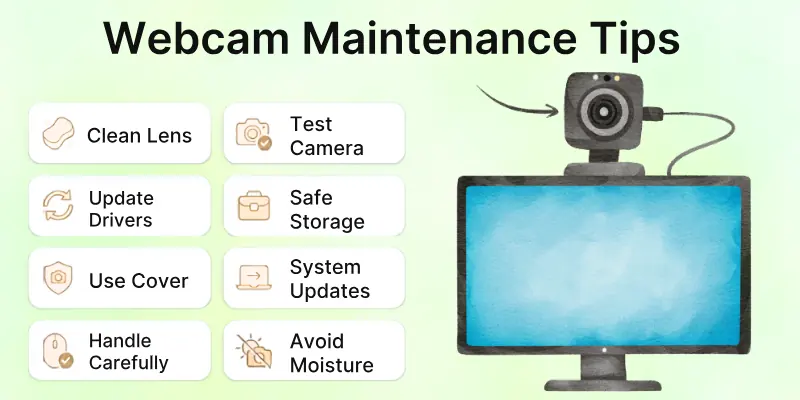
Follow these easy maintenance tips to keep your webcam in good condition:
- Clean the lens regularly: Dust, fingerprints, and smudges can make your video look blurry. Wipe the lens gently with a soft microfiber cloth before important video calls or recordings.
- Keep your webcam drivers updated: Install the latest driver updates to improve performance, fix bugs, and ensure your webcam works smoothly with your computer.
- Protect your webcam from dust: When you are not using your webcam, close the built-in privacy shutter or use a webcam cover to keep dust off the lens.
- Handle external webcams carefully: Avoid dropping or pulling the cable. Place the webcam on a stable surface to prevent damage.
- Test your webcam before meetings: Open your camera or video call app a few minutes before your meeting. This gives you time to check the video quality, lighting, and camera angle.
- Store your webcam safely: If you use an external webcam, unplug it carefully and store it in a clean, dry place when it is not in use.
- Keep your computer updated: Install the latest Windows or macOS updates to improve webcam compatibility and overall system performance.
- Avoid direct sunlight and moisture: Keep your webcam away from excessive heat, water, and humid areas to protect its internal parts and extend its lifespan.
Final Note
So guys, it’s time to conclude. In this article, we’ve covered how to improve webcam quality for videos in detail.
From my experience, the most effective steps are mastering lighting, positioning your camera correctly, and keeping the lens clean; these simple changes can instantly make your video look sharper and more professional.
Try implementing these tips today, and watch the difference for yourself. Don’t wait; start improving your webcam setup now and make every video count!
FAQs
Here are the most common questions answered with quick, beginner-friendly tips to help you get the sharpest, clearest video possible:
You can improve webcam video quality by cleaning the camera lens, using good lighting, placing the webcam at eye level, and selecting the highest available resolution. You should also update your webcam drivers, close unnecessary programs, and use a stable internet connection for better video calls.
A blurry webcam usually has one or more simple causes. Check the following:
- The webcam lens is dirty.
- The camera is out of focus.
- The resolution is set too low.
- The room does not have enough light.
- You are sitting too close or too far from the webcam.
Cleaning the lens and adjusting the camera settings often solve the problem.
Your webcam usually looks grainy because the room is too dark. When there is not enough light, the camera increases its sensitivity, which creates digital noise. Add more light by sitting near a window or using a desk lamp or ring light. This will help your webcam capture a cleaner and sharper image.
A professional-looking webcam video depends on your setup more than your camera. Use bright lighting, keep your background clean, position the webcam at eye level, and look directly into the camera while speaking.
Wear simple clothes that stand out from your background, and test your video before every meeting or recording. These small changes can make your video look much more professional.
Yes. Good lighting is one of the easiest ways to improve webcam quality.
- Sit facing a window or another light source.
- Use a ring light or LED lamp if your room is dark.
- Avoid bright light behind you.
- Make sure your face is evenly lit.
Even an average webcam can produce clear video with proper lighting.
If you often attend online meetings, teach classes, stream videos, or create content, an external webcam can be a good investment. Most external webcams offer better image quality, improved autofocus, higher resolutions, and better performance in low-light conditions than built-in laptop cameras.
However, if your current webcam only looks poor because of bad lighting or incorrect settings, try fixing those issues before buying a new one.
Yes. A slow or unstable internet connection can lower your video quality during online calls. Your video may become blurry, pixelated, or freeze if your connection is weak.
For better results, use a fast and stable internet connection. If possible, connect your computer with an Ethernet cable instead of Wi-Fi.
For most people, 1920 × 1080 (Full HD) is the best webcam resolution because it provides a clear and detailed picture. If your webcam does not support Full HD, 1280 × 720 (HD) is also a good choice for video calls and online meetings.
You can improve your webcam without spending money by making a few simple changes.
- Clean the webcam lens.
- Improve the lighting in your room.
- Use the highest camera resolution.
- Update your webcam drivers.
- Adjust brightness, contrast, and focus.
- Close unnecessary programs.
- Use a stable internet connection.
These steps can greatly improve your video quality.
Start by cleaning the built-in webcam lens and placing your laptop at eye level. Use good lighting, update your webcam drivers, and select the highest video resolution available in your camera or meeting app.
You should also close unnecessary applications to improve your laptop’s performance and ensure your internet connection is stable during video calls.



- Be Respectful
- Stay Relevant
- Stay Positive
- True Feedback
- Encourage Discussion
- Avoid Spamming
- No Fake News
- Don't Copy-Paste
- No Personal Attacks
- Be Respectful
- Stay Relevant
- Stay Positive
- True Feedback
- Encourage Discussion
- Avoid Spamming
- No Fake News
- Don't Copy-Paste
- No Personal Attacks









