
How to Change Keyboard Layout in Windows Step by Step in 2026
Have you ever typed on your keyboard and seen the wrong letters or symbols appear? This usually happens when the wrong keyboard layout is selected.
A keyboard layout controls how your keyboard types letters, numbers, and special characters. Different countries and languages use different layouts.
Many people change their keyboard layout to type in another language, match a new keyboard, or fix typing problems.
In this guide, you will learn how to change your keyboard layout on different devices, switch between layouts, and solve common keyboard layout issues.
How to Change Keyboard Layout on Windows 11
Changing the keyboard layout on Windows 11 is simple. You can add a new layout or switch to a different one in just a few steps.
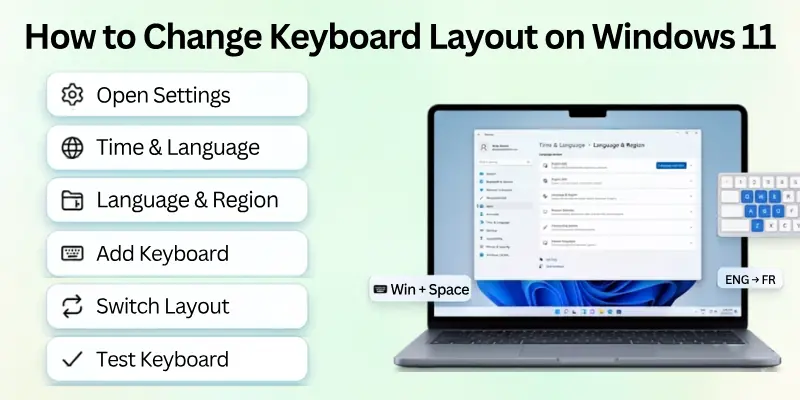
Steps to Change Keyboard Layout
Step 1: Open Settings
Click the Start button and open Settings. You can also press Windows + I to open it quickly.
Step 2: Go to Time & Language
In the left menu, click Time & Language.
Step 3: Open Language & Region
Select Language & Region. Here, you will see the languages installed on your computer.
Step 4: Add a New Keyboard Layout
Find your preferred language and click the three dots next to it. Select Language options, then click Add a keyboard. Choose the keyboard layout you want from the list.
Step 5: Switch Between Keyboard Layouts
After adding the layout, you can switch between keyboard layouts at any time. Click the language icon on the taskbar or press Windows + Spacebar to choose the layout you want.
Step 6: Test Your Keyboard
Open any text editor, such as Notepad, and type a few words. Make sure the keys and symbols work as expected. If they do, your new keyboard layout is ready to use.
How to Change the Keyboard Layout on Windows 10
Changing the keyboard layout on Windows 10 is easy. Follow these simple steps to add or switch to a different keyboard layout.
Step 1: Open Settings
Click the Start button and select Settings. You can also press Windows + I to open it quickly.
Step 2: Go to Time & Language
Click Time & Language, then select Language from the left menu.
Step 3: Choose Your Language
Under Preferred languages, click the language you want to use, then select Options.
Step 4: Add a Keyboard Layout
In the Keyboards section, click Add a keyboard. Choose the keyboard layout you want from the list.
Step 5: Switch Between Keyboard Layouts
To change your keyboard layout, click the language icon on the taskbar or press Windows + Spacebar. Select the layout you want to use.
Step 6: Check the New Layout
Open a text editor and type a few words to make sure the new keyboard layout works correctly.
How to Add a New Keyboard Layout
Adding a new keyboard layout lets you type in different languages or use a different key arrangement without changing your current language.
On Windows 11
- Open Settings.
- Go to Time & Language > Language & Region.
- Click the three dots next to your language and select Language options.
- Under Keyboards, click Add a keyboard.
- Choose the keyboard layout you want.
On Windows 10
- Open Settings.
- Go to Time & Language > Language.
- Select your preferred language and click Options.
- Under Keyboards, click Add a keyboard.
- Select the layout you want to add.
Once added, you can switch between keyboard layouts by pressing Windows + Spacebar or by clicking the language icon on the taskbar.

How to Remove a Keyboard Layout
If you no longer use a keyboard layout, you can remove it to keep your settings clean and avoid switching to it by mistake.
On Windows 11
- Open Settings.
- Go to Time & Language > Language & Region.
- Click the three dots next to your language and choose Language options.
- Under Keyboards, find the layout you want to remove.
- Click Remove next to that layout.
On Windows 10
- Open Settings.
- Go to Time & Language > Language.
- Select your language and click Options.
- Under Keyboards, choose the layout you want to remove.
- Click Remove.
After removing the layout, it will no longer appear when you switch between keyboard layouts.
How to Set a Default Keyboard Layout
If you use more than one keyboard layout, you can set one as the default. This helps your computer use the same layout every time you sign in or start typing.
On Windows 11
- Open Settings.
- Go to Time & Language > Typing.
- Click Advanced keyboard settings.
- Under Override for default input method, choose your preferred keyboard layout from the drop-down menu.
- Close the Settings window. Your selected layout will now be the default.
On Windows 10
- Open Settings.
- Go to Time & Language > Typing.
- Click Advanced keyboard settings.
- Under Override for default input method, select the keyboard layout you want to use by default.
- Your changes will be saved automatically.
Tip: If your keyboard layout keeps changing, remove any layouts you do not use. This helps prevent accidental switching and keeps your preferred layout as the default.

How to Change a Keyboard Layout on Mac
You can change the keyboard layout on your Mac by adding a new input source and switching to it whenever you need:
Step 1: Open System Settings: Click the Apple menu and select System Settings.
Step 2: Go to Keyboard Settings: Click Keyboard, then select Input Sources.
Step 3: Add a Keyboard Layout: Click the Add (+) button, choose your language, and select the keyboard layout you want. Then click Add.
Step 4: Switch Keyboard Layouts: Click the Input menu in the menu bar or press Control + Space to switch between keyboard layouts.
How to Change Keyboard Layout on Android
Most Android phones let you change the keyboard layout through your keyboard app, such as Gboard or Samsung Keyboard:
Step 1: Open Settings: Go to Settings on your Android phone.
Step 2: Open Keyboard Settings: Tap System or General Management, then select Languages & input or Keyboard list and default.
Step 3: Choose Your Keyboard: Tap your keyboard app, such as Gboard or Samsung Keyboard.
Step 4: Change the Keyboard Layout: Open Languages or Keyboard layout, then select the layout you want to use.
Step 5: Start Typing: Open any app and test the new keyboard layout.
How to Change Keyboard Layout on iPhone and iPad
You can add multiple keyboard layouts on your iPhone or iPad and switch between them while typing:
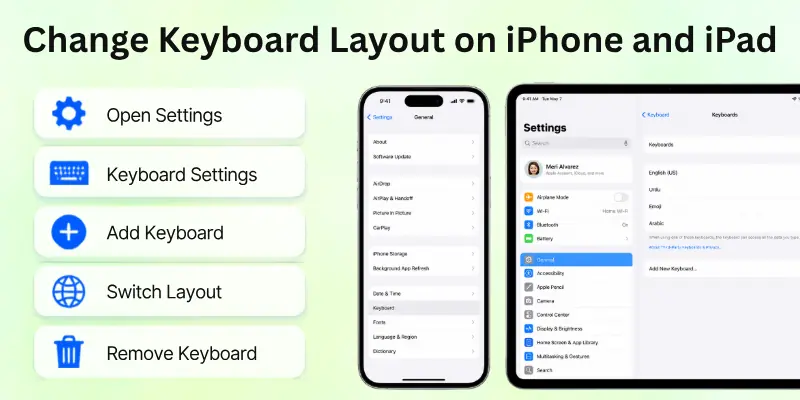
Step 1: Open Settings: Go to Settings and tap General.
Step 2: Open Keyboard Settings: Tap Keyboard, then tap Keyboards.
Step 3: Add a New Keyboard: Tap Add New Keyboard and choose the keyboard layout or language you want.
Step 4: Switch Between Keyboard Layouts: Open the keyboard in any app. Tap the Globe icon to switch between your installed keyboard layouts.
Step 5: Remove an Unused Keyboard (Optional): Go back to Keyboards, tap Edit, and remove any keyboard layouts you no longer need. This makes switching between layouts easier.
Tips for Using Multiple Keyboard Layouts
Using more than one keyboard layout can make typing easier, but it also helps to keep your settings organized. Here are some simple tips:
- Keep only the layouts you use. Remove unused layouts to avoid switching to them by mistake.
- Use keyboard shortcuts. Press Windows + Spacebar on Windows or Control + Space on Mac to switch layouts quickly.
- Check the language icon. Before you start typing, make sure the correct keyboard layout is selected.
- Set a default layout. Choose the keyboard layout you use most often so it loads automatically.
- Test the layout after switching. Type a few words to make sure the keys work as expected.
- Use clear names for each layout. This makes it easier to choose the right one when you have multiple layouts installed.
These simple tips can help you switch between keyboard layouts faster and avoid typing mistakes.
Final Words
So guys, it’s time to wrap up. In this article, we’ve covered how to change a keyboard layout in Windows in detail.
From my experience, using Windows key + Spacebar is the fastest way to switch between layouts, especially if you type in multiple languages regularly.
Try adding your most-used layouts today and see how much easier typing becomes. Don’t wait, set up your preferred keyboard layouts now and enjoy smoother typing every day!
Helpful FAQs
Here’s everything you need to know about switching keyboard layouts in Windows:
The fastest way to change your keyboard layout is by using a keyboard shortcut. On Windows, press Windows + Spacebar to switch between installed layouts. On a Mac, press Control + Space. You can also click the language or keyboard icon on the taskbar or menu bar and choose the layout you want.
This usually happens when the wrong keyboard layout is selected. For example, some keys may type different symbols because your computer is using a UK layout instead of a US layout.
To fix the problem:
- Check your current keyboard layout.
- Switch to the correct layout.
- Remove any layouts you do not use.
- Restart your computer if the problem continues.
Your keyboard layout may change if you press a keyboard shortcut by accident or install a new language. Some updates or apps can also add another keyboard layout.
Check your keyboard settings and remove any layouts you do not need. You can also set your preferred layout as the default to stop unwanted changes.
Yes. Most computers and mobile devices let you install and use multiple keyboard layouts. You can switch between them whenever you need to type in a different language or use a different key arrangement.
You can switch between keyboard layouts in several ways:
- Press Windows + Spacebar on Windows.
- Press Control + Space on Mac.
- Click the language or keyboard icon on your screen.
- Select the keyboard layout you want to use.
If you no longer need a keyboard layout, open your device’s keyboard or language settings. Find the layout you want to remove and click or tap Remove. After that, it will no longer appear when you switch between keyboard layouts.
A keyboard language changes the language you use for typing and text suggestions. A keyboard layout changes the position of letters, numbers, and symbols on the keyboard.
For example, you can use the English language with either a US keyboard layout or a UK keyboard layout.
Yes, you can create a custom keyboard layout using special software. This lets you change the position of keys or add your own shortcuts.
Most users do not need a custom layout because the built-in keyboard layouts work well for everyday typing.
There is no single keyboard layout that is best for everyone.
- QWERTY is the most common and works well for most users.
- Dvorak is designed for faster and more comfortable typing.
- Colemak is a popular choice for people who want better typing efficiency with fewer key changes.
Choose the layout that matches your typing needs and feels the most comfortable.
If you want to go back to your original keyboard layout, open your keyboard settings and select your preferred layout as the default. You can also remove any extra layouts you no longer use.
After making the changes, restart your computer if needed to make sure the default keyboard layout stays active.



- Be Respectful
- Stay Relevant
- Stay Positive
- True Feedback
- Encourage Discussion
- Avoid Spamming
- No Fake News
- Don't Copy-Paste
- No Personal Attacks
- Be Respectful
- Stay Relevant
- Stay Positive
- True Feedback
- Encourage Discussion
- Avoid Spamming
- No Fake News
- Don't Copy-Paste
- No Personal Attacks









