
How to Fix Webcam Problems: Step‑by‑Step Guide in 2026
Webcams are essential tools for video calls, online classes, streaming, and remote work. But when your webcam stops working, it throws a wrench in your plans.
Whether your camera refuses to turn on, shows a blurry image, or isn’t recognized by your computer, you’re not alone. These problems happen to everyone, and most are easier to fix than you think.
In this friendly, detailed guide, you’ll learn how to fix webcam problems in detail. No tech jargon. No guessing. Just clear, actionable advice.
Let’s begin.
How Webcams Work (Quick Overview)
Before we dive into fixes, it helps to understand your webcam at a basic level. A webcam is simply a camera device that connects to your computer.
It can be:
- Built‑in, like on a laptop screen
- External, connected by USB
Webcams rely on your operating system (Windows or macOS), device drivers (software that talks to the camera), proper app permissions, and the apps you use (like Zoom or Teams).
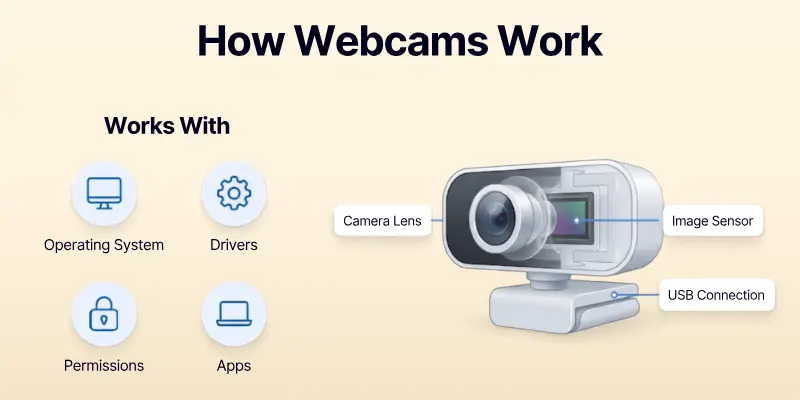
Common issues happen when software settings block the camera, drivers go missing or are outdated, or hardware connections fail.
Now let’s fix it.
Simple Checks Before You Start
Before you dig into complex solutions, try these basic steps first; they fix most webcam problems instantly.
1. Make sure the camera is powered on or connected
- If you’re using an external webcam, check that the USB plug is secure.
- Try a different USB port.
- If your webcam has a power light, make sure it’s on.
2. Check for physical privacy covers
Many laptops and webcams now have built‑in privacy shutters or covers.
- Slide the cover open if it’s closed.
- Sometimes people accidentally leave it closed!
3. Restart Your Computer
A simple restart often resolves temporary glitches.
- Save your work.
- Shut down completely.
- Turn the computer back on.
This clears temporary errors and reloads hardware drivers.
Check Camera Access in Your Operating System
Webcams won’t work if the system is blocking access. Let’s check permissions.
On Windows
- Open Settings
- Go to Privacy & security
- Click Camera
- Make sure Camera access is ON
- Scroll down and make sure the apps you use (Zoom, Teams, browser) have camera permission
If the toggle is OFF, apps can’t use your webcam at all.
On Mac
- Open System Settings
- Go to Privacy & Security
- Select Camera
- Make sure your apps are allowed access
If your video app is unchecked, your webcam will stay dark.
Test Your Webcam in Simple Apps
It’s helpful to know whether the problem is system‑wide or specific to one application.
Try opening:
- Windows: Camera app
- Mac: Photo Booth
- A browser: sites that use video (like test webcam websites)
If your webcam works here, it’s likely a settings issue in a specific app (Zoom, Teams, Google Meet, etc.).

Update or Reinstall Webcam Drivers
Drivers are the software that lets your system talk to your webcam. If they’re outdated or corrupted, your camera may not function.
On Windows (Step‑by‑Step)
- Press Windows + X
- Open Device Manager
- Expand Cameras or Imaging Devices
- Right‑click your webcam device
- Select Update driver: Choose Search automatically for drivers
- If that doesn’t help, choose Uninstall device: Restart your system — Windows will reinstall the driver
Updating drivers often fixes crashing, freezing, or detection issues.
On Mac
macOS updates its drivers through system updates.
- Open System Settings
- Go to General → Software Update
- Install any available updates
How to Fix Webcam Problems in Google Chrome
If your webcam does not work in Google Chrome, try these simple steps:
1. Check Camera Permission
- Open Chrome Settings.
- Go to Privacy and Security > Site Settings > Camera.
- Make sure camera access is allowed.
- Select the correct webcam if you have more than one.
2. Allow Camera Access for the Website
- Open the website where you want to use your webcam.
- Click the lock icon next to the website address.
- Find Camera and choose Allow.
- Refresh the page and try again.
3. Close Other Apps Using the Webcam
- Close apps like Zoom, Microsoft Teams, Skype, or Discord.
- Reopen Chrome and test the webcam again.
4. Restart Google Chrome
- Close all Chrome windows.
- Open Chrome again.
- Check if the webcam is working.
5. Clear Chrome Cache
- Open Chrome Settings.
- Go to Privacy and Security > Delete Browsing Data.
- Clear the cache and cookies.
- Restart Chrome and test the camera.
6. Update Google Chrome
- Open Chrome Settings > About Chrome.
- Install any available updates.
- Restart the browser after the update.
7. Restart Your Computer
- Restart your computer to clear temporary issues.
- Open Chrome and test your webcam again.
8. Test the Webcam
- Open the Camera app on your computer to make sure the webcam works.
- If it works there, the problem is likely with Chrome or the website settings.
Advanced Webcam Troubleshooting
If simple fixes don’t work, try these next.
Run Built‑In Troubleshooters (Windows)
Windows has a camera troubleshooter that can help:
- Open Settings
- Go to System → Troubleshoot
- Select Other troubleshooters
- Run the Camera troubleshooter
This tool detects common permission or driver errors.
Update Your Operating System
System updates can include bug fixes and driver improvements.
- On Windows: Settings → Windows Update
- On Mac: System Settings → General → Software Update
Install updates and restart.
Check BIOS/UEFI Settings
Sometimes the webcam is disabled at the motherboard level.
- Restart your computer
- Press the key to enter BIOS/UEFI (common keys: F2, DEL, ESC)
- Look for Internal Devices or similar
- Make sure the camera is enabled
Be careful changing firmware settings. Only change what you understand.
Fix Specific Webcam Problems
Here are solutions for common problem patterns.
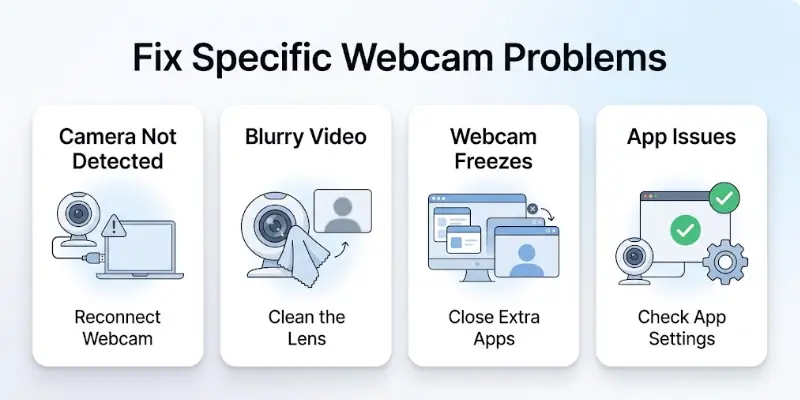
Camera not detected at all:
Try these:
- Unplug and replug external webcams
- Use a different USB port
- Try the webcam on another computer
- Update drivers
- Enable the camera in privacy settings
If another device doesn’t detect it either, the webcam may be faulty.
Video is blurry, dark, or of poor quality:
Poor video quality usually comes down to:
- Dirty lens: Wipe gently with a soft cloth
- Low light: Add more light to your face
- Camera settings: Lower quality in app settings can reduce clarity
- Bandwidth issues: Slow internet affects video quality
Try another lighting arrangement, and make sure nothing is blocking the lens.
Webcam freezes or lags
Freezing often means:
- Too many apps are running
- Your system is low on resources
- USB bandwidth issues
Try these:
- Close unused programs
- Use a different USB port
- Reduce video resolution in settings (e.g., 720p instead of 1080p)
Webcam works in one app but not others
This usually means the issue is app‑specific.
To fix:
- Check camera settings inside the app (Zoom, Teams, etc.)
- Give the app permission to use the camera
- Update or reinstall the app
In video conferencing apps, look for video settings menus and make sure your webcam is selected.

Tips for Best Webcam Performance
Once your webcam works, you can make your video look even better.
- Improve Lighting: Face a window or light source, avoid bright light behind you, use a desk lamp if needed
- Adjust Camera Angle: Your webcam should be at eye level for the best look. Stack books or use a stand if needed.
- Clean the Lens: A smudge on the lens makes your video look hazy. Use a soft cloth and gently wipe.
- Close Unnecessary Apps: Free up memory so your camera runs more smoothly.
When to Seek Professional Help
Sometimes the issue isn’t software.
Possible Hardware Problems
- Built‑in camera disconnected internally (laptop fall or damage)
- USB port failure
- Defective webcam
If you suspect hardware damage:
- Try the webcam on another device (for external cameras)
- Visit a repair shop
- Contact the manufacturer support if the device is under warranty
Hardware issues need physical inspection.
Final Words
In this article, we’ve covered how to fix webcam problems in detail. From checking connections and permissions to updating drivers and adjusting settings, these steps solve most common webcam issues.
Personally, I recommend starting with simple fixes like cleaning the lens and testing in a basic camera app before diving into advanced troubleshooting.
Don’t wait, apply these tips today and get your webcam running smoothly again!
Common FAQs
Here are some common questions people have about how to fix webcam problems, with quick, beginner-friendly answers to help you troubleshoot faster:
If your webcam isn’t working on Windows 10, check that it’s connected properly and the privacy settings allow access. Open Device Manager to see if the camera driver is installed and updated. Restart your PC and try a simple camera app to see if it works.
Blurry webcam video usually happens because of a dirty lens, poor lighting, or incorrect camera settings. Clean the lens gently with a soft cloth and face a light source while recording. You can also adjust the resolution in your webcam app to improve clarity.
If your laptop webcam isn’t detected, first check Device Manager (Windows) or System Settings (Mac) for missing drivers. Ensure your camera is enabled in privacy settings and BIOS/UEFI if needed. Restart your laptop and test in a basic camera app to confirm it’s working.
Webcam freezing usually occurs due to heavy background apps, low system resources, or USB bandwidth issues. Close unused programs, reduce video resolution, and try a different USB port if using an external webcam. Good internet speed also helps prevent lag during video calls.
Yes, many webcam problems can be solved without installing software by checking connections, privacy settings, and restarting your device. You can also test in a default camera app to identify the issue. Cleaning the lens and adjusting the lighting often improves video quality instantly.
For Zoom or Teams, first make sure the app has camera permission in system settings. Check that no other apps are using the webcam, and select the correct camera in the app’s video settings. Updating the app and your webcam driver usually fixes most problems.
You can reset your webcam by following these steps:
- Restart your computer.
- Unplug and reconnect the webcam if it is external.
- Open your camera settings and reset them to the default.
- Update or reinstall the webcam driver.
- Test the webcam in the Camera app to check if it works.
A black webcam screen can happen for several reasons:
- The camera permission is turned off.
- Another app is using the webcam.
- The privacy shutter is closed.
- The webcam driver is outdated or damaged.
- The webcam is not connected properly.
Yes, some antivirus programs can block webcam access for security.
- Open your antivirus settings.
- Check the webcam or privacy protection section.
- Allow trusted apps to use the webcam.
- Restart the app after changing the settings.
- Test the webcam again to see if it works.
You can test your webcam in a few simple ways:
- Open the Camera app on Windows.
- Open Photo Booth on a Mac.
- Join a video call and check the camera preview.
- Use a trusted online webcam test website.
- Make sure the correct webcam is selected in the app.
A dark webcam image is usually caused by lighting or camera settings.
- Add more light in front of your face.
- Avoid sitting with a bright light behind you.
- Clean the webcam lens with a soft cloth.
- Increase the brightness in the webcam settings.
- Move to a brighter room if possible.
Webcam lag usually happens because your computer or internet is under heavy load.
- Close apps running in the background.
- Restart your computer.
- Lower the webcam resolution if needed.
- Use a faster internet connection for video calls.
- Update the webcam driver and your operating system.


- Be Respectful
- Stay Relevant
- Stay Positive
- True Feedback
- Encourage Discussion
- Avoid Spamming
- No Fake News
- Don't Copy-Paste
- No Personal Attacks
- Be Respectful
- Stay Relevant
- Stay Positive
- True Feedback
- Encourage Discussion
- Avoid Spamming
- No Fake News
- Don't Copy-Paste
- No Personal Attacks









