
Keyboard Layout: Complete Guide for Typing Faster and Smarter
Have you ever looked at your keyboard and wondered why the keys are in that order? That order is called a keyboard layout.
A keyboard layout is how letters, numbers, and symbols are arranged on your keyboard. It might seem simple, but it affects how fast, comfortably, and accurately you type.
In this guide, you will learn everything about what is keyboard layouts in a simple, easy-to-understand way, from history to modern trends and tips for learning a new layout.
What is a Keyboard Layout?
A computer keyboard layout is the arrangement of letters, numbers, and symbols on a keyboard. Each layout has a purpose and affects how you type.
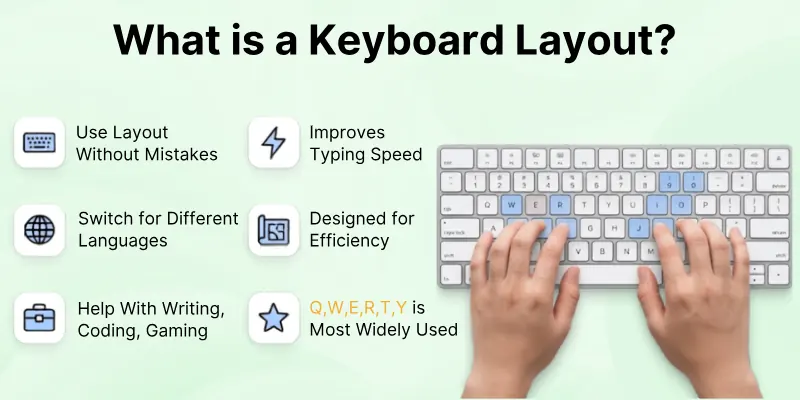
- Type: Use the layout to type letters, numbers, and symbols without mistakes.
- Learn: Repeating the same layout improves your typing speed.
- Change: Switch layouts when typing in a different language or for special tasks.
- Design: Layouts are designed to make typing easier and more efficient.
- Use: Some layouts help with writing, coding, or gaming.
- Common: QWERTY is the most widely used and recognized layout.
History of Keyboard Layouts
Keyboard layouts have evolved to improve typing and prevent typewriter jams.
- 1874: QWERTY: Christopher Scholes created it to stop typewriter keys from jamming.
- 1878: Remington No.2: Added the Shift key.
- 1961: IBM Selectric: Made typing smoother with a new typewriter design.
- 1985: IBM Model M: Modern computer keyboard design.
- Today, People still use QWERTY, but alternatives like Dvorak and Colemak exist. Computers make it easy to switch layouts with software.

Common Types of Keyboard Layouts
There are many keyboard layouts in the world. Each one has its own use. Let’s look at the most popular ones.
- QWERTY
- AZERTY
- QWERTZ
- Dvorak
- Colemak
- JCUKEN
Let’s explore one by one in detail.
1. QWERTY
QWERTY is the keyboard layout most people recognize. It was originally designed for typewriters and has become the standard on computers around the world.
Even today, it remains the default layout taught in schools and used in offices.
- Popularity: Most widely used worldwide.
- Familiarity: Taught in schools and used in offices.
- History: Made in 1874 to prevent jams in typewriters.
- Drawback: Slows typing slightly to reduce errors, but is very familiar.
2. AZERTY
AZERTY is mainly used in France and Belgium. It looks similar to QWERTY but swaps a few keys to match the French language.
This layout also makes it easier to type accents and special characters used in French writing.
- Used in: France and Belgium.
- Difference from QWERTY: Swaps A ↔ Q and Z ↔ W.
- Feature: Includes keys for French accents.
- Benefit: Makes typing French words faster.
3. QWERTZ
QWERTZ is popular in Germany and other Central European countries. It’s designed to fit German words better, making typing more natural.
Special letters like ü, ä, and ö are included directly on the keyboard.
- Used in: Germany, Austria, Switzerland.
- Difference: Y and Z keys are switched.
- Feature: Supports letters like ü, ä, and ö.
- Benefit: Fits German language typing better.
4. Dvorak
Dvorak was created to improve typing speed and reduce finger movement. It places the most commonly used letters on the home row, allowing hands to stay in a more comfortable position.
Learning it requires practice, but it can boost efficiency.
- Purpose: Faster typing with less hand movement.
- Feature: Most common letters are on the home row.
- Benefit: Increases speed, reduces finger fatigue.
- Drawback: Needs practice to relearn; rare today.
5. Colemak
Colemak is a modern layout designed for both comfort and speed. It keeps many QWERTY keys in place but adjusts others to reduce finger strain. It’s easier to learn than Dvorak, making it a popular choice for those wanting to switch layouts.
- Purpose: Modern alternative for speed and comfort.
- Feature: Keeps many QWERTY keys, moves others for efficiency.
- Benefit: Easy to learn compared to Dvorak, reduces finger strain.
- Popularity: Growing among typing enthusiasts.
6. JCUKEN
JCUKEN is designed for the Russian language and uses the Cyrillic alphabet. It allows native speakers to type efficiently without relying on the Latin QWERTY layout. The key placement matches Russian phonetics and common words.
- Used in: Russia and surrounding countries.
- Feature: Designed for Cyrillic letters.
- Benefit: Allows typing Russian naturally without using English keys.
Ergonomic Keyboard Layouts
Some keyboards are designed to reduce strain and make typing more comfortable, especially for people who type for long hours.
These layouts help prevent fatigue, wrist pain, and repetitive stress injuries.
- Split keyboards: These separate the left and right halves, allowing your hands to rest in a more natural position.
- Tented keyboards: The centre of the keyboard is slightly raised, reducing wrist angle and tension.
- Low-force layouts: Keys require less pressure to register, which helps decrease finger and hand fatigue over long typing sessions.
Keyboard Layouts for Special Tasks
Certain layouts are created for specific tasks, making typing faster and more efficient for specialized needs.
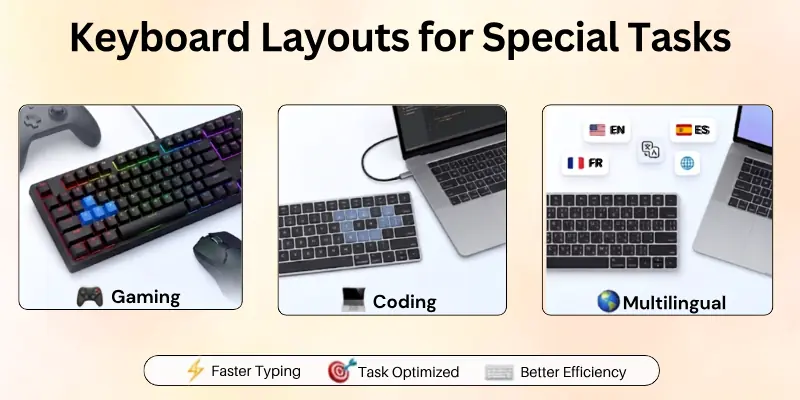
Whether you are gaming, coding, or typing in multiple languages, these layouts can help.
- Gaming: Programmable keys and optimized layouts allow quicker actions and better in-game performance.
- Coding: Special layouts place symbols like { }; < > within easy reach, reducing keystrokes for programmers.
- Multilingual typing: Switching layouts allows seamless typing in multiple languages without constantly copying and pasting characters.

Tips to Learn a New Keyboard Layout
Switching to a new keyboard layout can seem tricky at first, but with the right approach, you can learn quickly and comfortably.
Here are some practical tips to get started:
- Practice daily: Even just 10–15 minutes of focused typing each day will build muscle memory over time.
- Use typing software: Tools like TypingClub, Keybr, or online games can help you practice layouts efficiently.
- Start gradually: Begin by typing emails, notes, or short documents in the new layout before using it for longer work sessions.
- Be patient: Learning a new layout takes time. Don’t rush; speed and accuracy will improve steadily.
- Combine layouts if needed: Some people keep their old layout for work but practice the new one during study or personal typing sessions.
Pros and Cons of Different Keyboard Layouts
Here’s a quick overview of the most common keyboard layouts, their advantages, and drawbacks.
This makes it easier to choose the layout that suits your needs:
| Layout | Best For | Pros | Cons |
| QWERTY | General typing | Familiar, widely taught, easy to start | Slower typing speed than alternatives |
| Dvorak | Speed & comfort | Less finger movement reduces fatigue | Requires relearning; rare to find on standard keyboards |
| Colemak | Speed & ergonomics | Easier transition from QWERTY, reduces finger strain | Less common; limited support on some devices |
| AZERTY | French typing | Easy access to accents, good for French words | Confusing for non-French users, less standard worldwide |
| QWERTZ | German typing | Supports German characters (ü, ä, ö), fits German words | Not familiar to most international users |
| JCUKEN | Russian typing | Full Cyrillic support, matches Russian sounds | Very different from QWERTY; not intuitive for English users |
Final Words
So friends, it’s time to bring this guide to a close. In this article, we’ve explored keyboard layouts in depth. I personally suggest trying a layout that matches your typing habits—QWERTY for general use or an ergonomic option like Colemak for comfort.
Experiment, practice daily, and notice how your typing speed and accuracy improve. Finding the right layout can make a big difference in your productivity.
Start today, explore your options, and choose the layout that feels easiest and most effective for you.
Common FAQs
Have questions? We’ve answered the most frequently asked questions about keyboard layouts:
Keyboard layout meaning is the arrangement of letters, numbers, symbols, and special keys on a keyboard. It decides where each character appears and affects your typing speed, accuracy, and comfort. The right layout can make daily tasks like writing, coding, gaming, and multilingual typing easier.
You can change your keyboard layout through your device settings without buying a new keyboard.
On Windows:
- Open Settings
- Go to Time & Language
- Select Language & Region
- Add or choose your preferred keyboard layout
On Mac:
- Open System Settings
- Go to Keyboard
- Select Input Sources
- Add your desired layout
After adding a new layout, you can quickly switch between layouts using keyboard shortcuts.
The best keyboard layout for speed depends on your typing habits and practice. While QWERTY is the most common layout, alternatives like Dvorak and Colemak are designed to reduce finger movement and improve typing efficiency.
Some popular choices include:
- QWERTY: Best for general users because it is familiar and widely supported.
- Dvorak: Designed for faster typing with less finger movement.
- Colemak: A modern option that balances speed, comfort, and easy learning.
Yes, modern computers and smartphones allow you to add multiple keyboard layouts. This feature is useful for people who type in different languages or work with international content.
For example, you can switch between:
- English QWERTY for everyday typing
- AZERTY for French typing
- QWERTY for German typing
- JCUKEN for Russian typing
You can change layouts anytime through your device settings.
Ergonomic keyboard layouts can improve comfort by reducing unnecessary hand movement and keeping your wrists in a more natural position. They are especially helpful for writers, developers, students, and office workers who type for many hours.
Benefits of ergonomic layouts include:
- Reduced wrist and finger strain
- More comfortable typing position
- Less unnecessary movement
- Better long-term typing comfort
Learning a new keyboard layout requires regular practice and patience. The time depends on your typing experience, practice routine, and how different the new layout is from your current one.
To learn faster:
- Practice for 10–15 minutes daily.
- Focus on accuracy before speed.
- Start with short messages and notes.
- Use typing practice tools and online exercises.
- Slowly increase your typing workload.
QWERTY remains the most popular keyboard layout because it is familiar, easy to find, and supported by almost every device. However, it was not designed specifically for maximum typing speed or comfort.
QWERTY is a good choice for:
- Everyday computer users
- Students
- Office workers
- People who use multiple devices
Users who want more efficiency may explore alternatives like Colemak or Dvorak.
These layouts are designed for different languages and regions.
- QWERTY: Commonly used in English-speaking countries.
- AZERTY: Mainly used in France and Belgium for French typing.
- QWERTZ: Popular in Germany and Central Europe for German language support.
The main differences are key positions and easier access to language-specific characters.
Yes, changing your keyboard layout can improve comfort by reducing finger movement and making frequently used keys easier to reach. Layouts like Dvorak and Colemak place common letters in more accessible positions.
However, comfort improvements depend on:
- Your typing style
- Practice time
- Daily typing habits
- Personal preference
Switching layouts is a personal choice. If QWERTY works well for you, there may be no need to change. However, trying another layout can be helpful if you want better comfort, faster typing, or reduced finger movement.
Before switching:
- Test different layouts first.
- Practice regularly.
- Give yourself time to adjust.
- Choose a layout based on your typing needs.
A suitable keyboard layout can make typing more comfortable, efficient, and enjoyable.


- Be Respectful
- Stay Relevant
- Stay Positive
- True Feedback
- Encourage Discussion
- Avoid Spamming
- No Fake News
- Don't Copy-Paste
- No Personal Attacks
- Be Respectful
- Stay Relevant
- Stay Positive
- True Feedback
- Encourage Discussion
- Avoid Spamming
- No Fake News
- Don't Copy-Paste
- No Personal Attacks









