
How to Adjust Microphone Sensitivity in 2026
A clear microphone helps people hear your voice without problems. If your microphone is too sensitive, it can pick up keyboard clicks, fans, and other background noises. If it is not sensitive enough, your voice may sound too quiet or unclear.
Learning how to adjust microphone sensitivity helps you improve sound quality for video calls, online meetings, gaming, streaming, podcasts, and voice recordings. The right settings make your voice louder, clearer, and easier to understand without adding unwanted noise.
This guide explains what microphone sensitivity is, why it matters, and how to adjust it on Windows, Mac, Android, iPhone, USB microphones, Bluetooth microphones, and popular communication apps. You will also learn how to test your microphone and fix common microphone problems.
What Is Microphone Sensitivity?
Microphone sensitivity is how easily a microphone picks up sound. It controls how much sound your microphone captures from your voice and the area around you.
A microphone with high sensitivity picks up quiet sounds. It can also record unwanted sounds like keyboard clicks, fan noise, or people talking nearby.
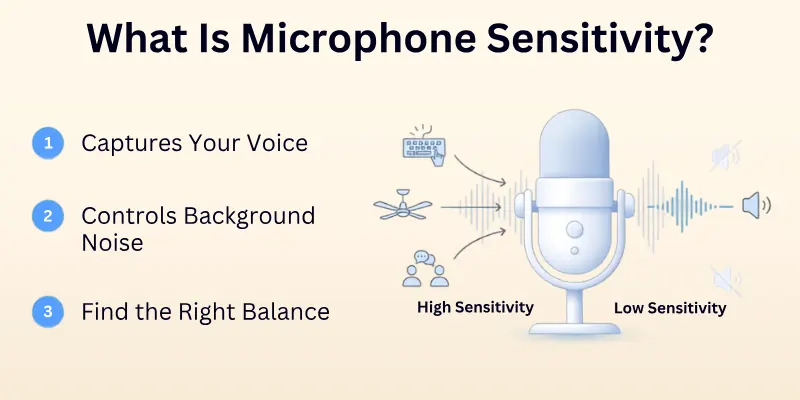
A microphone with low sensitivity mainly records louder sounds. It reduces background noise, but your voice may sound too quiet if you stand too far from the microphone.
The best microphone sensitivity depends on your room, your microphone, and how you use it.
Example:
Imagine you are talking during an online meeting.
- If the sensitivity is too high, everyone may hear your keyboard and ceiling fan.
- If the sensitivity is too low, people may struggle to hear your voice.
- The right sensitivity lets others hear your voice clearly while reducing background noise.
Why Should You Adjust Microphone Sensitivity?
Changing the microphone sensitivity can improve your audio in many situations. The correct setting helps your microphone focus on your voice instead of unwanted sounds.
You should adjust your microphone sensitivity if:
- Your voice sounds too quiet.
- Your microphone sounds too loud.
- Your recordings have too much background noise.
- People ask you to repeat yourself during calls.
- Your voice sounds distorted or clipped.
- You want better audio for gaming or live streaming.
- You record podcasts or videos.
- You attend online meetings every day.
Even a small adjustment can make a big difference in how your microphone sounds.
Things to Check Before Adjusting Microphone Sensitivity
Before you change your microphone settings, make sure the problem is not caused by something else. These quick checks can save time and help you avoid unnecessary changes.
- Check the Microphone Connection: Make sure your microphone is connected properly. If you use a USB microphone, unplug it and connect it again. If you use a 3.5 mm microphone, check that it is fully plugged into the correct audio port.
- Select the Correct Microphone: Many computers have more than one microphone. For example, your laptop may use its built-in microphone instead of your USB headset. Open your sound settings and make sure the correct microphone is selected.
- Restart Your Device: A simple restart can fix temporary software problems that affect microphone performance.
- Update Audio Drivers: Outdated audio drivers may cause microphone problems. Install the latest drivers from your computer manufacturer or sound card manufacturer.
- Clean the Microphone: Dust and dirt can block the microphone and make your voice sound weak or muffled. Gently clean the microphone opening with a soft, dry cloth.
- Close Other Apps: Some apps can take control of your microphone. Close any apps that are using the microphone before changing its settings.
- Test the Microphone: Record a short voice clip or use your device’s microphone test. This helps you know whether the problem is caused by microphone sensitivity or something else.
How to Adjust Mic Sensitivity on Windows 11
Windows 11 makes it easy to change your microphone sensitivity. You can adjust the input volume to make your voice louder or quieter. If your microphone supports it, you can also use Microphone Boost to increase its input level.
Method 1: Adjust the Input Volume
Follow these steps:
- Click the Start button and open Settings.
- Select System from the left menu.
- Click Sound.
- Scroll down to the Input section.
- Choose the microphone you want to use.
- Find the Input Volume slider.
- Move the slider: Move it right to make your microphone more sensitive. Move it left to reduce microphone sensitivity.
- Speak into the microphone while watching the input level.
- Stop when your voice sounds clear without distortion.
Tip: Start with the volume between 70% and 85%. Test your microphone before increasing it further.
Method 2: Use Microphone Boost (If Available)
Some microphones include a Microphone Boost option. This feature increases the microphone’s input level.
Follow these steps:
- Open Settings.
- Go to System > Sound.
- Under Input, select your microphone.
- Click More Sound Settings or Additional Sound Settings.
- Open the Recording tab.
- Right-click your microphone and choose Properties.
- Open the Levels tab.
- Increase Microphone Boost a little at a time.
- Click Apply, then OK.
- Test your microphone after every change.
Tip: Do not set Microphone Boost to the highest level. Too much boost can add background noise and make your voice sound distorted.

If You Cannot Find Microphone Boost
Some USB microphones and newer sound drivers do not include the Microphone Boost option.
If you do not see it:
- Increase the Input Volume instead.
- Check whether your microphone has its own gain control.
- Install the latest audio driver.
- Use the software that came with your microphone, if available.
How to Change Microphone Sensitivity on Windows 10
Windows 10 offers similar microphone settings, but the menu looks a little different.
Method 1: Change the Input Volume
- Open Settings.
- Click System.
- Select Sound.
- Under Input, choose your microphone.
- Click Device Properties.
- Move the Volume slider until your voice sounds clear.
- Test your microphone by recording your voice.
Method 2: Change Microphone Boost
If your microphone supports it, follow these steps:
- Open the Control Panel.
- Select Hardware and Sound.
- Click Sound.
- Open the Recording tab.
- Select your microphone.
- Click Properties.
- Open the Levels tab.
- Adjust the Microphone volume.
- Increase Microphone Boost only if your voice is still too quiet.
- Save your changes and test your microphone.
Best Windows Settings for Clear Audio
These settings work well for most people:
| Setting | Recommendation |
| Input Volume | 70% to 85% |
| Microphone Boost | Use only if needed |
| Distance from Microphone | 6 to 12 inches (15 to 30 cm) |
| Background Noise | Keep it as low as possible |
These are starting points. The best settings depend on your microphone, your room, and how loudly you speak.
How to Change Mic Sensitivity on macOS
Mac computers make it easy to adjust your microphone input level. Although macOS does not include a separate Microphone Boost feature like Windows, you can still change the input volume to make your voice clearer.
Step 1: Open Sound Settings
- Click the Apple menu.
- Select System Settings.
- Click Sound from the left menu.
Step 2: Choose Your Microphone
Under the Input & Output section, click Input. If you have more than one microphone, select the one you want to use. For example, you may choose your Mac’s built-in microphone, a USB microphone, or a Bluetooth headset.
Step 3: Adjust the Input Volume
Move the Input Volume slider until your voice sounds clear.
- Move the slider right to increase microphone sensitivity.
- Move the slider left to reduce microphone sensitivity.
Avoid setting the volume too high because it can pick up extra background noise.
Step 4: Test Your Microphone
Speak into the microphone while watching the Input Level meter.
- If the bars barely move, increase the input volume.
- If the bars stay near the top all the time, lower the input volume.
Your goal is to keep the meter active without reaching the maximum level every time you speak.
Tips for Better Audio on macOS
- Keep the microphone about 6 to 12 inches (15 to 30 cm) from your mouth.
- Record in a quiet room whenever possible.
- Close apps that may also use the microphone.
- Install the latest macOS updates to improve compatibility with newer microphones.

How to Adjust Microphone Sensitivity on Android
Most Android phones do not have a built-in microphone sensitivity slider. The exact settings depend on the phone brand and Android version.
If you cannot find a microphone sensitivity setting, don’t worry. You can still improve your microphone quality in several ways.
Method 1: Check Your Recording App
Some voice recording, streaming, and podcast apps include microphone gain or input controls.
- Open your recording app.
- Go to the app’s Settings.
- Look for options such as: Microphone Gain, Input Level, Audio Settings
- Adjust the setting and record a short test.
Not every app offers these controls.
Method 2: Use an External Microphone
If you record videos or podcasts, connect a USB-C or wireless microphone.
Many external microphones include their own gain controls or companion apps that let you adjust microphone sensitivity.
Method 3: Improve Your Recording Environment
Sometimes the room causes the problem, not the microphone. For better recordings:
- Move to a quiet room.
- Turn off fans or televisions.
- Hold the phone close to your mouth.
- Do not cover the microphone with your hand or phone case.
- Clean the microphone opening if it contains dust.
These simple changes often improve sound quality more than changing settings.
How to Adjust Microphone Sensitivity on iPhone
Like Android, iPhones do not include a built-in microphone sensitivity slider. Apple automatically adjusts the microphone for most situations.
However, you can still improve your microphone performance:
Method 1: Turn On Voice Isolation
Voice Isolation helps reduce background noise during supported calls.
- Start a FaceTime or another supported call.
- Open the Control Center.
- Tap Mic Mode.
- Select Voice Isolation.
This feature focuses on your voice and reduces sounds around you.
Method 2: Use an External Microphone
If you record videos, podcasts, or interviews, connect an external microphone that supports iPhone.
Many external microphones include their own gain controls or companion apps.
Method 3: Use Recording Apps
Apps like GarageBand and some third-party recording apps let you adjust recording levels or microphone gain.
Record a short sample after making changes to check the audio quality.
Method 4: Improve Your Recording Setup
Good recording habits make a big difference.
- Keep the microphone close to your mouth.
- Record in a quiet place.
- Remove thick phone cases that block the microphone.
- Clean the microphone openings regularly.
- Avoid covering the microphone while holding your phone.
How to Test Your Microphone After Adjusting?
Once you adjust your microphone sensitivity, testing it ensures your voice is clear and natural. A proper test shows if the settings work for calls, recordings, or streaming. Even small issues can be fixed easily before they become a problem.
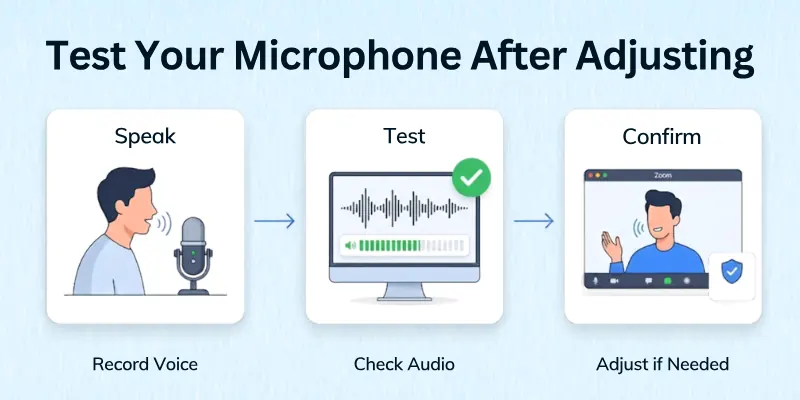
- System tests: On Windows, go to Sound Settings → Input → Test your microphone. On Mac, check the input meter in System Settings → Sound → Input.
- Record clip: Speak normally and play it back to hear if your voice sounds balanced.
- Test main apps: Open Zoom, Teams, Discord, or other apps you use often and check how your voice sounds there.
- Different distances: Speak close to and farther from the mic to see how sensitivity affects your voice.
- Background noise: Make sure the mic doesn’t pick up too much of the room sound or keyboard clicks.
- Adjustment: If your voice is too quiet or too loud, tweak the sensitivity and test again.
- Different environments: Test in quiet and slightly noisy rooms to see if your mic performs consistently.
- External tools: Online mic testers or simple recording apps can give a visual level of how your mic is picking up sound.
- Multiple devices: If you switch between headsets, USB, or built-in mics, test each one to set them properly.
- Settings: Once you find the perfect sensitivity, make sure your device or app keeps those settings for future use.
Now that your microphone is properly adjusted and tested, you know exactly how it performs in real situations.
Common Microphone Sensitivity Problems and How to Fix Them
Even after adjusting your microphone sensitivity, you may still face some audio problems. The good news is that most of these issues are easy to fix with a few simple changes. Below are the most common microphone sensitivity problems, their possible causes, and the best ways to solve them.
- Problem 1: Microphone Is Too Quiet: How to Fix It: Increase the input volume or microphone gain if your device supports it. Make sure you select the correct microphone in your sound settings and speak closer to the microphone.
- Problem 2: Microphone Is Too Loud: How to Fix It: Lower the input volume or reduce the microphone gain. Move slightly farther away from the microphone and avoid speaking too loudly.
- Problem 3: Too Much Background Noise: How to Fix It: Reduce the microphone sensitivity, record in a quieter room, and turn off nearby fans or TVs. You can also enable noise suppression if your app offers this feature.
- Problem 4: Voice Sounds Distorted: How to Fix Microphone Sensitivity: Lower the microphone gain or input volume until your voice sounds clear. Keep a comfortable distance from the microphone and avoid shouting while speaking.
- Problem 5: Echo During Calls or Recordings: How to Fix It: Wear headphones instead of using speakers, lower the speaker volume, and turn on echo cancellation in your calling or recording app.
- Problem 6: Static or Crackling Noise: How to Fix It: Check that all cables are connected properly, reconnect your USB microphone, update your audio drivers, and try a different USB port if needed.
- Problem 7: Microphone Boost Option Is Missing: How to Fix It: Some microphones do not support the Microphone Boost feature. Increase the input volume instead, update your audio drivers, or use the software provided by your microphone manufacturer.
- Problem 8: USB Microphone Is Not Working Properly: How to Fix It: Unplug and reconnect the microphone, select it as the default input device, restart your computer, and install the latest drivers or firmware.
- Problem 9: Bluetooth Microphone Has Poor Sound Quality: How to Fix It: Make sure the microphone battery is charged, reconnect the Bluetooth device, move closer to your computer or phone, and reduce interference from other wireless devices.
- Problem 10: Microphone Settings Keep Changing: How to Fix It: Disable automatic microphone adjustment in apps like Zoom or Discord, update your audio drivers, and check that no other app is changing your microphone settings in the background.
Conclusion
The knowledge of how to adjust microphone sensitivity gives you control over your sound. It ensures that your voice is neither too soft nor too loud, and recordings come out clean.
In my experience, keeping a small routine of checking mic levels before important calls or recordings helps prevent problems. Managing settings for each device makes a big difference in sound quality.
I appreciate your time reading this guide. May your microphone always capture your voice clearly, and may all your calls and recordings go perfectly! Let’s go to FAQs to know about others’ confusions.
Common FAQs
These answers to common FAQs teach quick fixes, tips, and tricks for adjusting mic sensitivity on any device:
Mic sensitivity is how well your microphone picks up sound. A high-sensitivity mic captures quieter sounds, while a low-sensitivity mic only picks up louder voices. It helps you set your mic for clear audio in calls or recordings.
You can adjust mic sensitivity on PC through system settings or sound control panels. Windows allows you to change the input volume and boost levels to match your environment. Learning how to change mic sensitivity on PC ensures your voice is clear for meetings and recordings.
Windows microphone boost increases your mic’s input volume beyond the normal slider range. You can find it under Sound → Recording → Properties → Levels. Using Windows microphone boost helps your voice come through clearly when it is too quiet.
In Windows 11, go to Settings → System → Sound → Input, select your mic, and move the input volume slider. You can also tweak advanced settings to match your voice level.
To make the mic louder in Windows 11, increase the input volume slider and use the microphone boost option if needed. Testing your voice while speaking ensures it’s neither distorted nor too soft. This simple method helps in calls, streaming, and recordings.
Microphone boost is a feature that amplifies your mic signal to capture quieter sounds. It works alongside the input volume slider in Windows or other sound settings. It can prevent your voice from sounding faint during calls or recordings.
You can improve mic quality by adjusting gain, reducing background noise, and setting the correct sensitivity. Using apps or hardware features can also help enhance clarity. Knowing how to improve mic quality ensures your voice sounds professional in all recordings.
On Windows 10, go to Sound → Recording → Properties → Levels and use the Windows 10 mic boost slider. Adjust the volume until your voice is clear but not distorted. This simple step increases microphone sensitivity in Windows 10 for better audio.
To change mic settings on FaceTime, open the call settings and select the preferred microphone. You can adjust input levels or use external mic software if needed.
Mic mode on Android controls how your phone’s microphone captures sound in different situations, like calls or recordings. Some apps let you switch between standard, loud, or noise-cancellation modes.



- Be Respectful
- Stay Relevant
- Stay Positive
- True Feedback
- Encourage Discussion
- Avoid Spamming
- No Fake News
- Don't Copy-Paste
- No Personal Attacks
- Be Respectful
- Stay Relevant
- Stay Positive
- True Feedback
- Encourage Discussion
- Avoid Spamming
- No Fake News
- Don't Copy-Paste
- No Personal Attacks










