What is a Keyboard: Complete Beginner’s Guide to Keyboard Basics
Have you ever thought about how we type messages, search on Google, play games, or write school and office work on a computer? We do all these things with the help of a keyboard.
It is one of the most important parts of a computer that people use every day. From students to office workers and gamers, almost everyone uses a keyboard for different tasks.
In this complete beginner’s guide, I will explain what is a keyboard, how it works, its types, parts, uses, advantages, and much more in very simple words.
By the end of this article, you will fully understand everything about keyboards.
What is a Computer Keyboard?
A keyboard is an important input device used with a computer. It helps you type letters, numbers, and symbols so the computer can understand your instructions. It works as a simple way to communicate with the system.
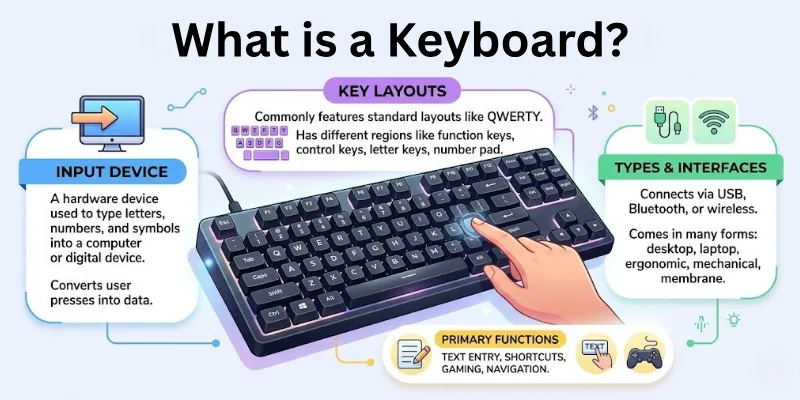
A keyboard looks like a flat board with many small buttons called keys. Each key has a special job. Some keys type letters, some type numbers, and some help give commands to the computer.
You use a keyboard in many daily tasks like writing messages, searching online, filling forms, and playing games. It acts like a bridge between you and the computer. When you press a key, the computer quickly shows the result on the screen.
👉 Where do you see keyboards in real life:
Keyboards are used in many places in daily life:
- Desktop computers in schools, offices, and homes
- Laptops used for study, work, and business
- Mobile phones use on-screen keyboards
- Tablets for notes, drawing, and typing messages
- ATMs and machines for entering secure information
- Customer service counters and data entry systems
Why a keyboard is important
A keyboard is important because it makes digital work fast and easy:
- It helps you type much faster than handwriting
- It allows easy communication through emails and messages
- It supports school work, office tasks, and gaming
- It makes computer use simple, smooth, and efficient
- It helps you control and interact with software easily
A keyboard is not just a tool. It is the main way we communicate with computers in written form. Once you understand how it works, using any digital device becomes much easier and more comfortable.

Basic Parts of a Keyboard
A keyboard may look simple from the outside, but it is made of many important parts that work together. Each part has its own role in typing, controlling, and navigating a computer.
When you press different keys, each one sends a different instruction to the computer. That is why understanding these parts helps you become faster and more confident in using a keyboard.
🔤 Alphabet Keys (A to Z)
Alphabet keys are the heart of typing on a keyboard. These keys help you form words, sentences, and full paragraphs. Without them, you cannot write anything meaningful on a computer.
- Used for writing text, emails, and documents
- Found in the middle section for easy access
- Most frequently used keys in daily typing work
- Work in combination with Shift for capital letters
👉 These keys are used in almost every task, from school assignments to professional writing.
🔢 Number Keys (0 to 9)
Number keys help you enter numerical data quickly and accurately. They are important for both basic and advanced computer tasks. You will often use them in forms, calculations, and coding work.
- Used for typing numbers in documents and forms
- Found at the top row of the keyboard
- Important for banking, accounts, and data entry
- Used in passwords, codes, and IDs
👉 These keys are essential in both study and office work where numbers are involved.
⚙️ Function Keys (F1 to F12)
Function keys are special keys designed to perform quick actions. They do not type letters or numbers, but help you control software features faster.
- Located at the top of the keyboard
- Perform shortcut actions in different programs
- Can change function based on software use
- Commonly used for refresh, help, or settings
👉 These keys improve speed and reduce the need to click menus repeatedly.
⌨️ Spacebar
The spacebar is one of the most-used keys in typing. It helps separate words and keeps your text clean and readable. Every sentence you type depends on this key.
- Adds space between words while typing
- Longest key on the keyboard
- Pressed mostly with the thumb
- Keeps text structured and easy to read
👉 Without the spacebar, all words would stick together and become unreadable.
↩️ Enter Key
The Enter key is used to confirm actions and move forward in digital tasks. It plays an important role in both typing and computer navigation.
- Moves text to a new line
- Submits forms or commands
- Works as a confirmation key
- Used in search engines after typing queries
👉 It is one of the most important keys for controlling digital actions.
⌫ Backspace and Delete Keys
These keys help you correct mistakes quickly while typing. They make editing simple and save time during writing tasks.
- Backspace removes characters on the left side
- Delete removes characters on the right side
- Helps fix spelling and typing errors
- Used frequently while editing documents
👉 These keys make typing flexible and error-free.
🔼 Arrow Keys
The arrow keys help you move around the screen without using a mouse. They are especially useful for editing text and navigating documents.
- Move the cursor in four directions (up, down, left, right)
- Help in selecting and editing text
- Useful in games for movement control
- Allow precise cursor positioning
👉 These keys give better control over navigation and editing.
🔧 Modifier Keys (Ctrl, Alt, Shift)
Modifier keys do not work alone. They change the function of other keys when pressed together. These keys are very important for shortcuts and fast work.
- Used in keyboard shortcuts for quick actions
- Combine with other keys for special commands
- Help increase speed and productivity
- Common in all operating systems
👉 Example: Ctrl + C is used to copy text instantly.
How Does a Keyboard Work?
A keyboard looks simple, but it works through a smart system of signals and communication. Every key you press sends a message to the computer, and the computer responds in real time.
This process happens in just a fraction of a second, which is why typing feels instant and smooth. Behind every click, there is a small but powerful system working inside the keyboard.
🔄 Step-by-Step Working Process
When you press a key, the keyboard does not just “type” the letter directly. It follows a proper process to send information to the computer.
- You press a key on the keyboard
- A small switch under the key gets activated
- The keyboard creates an electrical signal
- This signal travels to the computer system
- The computer reads and identifies the key
- The result appears on the screen instantly
👉 This full process happens very fast, almost in milliseconds.
⚡ What Happens Inside the Keyboard?
Inside every keyboard, there is a small circuit board. This board connects all keys together and helps send signals to the computer.
When you press a key:
- A circuit closes under that key
- Electrical flow starts in the circuit
- A chip inside the keyboard processes the signal
- The keyboard sends a unique code to the computer
👉 Each key has its own code, so the computer knows exactly what you pressed.
🖥️ How the Computer Understands Keys
The computer does not understand letters directly. It understands signals and codes from the keyboard.
- The keyboard sends a “key code”
- The operating system reads that code
- The system converts it into a character or action
- The output appears on the screen
👉 Example: Pressing “A” sends a signal, and the computer shows the letter A.
🔁 Repeated and Combined Key Actions
Keyboards are designed to handle different typing styles and commands.
- Holding a key repeats the character automatically
- Pressing Shift changes lowercase to uppercase
- Shortcut keys combine multiple commands
- Special keys trigger system actions instead of typing
👉 Example: Ctrl + S instantly saves your file without using the mouse.
🧠 Why This Process is Important
This working system is important because it makes typing fast and accurate. You don’t need to think about the technical process while typing, but it ensures everything works smoothly.
- Enables fast communication with the computer
- Supports real-time typing and editing
- Reduces the delay between input and output
- Makes computer interaction simple for users
👉 This is why keyboards feel natural and easy to use in daily life.

Types of Keyboards
Keyboards come in many different types, and each type is designed for a specific purpose. Some keyboards focus on speed, some focus on comfort, and some are made for gaming or professional work.
Understanding different types of keyboards helps you choose the right one for your work, study, or daily use:
Common Types of Keyboards
So guys, in this section, we will look at the most commonly used keyboards that you will see in daily life and offices:
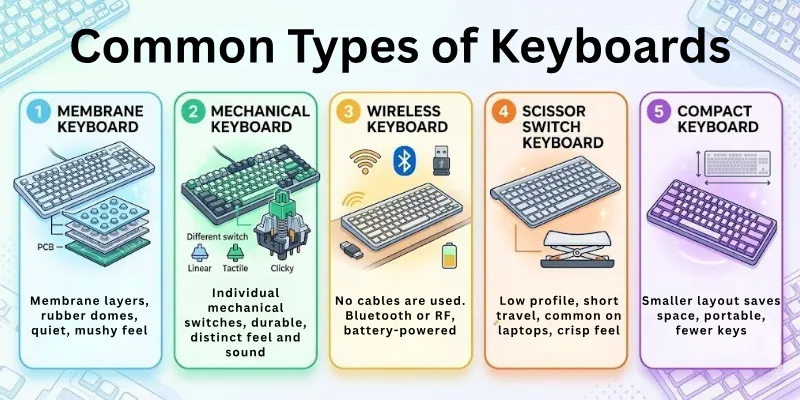
- Membrane Keyboard: Uses a soft pressure pad system and gives a quiet typing experience.
- Mechanical Keyboard: Uses individual switches under each key for faster, smoother, and more accurate typing.
- Wireless Keyboard: Connects without cables using Bluetooth or a USB receiver for flexible use.
- Scissor Switch Keyboard: A slim keyboard type mostly used in laptops for soft and stable typing.
- Compact Keyboard (60% Keyboard): Smaller keyboard with fewer keys to save space and increase portability.
Comfort & Special Use Keyboards
Now let’s talk about keyboards that are specially designed for comfort and long typing sessions without strain:
- Ergonomic Keyboard: Designed to reduce strain on hands and wrists during long typing sessions.
- Chiclet Keyboard: Features flat, separated keys for a clean and comfortable typing experience.
- Split Keyboard: Divides the keyboard into two parts for better hand positioning and comfort.
- Vertical Keyboard: Designed to keep hands in a natural position and reduce wrist pressure.
Gaming & Performance Keyboards
So, friends, in this part, we will explore keyboards designed for gamers and high-speed performance tasks:
- Gaming Keyboard: Built for fast response time and smooth gameplay with extra gaming features.
- RGB Keyboard: Comes with colourful lighting effects under the keys for style and visibility.
- Backlit Keyboard: Has lights under keys so you can type easily in low light or dark rooms.
- Trading Keyboard: Designed for traders with shortcut keys for fast financial actions.
Portable & Device-Based Keyboards
Now let’s see keyboards that are designed for mobility and different devices like laptops and tablets:
- USB Keyboard: Connects to computers using a wired USB connection.
- Laptop-Sized Keyboard: Compact design built for laptop systems and travel use.
- Tablet Keyboard: Designed for tablets to improve typing speed and comfort.
- Bluetooth Keyboard: Connects wirelessly using Bluetooth technology.
- Thumb Keyboard: A small keyboard designed for typing using thumbs, mostly on small devices.
Advanced & Modern Keyboards
Now, guys, here we will look at modern and advanced keyboards that use new technology and unique designs:
- Flexible Keyboard: Made from soft material that can bend or roll for easy storage.
- Roll Up Keyboard: Can be rolled up and carried easily, ideal for travel use.
- Magic Keyboard: Slim and premium keyboard designed for Apple devices.
- Laser Virtual Keyboard: Projects a keyboard on a surface using laser technology.
- Wearable Keyboard: Can be worn on the body for portable typing control.
Special Accessibility Keyboards
So guys, these keyboards are specially designed to help users with physical challenges or special needs:
- Braille Keyboard: Designed for visually impaired users with a Braille input system.
- Mouth Stick Keyboard: Allows typing using a mouth stick for people with limited hand movement.
- Foot Keyboard: Enables users to control typing using foot movements.
- Left-Handed Keyboard: Special layout designed for left-handed users.
Other Keyboard Types
Now, let’s quickly cover some other useful keyboard types that are used for specific tasks and features:
- Multimedia Keyboard: Includes extra buttons for volume control, music, and media functions.
- Chorded Keyboard: Uses multiple key combinations for fast typing input.
- Hand Keyboard: A small handheld keyboard for portable use.
- Numeric Keyboard: Focused only on numbers for fast data entry tasks.
- Touchpad Keyboard: Includes a built-in touchpad for mouse control.
- Stylus Compatible Keyboard: Works with stylus-based devices like tablets.
- Washable Keyboard: Can be cleaned with water without damage.
- Wooden Keyboard: Made from wood material for a unique and stylish look.
Uses of a Keyboard
In this section, we will explore how a keyboard is used in real-life situations from home to office and beyond.
- Typing Documents: Used for writing essays, assignments, reports, and letters in school and offices.
- Internet Searching: Helps you type queries on Google or any search engine to find information quickly.
- Communication: Used for sending emails, chatting, and messaging on social media or work platforms.
- Gaming Control: Helps players control movements and actions in computer and online games.
- Coding and Programming: Used by developers to write code for websites, apps, and software.
- Office Work: Important for data entry, record keeping, and business documentation tasks.
- Online Learning: Helps students attend classes, take notes, and complete online tasks.
- Form Filling: Used for entering personal details in online forms, registrations, and applications.
- Shortcut Operations: Helps perform quick actions like copy, paste, save, and undo.
- Device Control: Some smart TVs and systems can also be controlled using keyboards.
Advantages and Disadvantages of the Keyboard
Here is the comparison table of the advantages and disadvantages of keyboards:
| 👍 Advantages |
|---|
|
Here are the advantages:
|
| 👎 Disadvantages |
|---|
|
Here are the disadvantages:
|
History of the Keyboard
The computer keyboard we use today has a long and interesting journey. It did not start as a computer device. It evolved step by step over many years from simple machines to modern digital tools.
Evolution of the Keyboard:
- Typewriter Era (1800s): Early keyboards were part of typewriters used for writing on paper.
- QWERTY Layout Creation: The QWERTY key layout was designed to reduce typing jams and improve speed.
- Mechanical Keyboards (Early Computers): The first computer keyboards were large, heavy, and fully mechanical.
- Electronic Keyboards (1960s–70s): Computers started using electronic signals instead of mechanical printing.
- Personal Computer Keyboards (1980s–90s): Keyboards became smaller, faster, and more user-friendly.
- Wireless & Modern Keyboards (Today): Now we use Bluetooth, ergonomic, and smart keyboards with advanced features.
Conclusion
So, guys, it’s time to wrap up. In this article, we’ve covered what is a keyboard in detail. We learned its meaning, types, uses, and working in simple words.
I personally suggest that every beginner should master keyboard basics because it is the first step in computer learning. It helps you become faster and more confident in daily tasks. Keep practicing typing and shortcuts for better skills.
If this guide helped you, don’t forget to explore more easy tech articles and stay connected for more simple learning content like this.
Common FAQs
Here are answers to some questions many people have about a computer keyboard:
The main function of a keyboard is to enter data into a computer. It helps you type letters, numbers, and symbols easily. A keyboard also allows you to give commands to the system. This makes it one of the most important input devices in computing.
A standard keyboard usually has between 101 and 104 keys. Some modern keyboards may have more or fewer keys depending on their design.
- Standard keyboards: 101–104 keys
- Laptop keyboards: fewer keys
- Gaming keyboards: extra shortcut keys
The number of keys depends on the type and purpose of the keyboard.
A keyboard is an input device. It sends information from the user to the computer. When you press a key, the computer receives that input and shows it on the screen. This is why it is called an input device, not an output device.
A keyboard cannot work on its own because it needs a device to show output. It must be connected to a computer, laptop, or mobile device.
However, some smart keyboards can connect to tablets and phones. Still, they always need a system to function properly.
Typing faster on a keyboard comes with regular practice and correct technique. You do not need special tools, just consistency.
To improve speed:
- Practice daily for 10–15 minutes
- Learn keyboard shortcuts
- Use all fingers while typing
- Avoid looking at keys too much
With time, your speed and accuracy will improve naturally.
Shortcut keys are combinations of keys that perform quick actions on a computer. They help you save time and work faster.
For example:
- Ctrl + C = Copy
- Ctrl + V = Paste
- Ctrl + Z = Undo
These shortcuts reduce the need to use a mouse again and again.
The QWERTY layout was created to make typing easier and reduce mechanical problems in old typewriters. It places commonly used letters in a balanced way. Even today, most keyboards use this layout because people are already familiar with it.
A virtual keyboard is a keyboard that appears on a screen instead of a physical device. It is mostly used in smartphones, tablets, and touch devices.
You can tap on the screen to type letters and numbers. It works like a normal keyboard but without physical keys.
Cleaning a keyboard helps it work properly and last longer. Dust and dirt can affect its performance.
Steps to clean:
- Turn off the device
- Use a soft brush or cloth
- Remove dust between keys
- Avoid using too much water
Regular cleaning keeps your keyboard in good condition.
Learning keyboard typing is very important in today’s digital world. It helps you work faster and more accurately on computers.
- Improves typing speed
- Helps in exams and office work
- Saves time in daily tasks
Good typing skills are useful for students, professionals, and everyone using computers.

- Be Respectful
- Stay Relevant
- Stay Positive
- True Feedback
- Encourage Discussion
- Avoid Spamming
- No Fake News
- Don't Copy-Paste
- No Personal Attacks
- Be Respectful
- Stay Relevant
- Stay Positive
- True Feedback
- Encourage Discussion
- Avoid Spamming
- No Fake News
- Don't Copy-Paste
- No Personal Attacks