
How to Use a Webcam as a Security Camera – Step-by-Step Guide in 2026
People do not always need an expensive security camera to watch their home or workspace. A simple webcam can also help you keep an eye on important areas. If you already have an old or extra webcam, you can turn it into a security camera and save money.
You can use a webcam to watch your front door, home office, baby’s room, pets, garage, or other indoor spaces. With the right software, your webcam can record video, detect movement, send alerts, and even let you view live footage from another device.
In this guide, you will learn how to use a webcam as a security camera step by step. You will also discover what you need before you start, the best software to use, helpful setup tips, common problems and solutions, and ways to improve your webcam security system.
What You Need Before You Start
Before you turn your webcam into a security camera, make sure you have the right equipment. Having everything ready will make the setup easier and help your webcam work better:
- Webcam: You need a webcam to record video. You can use a USB webcam or your laptop’s built-in webcam. A webcam with at least 1080p resolution will give you clearer video.
- Computer or Laptop: Your webcam needs a computer or laptop to run the security camera software. Keep the device plugged into power if you want to monitor an area for a long time.
- Security Camera Software: You need software to turn your webcam into a security camera. The software lets you record video, detect motion, send alerts, and watch live footage. Choose software that matches your operating system and the features you need.
- Stable Internet Connection: An internet connection is not always required for local recording. However, you need a stable connection if you want to watch your webcam remotely, receive alerts, or save recordings to the cloud.
- Storage Space: Video recordings can use a lot of storage. Make sure your computer has enough free space, or use an external hard drive if you plan to record for long periods.
- Webcam Mount or Tripod (Optional): A webcam mount or tripod helps you place the camera at the best angle. A stable position also keeps the video clear and reduces shaking.
- Good Lighting: Your webcam will capture better video in a well-lit room. Place it where there is enough light, but avoid pointing it directly at bright windows or lights.
- Power Supply: If you plan to monitor an area all day, keep your computer connected to a power source. This prevents the system from shutting down because of a low battery.
How to Use Webcam as a Security Camera (Step-by-Step)
Follow these simple steps to turn your webcam into a security camera. The exact options may change depending on the software you choose, but the overall process is similar.
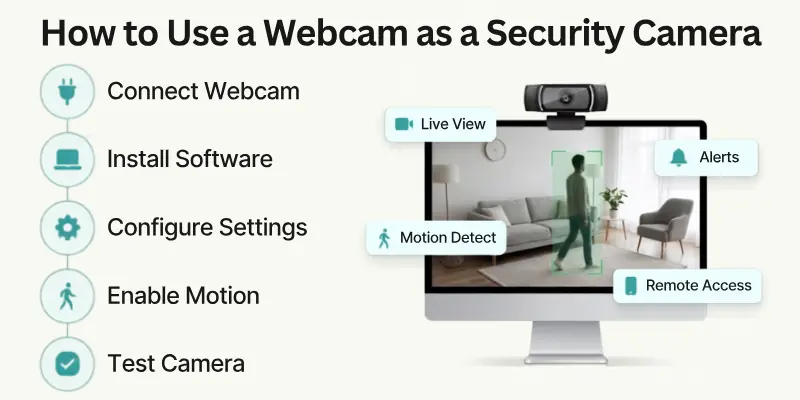
- Step 1: Connect Your Webcam: If you have a USB webcam, plug it into an available USB port on your computer. Wait a few seconds for your computer to detect the device. If you plan to use your laptop’s built-in webcam, you can skip this step.
- Step 2: Install Security Camera Software: Download and install security camera software that supports webcam monitoring. Most programs let you record video, detect motion, send alerts, and watch live footage. Follow the on-screen instructions to complete the installation.
- Step 3: Allow Camera Permissions: Open your computer’s privacy settings and make sure the software has permission to use your webcam. Without camera access, the software cannot display or record video.
- Step 4: Select Your Webcam: Open the security camera software and choose your webcam from the list of available cameras. Check the live preview to make sure the correct camera is active.
- Step 5: Configure Camera Settings: Adjust the camera settings to match your needs. Choose the video resolution, frame rate, recording location, and video quality. Higher quality gives clearer video but uses more storage space.
- Step 6: Enable Motion Detection: Turn on motion detection if your software supports it. Set the sensitivity so the webcam records only when it detects movement. This helps save storage and makes it easier to review important events.
- Step 7: Set Up Recording Options: Choose how you want the webcam to record video. You can record all the time, record only when motion is detected, or create a recording schedule for certain hours of the day.
- Step 8: Turn On Alerts and Notifications: Enable email or mobile alerts if they are available. The software can notify you when it detects motion, so you can check the live video right away.
- Step 9: Enable Remote Access: If you want to watch your webcam while you are away, turn on remote access in the software. Follow the setup instructions to connect your webcam securely to your phone, tablet, or another computer.
- Step 10: Test Your Security Camera: Walk in front of the webcam to make sure everything works correctly. Check that the camera records video, detects motion, saves recordings, and sends alerts if you enabled them. Make any needed adjustments before you leave the system running.
How to Choose the Best Place for Your Webcam
The location of your webcam plays a big role in how well it works as a security camera. Place it where it can clearly see the area you want to monitor while avoiding anything that blocks the view.
- Place It Near Entry Points: Aim the webcam at your front door, back door, or another entrance. This helps you record people as they enter or leave.
- Monitor High-Activity Areas: Place the webcam in areas where people move often, such as the living room, hallway, home office, or garage.
- Watch Your Baby or Pets: If you want to monitor a baby or pet, place the webcam where it has a clear view of the crib, play area, or pet bed.
- Mount the Webcam Higher: Place the webcam on a shelf or mount it high on a wall. A higher position gives a wider view and makes it harder for someone to block or move the camera.
- Avoid Direct Sunlight: Do not point the webcam toward bright windows or strong lights. Too much light can make the video look dark or blurry.
- Keep the View Clear: Make sure furniture, curtains, plants, or other objects do not block the camera’s view.
- Keep It Near Your Computer: If you use a USB webcam, place it close enough to your computer so the cable can reach without being stretched.
- Test the Camera Angle: Check the live video after placing the webcam. Adjust the angle until it covers the area you want to monitor without leaving blind spots.

Benefits of Using a Webcam as a Security Camera
Here are some of the main benefits related to how to use your webcam as a security camera:
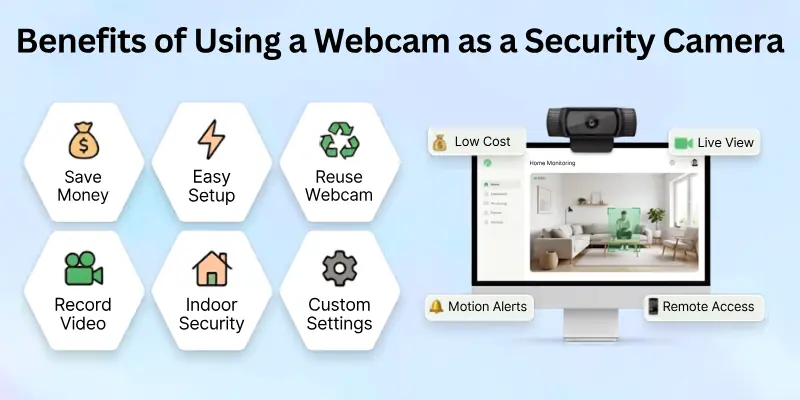
- Saves Money: You can use a webcam you already own instead of buying a new security camera.
- Easy to Set Up: Most webcams work with a computer and security camera software in just a few simple steps.
- Reuses Old Devices: An old USB webcam can become a useful security camera instead of sitting unused.
- Provides Live Monitoring: You can watch live video from your webcam whenever you need to check your space.
- Supports Motion Detection: Many security camera programs can detect movement and start recording automatically.
- Records Video: You can save video recordings to your computer and review them later if needed.
- Allows Remote Viewing: Some software lets you watch your webcam from your phone or another computer while you are away.
- Works Well for Indoor Security: A webcam is a good choice for monitoring rooms, offices, nurseries, garages, and pet areas.
- Easy to Move: You can place the webcam in different locations whenever your monitoring needs change.
- Offers Custom Settings: Most webcam software lets you adjust video quality, recording schedules, motion sensitivity, and alerts.
Limitations You Should Know
A webcam can work well as a basic security camera, but it also has some limits. Knowing these drawbacks will help you decide if it is the right choice for your needs.
- Computer Must Stay On: Your webcam only works while the connected computer or laptop is turned on.
- Best for Indoor Use: Most webcams are not waterproof, so they are not suitable for outdoor security.
- Limited Viewing Angle: Many webcams cover a smaller area than dedicated security cameras.
- No Built-in Night Vision: Most webcams cannot record clear video in very dark rooms without extra lighting.
- Depends on Security Software: Features like motion detection, alerts, and remote viewing require compatible software.
- Uses Computer Storage: Video recordings can quickly fill your computer’s hard drive if you record for long periods.
- Needs a Power Source: A laptop battery can run out, and a desktop computer must stay plugged in for continuous monitoring.
- Short Cable Length: USB webcams have cable length limits, which can make placement more difficult.
- Fewer Advanced Features: Most webcams do not include features such as two-way audio, weather protection, or built-in cloud storage.
Best Software to Turn Your Webcam into a Security Camera
The right software can turn a simple webcam into a useful security camera. Many programs let you record video, detect motion, send alerts, and watch live footage.
Below are some of the best options for beginners and home users:
1. iSpy
iSpy is one of the most popular webcam security programs. It offers many features for home and office monitoring.
Key Features:
- Motion detection
- Video recording
- Remote viewing
- Email and mobile alerts
- Supports multiple cameras
Best For: Users who want advanced security features.
2. Agent DVR
Agent DVR is the newer version of iSpy. It offers powerful monitoring tools without requiring extra hardware.
Key Features:
- Live video streaming
- Motion detection
- Remote access
- AI-powered object detection
- Supports multiple webcams
Best For: Users who need a modern security solution.
3. ContaCam
ContaCam is a lightweight security camera program that is easy to install and use.
Key Features:
- Motion detection
- Scheduled recording
- Automatic video recording
- Remote monitoring
- Low system usage
Best For: Beginners and older computers.
4. Yawcam
Yawcam is a free webcam application with simple security features. It works well for basic home monitoring.
Key Features:
- Motion detection
- Image and video capture
- Built-in web server
- Live streaming
- Easy setup
Best For: Users who want a simple and free solution.
5. Security Eye
Security Eye turns your webcam into a full security system with several useful monitoring features.
Key Features:
- Motion detection
- Continuous recording
- Scheduled recording
- Email alerts
- Supports multiple cameras
Best For: Home and small office security.
Software Comparison
Here is the comparison in detail:
| Software | Motion Detection | Remote Access | Multiple Cameras | Best For |
| iSpy | Yes | Yes | Yes | Advanced users |
| Agent DVR | Yes | Yes | Yes | Modern home security |
| ContaCam | Yes | Yes | Yes | Beginners and older PCs |
| Yawcam | Yes | Limited | Yes | Basic home monitoring |
| Security Eye | Yes | Yes | Yes | Home and office security |
Webcam vs Security Camera: Which One Should You Choose?
Both webcams and security cameras can help you monitor your home or office, but they are designed for different purposes. A webcam is a good choice if you want a low-cost solution for indoor monitoring. A dedicated security camera offers more advanced features and better protection for long-term security.
| Feature | Webcam | Security Camera |
| Cost | Usually less expensive | Usually more expensive |
| Setup | Connects to a computer with software | Often works on its own with a mobile app |
| Video Quality | Good for indoor use | Better quality with more camera options |
| Night Vision | Usually not available | Available on most security cameras |
| Motion Detection | Depends on the software | Built into most models |
| Remote Viewing | Available through compatible software | Available through the camera app |
| Storage | Uses your computer or external drive | Uses cloud storage, an SD card, or a network recorder |
| Outdoor Use | Not suitable for outdoor use | Many models are weatherproof for outdoor use |
| Power Source | Needs a computer to stay on | Works with its own power source or battery |
| Best For | Basic indoor monitoring on a budget | Complete home or business security |
Which One Is the Better Choice?
Choose a webcam if you:
- Want to save money.
- Already have a webcam.
- Need to monitor an indoor room.
- Do not need advanced security features.

Choose a security camera if you:
- Need 24/7 home or business protection.
- Want clear night vision.
- Need weatherproof cameras for outdoor use.
- Want built-in motion detection, cloud storage, and smart alerts.
- Plan to monitor a large property or multiple locations.
Final Thoughts
So guys, it’s time to wrap up. In this article, we’ve covered how to use a webcam as a security camera in detail. Using a webcam as a security camera is possible with the right software. It’s a good choice if you are on a tight budget.
But keep in mind, webcams have many limits and may not work well for full-time use. If you want better safety and peace of mind, it’s smart to choose a real security camera.
A trusted brand like eufy gives you strong features like clear video, smart alerts, and easy setup. In the long run, using a good security camera will help protect your home or office better.
Common FAQs
Here are some common questions related to how to turn a webcam into a security camera:
Yes, you can. Install security camera software such as iSpy, Agent DVR, or Yawcam, connect your webcam to your computer, and complete the setup. Most programs let you record video, detect motion, send alerts, and watch live footage.
No, you do not need the internet for local recording. However, you need an internet connection if you want to:
- Watch your webcam remotely.
- Receive motion alerts.
- Save recordings to cloud storage.
- Access your camera from another device.
Yes. Your laptop’s built-in webcam can work as a security camera with the right software. Keep your laptop plugged into power and place it where it has a clear view of the area you want to monitor.
A webcam can record for hours or even days if your computer stays on and has enough storage space. Using motion detection instead of continuous recording can save storage and make it easier to find important events.
Yes. Many webcam security programs support remote viewing. After you enable remote access, you can watch the live camera feed from your smartphone, tablet, or another computer.
A webcam is a good choice for basic indoor monitoring, but it cannot replace a dedicated security camera. Security cameras usually offer better video quality, night vision, weather resistance, and built-in smart features.
Yes. Many security camera programs support multiple webcams. This lets you monitor different rooms or areas from one computer.
You can reduce the risk by following these safety tips:
- Keep your operating system and software updated.
- Install trusted antivirus software.
- Use strong passwords for your accounts.
- Download software only from official websites.
- Turn off or cover your webcam when you are not using it.



- Be Respectful
- Stay Relevant
- Stay Positive
- True Feedback
- Encourage Discussion
- Avoid Spamming
- No Fake News
- Don't Copy-Paste
- No Personal Attacks
- Be Respectful
- Stay Relevant
- Stay Positive
- True Feedback
- Encourage Discussion
- Avoid Spamming
- No Fake News
- Don't Copy-Paste
- No Personal Attacks









