
How to Clean a Computer Mouse Without Damaging It in 2026
Yesterday, I looked under my computer mouse and saw a lot of dust around the light and sides. My mouse looked clean from the top, but it was dirty underneath.
The mouse moved slowly, and the buttons did not work well. So, I cleaned it with a soft cloth and cotton buds. After cleaning, the mouse worked fast and smoothly again. Many people do not clean the bottom part of their mouse. That is why their mouse stops working properly.
In this guide, I will show you how to clean a computer mouse simply and safely. You do not need costly tools. Most things are already in your home.
What You Need to Clean a Computer Mouse
Before you start cleaning your mouse, you should collect a few simple tools. The good news is that you do not need expensive items. Most of these things are already in your home. Using the right tools helps you clean the mouse safely without causing damage. It also makes the cleaning process faster and easier.
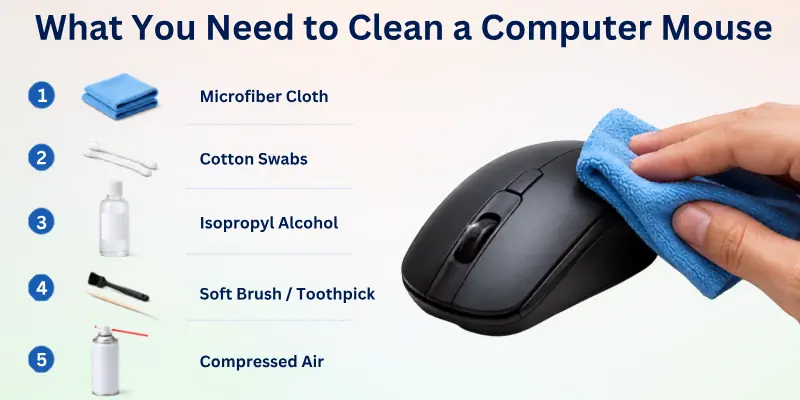
Basic Cleaning Tools:
- Microfiber Cloth: A microfiber cloth helps you clean dust, fingerprints, and dirt from the mouse surface. It feels soft and does not scratch the mouse’s body. You can use it to wipe both the top and bottom parts gently.
- Cotton Swabs: Cotton swabs help you clean small spaces around the buttons, scroll wheel, and sensor. They easily reach corners where dirt usually hides. Slightly wet cotton swabs work best for sticky dirt.
- Isopropyl Alcohol: Isopropyl alcohol helps remove oil, germs, and sticky marks from the mouse. It dries quickly and keeps water away from the inside parts. Always use a small amount on a cloth or cotton swab instead of pouring it directly on the mouse.
- Toothpick or Soft Brush: A toothpick or soft brush helps remove dirt from tight spaces and edges. You can gently lift dust around the scroll wheel and mouse feet. Be careful and avoid pressing too hard.
- Compressed Air: Compressed air blows dust out of small spaces without touching the inside parts. It works well around buttons, sensors, and scroll wheels. Short air bursts usually clean the mouse quickly.
Things You Should Never Use
Some cleaning items can damage your computer mouse. That is why you should avoid using strong or rough materials during cleaning.
- Too Much Water: Water can enter the mouse and damage the inside parts. Always use very little liquid while cleaning. A slightly damp cloth is enough.
- Harsh Chemicals: Strong cleaning chemicals can remove the mouse colour or damage the plastic body. Some chemicals can also harm the sensor and buttons.
- Rough Cloths: Rough cloths may leave scratches on the mouse surface. They can also spread dust instead of removing it. Soft microfiber cloths are always safer.
- Direct Spray Cleaners: Never spray cleaner directly on the mouse. Liquid can go inside the buttons or sensor area and stop the mouse from working properly. Always spray the cleaner on a cloth first.
How to Clean a Computer Mouse Step by Step
Cleaning a computer mouse is simple when you follow the right steps. You do not need special skills or costly tools. A few minutes of proper cleaning can help your mouse work smoothly again.
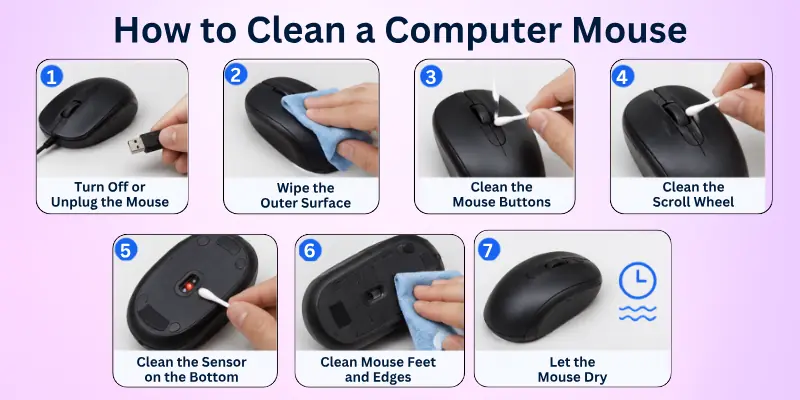
Follow these easy steps carefully to clean your mouse safely without causing damage:
Step 1: Turn Off or Unplug the Mouse
Before cleaning, always turn off the mouse or disconnect it from the computer. This step keeps the mouse safe and protects you from damaging the inside parts.
- Wired Mouse: If you use a wired mouse, unplug the USB cable from the computer first. Never clean the mouse while it is connected.
- Wireless Mouse: If you use a wireless mouse, switch it off before cleaning. Most wireless mice have a small power button at the bottom.
- Remove Batteries if Needed: Take out the batteries if your mouse uses removable batteries. This step helps prevent moisture from reaching the battery area.
Step 2: Wipe the Outer Surface
Now clean the outside part of the mouse. Dust, sweat, and fingerprints often collect on the surface during daily use.
- Clean the Top and Sides: Use a soft microfiber cloth to wipe the top, sides, and bottom of the mouse. Move the cloth gently across the surface to remove dirt.
- Remove Fingerprints and Dust: If the mouse looks sticky or dirty, lightly wet the cloth with a small amount of isopropyl alcohol. This helps remove fingerprints, oil, and dust easily.
Step 3: Clean the Mouse Buttons
Mouse buttons collect dirt very quickly because we press them all day. Cleaning them properly helps the buttons work smoothly again.
- Remove Dirt Around Buttons: Use a cotton swab or soft brush to clean around the left and right buttons. Remove dust from the small gaps carefully.
- Clean Sticky Buttons Safely: If the buttons feel sticky, gently clean the edges with a cotton swab slightly damp with isopropyl alcohol. Do not push liquid inside the mouse.
Step 4: Clean the Scroll Wheel
The scroll wheel often traps dust, tiny crumbs, and dirt. This buildup can stop the wheel from moving smoothly.
- How to Remove Dust and Grime: Use compressed air or a soft brush to clean around the scroll wheel. Rotate the wheel slowly while cleaning to remove hidden dirt.
- Fix a Sticky Scroll Wheel: If the wheel feels sticky, clean it with a cotton swab and a little alcohol. Turn the wheel while wiping it gently.
Step 5: Clean the Sensor on the Bottom
The sensor is one of the most important parts of the mouse. A dirty sensor can make the cursor jump or stop moving properly:
- Why the Sensor Matters: The sensor tracks movement on the mouse pad or desk surface. Even a small dust particle can affect a mouse’s performance.
- How to Clean It Safely: Turn the mouse upside down and gently wipe the sensor area with a dry cotton swab. Do not scratch or press hard on the sensor.
Step 6: Clean Mouse Feet and Edges
The mouse feet and edges touch the desk all the time, so dirt often builds up there.
- Remove Trapped Dirt: Use a toothpick or soft brush to remove dust from the edges and corners. Be gentle while cleaning tight spaces.
- Improve Mouse Movement: Cleaning the mouse feet helps the mouse move smoothly across the mouse pad. Wipe them carefully with a soft cloth to remove dirt and oil.
Step 7: Let the Mouse Dry
After cleaning, give the mouse time to dry completely before using it again.
- Safe Drying Tips: Place the mouse in a clean and dry area for a few minutes. Avoid using a hair dryer or placing it under direct sunlight.
- When to Reconnect the Mouse: Reconnect the wired mouse or insert the batteries only after the mouse becomes fully dry. This step helps protect the inside parts from moisture damage.
How to Disinfect a Computer Mouse
A computer mouse collects germs, sweat, and dirt every day because our hands touch it all the time. Regular disinfecting helps keep the mouse clean and safe to use. You only need a few simple steps to remove germs without damaging the mouse.
Best Way to Remove Germs:
- Turn off or unplug the mouse before cleaning
- Use a microfiber cloth or cotton swab
- Add a small amount of isopropyl alcohol to the cloth
- Wipe the buttons, scroll wheel, sides, and bottom gently
- Let the mouse dry fully before using it again
Safe Alcohol Percentage to Use:
- Use isopropyl alcohol with 70% alcohol strength
- This percentage removes germs safely without harming the mouse
- Avoid very strong alcohol because it may damage plastic or colour
How Often to Disinfect:
- Clean your mouse once every week for normal use
- Disinfect it more often if many people use the same mouse
- Gamers and office workers should clean the mouse regularly because they use it for long hours

Common Mistakes to Avoid While Cleaning a Mouse
Many people clean their computer mouse the wrong way and accidentally damage it. Small mistakes can stop the buttons, sensor, or scroll wheel from working properly.
If you avoid these common problems, your mouse will stay clean, safe, and work smoothly for a long time.
- Using too much liquid can damage the inside parts of the mouse.
- Spraying cleaner directly on the mouse may let liquid enter the buttons and sensor.
- Scratching the sensor with hard tools can affect mouse movement and cursor control.
- Cleaning the mouse while it is connected to the computer can create safety problems.
- Forgetting to clean the mouse pad can quickly make the mouse dirty again.
Signs Your Computer Mouse Needs Cleaning
A dirty computer mouse often gives small warning signs before it stops working properly. Many people ignore these problems and think the mouse is broken.
If you notice these signs early, you can clean the mouse quickly and improve its performance.
- A jumping cursor usually means dust is blocking the mouse sensor.
- Slow mouse movement can happen when dirt builds up underneath the mouse.
- Sticky buttons often collect oil, sweat, and dust from daily use.
- Scroll wheel problems may start when tiny dirt pieces get stuck inside.
- Visible dirt buildup around the edges and bottom shows the mouse needs cleaning.
Conclusion
Cleaning a computer mouse becomes easy when you know the right steps and use simple tools. In this guide on how to clean a computer mouse, we have covered everything from surface cleaning to deep cleaning.
We also explained how to clean different types of mice, how to disinfect them, common mistakes to avoid, and the signs that show your mouse needs cleaning.
From my experience, regular cleaning keeps your mouse smooth and reliable. It also helps you avoid problems like sticky buttons, slow movement, and a jumping cursor.
You do not need any special tools. A soft cloth, cotton swabs, and a little care are enough to keep your mouse working like new.
FAQs About How to Clean Mouse
Here are simple answers to common questions about how to clean a mouse so you can fix small problems quickly and safely:
You can use a very small amount of water to clean the outside of a computer mouse, but you should never pour water directly on it. Too much water can enter the buttons or sensor and damage the inside parts. It is always safer to use a slightly damp microfiber cloth instead of a wet cloth.
Yes, isopropyl alcohol is usually safe for cleaning a computer mouse when you use it correctly.
- Use around 70% isopropyl alcohol for safe cleaning
- Put the alcohol on a cloth or cotton swab first
- Never pour alcohol directly on the mouse
- Let the mouse dry fully before using it again
Sometimes a mouse still does not work after cleaning because dirt may still be stuck inside the sensor or buttons. In some cases, the problem may come from old batteries, damaged wires, or hardware issues instead of dust.
You should also check if liquid entered the mouse during cleaning. Let the mouse dry for several hours and reconnect it carefully. If it still does not work, you may need deep cleaning or repair.
Yes, dust can affect the mouse sensor very quickly. Even tiny dust particles can block the sensor and make the cursor jump or move slowly.
A dirty sensor may cause:
- Poor cursor movement
- Mouse lag
- Random cursor jumping
- Slow response during gaming or work
You can clean sticky mouse buttons with a soft cotton swab and a little isopropyl alcohol. Gently clean around the button edges where dirt and oil usually collect. Do not press too hard while cleaning because liquid can enter the mouse.
If the buttons still feel sticky after cleaning, dirt may be trapped inside the mouse. In that case, you may need deep cleaning.
Gamers use their mouse for many hours every day, so gaming mice collect dust and sweat faster than normal mice.
- Light cleaning once every week works well for most gamers
- Deep cleaning once every month helps keep smooth movement
- Clean the sensor often for better gaming accuracy
- Wipe the mouse after long gaming sessions
Yes, you can use wet wipes if they are not too wet and do not contain strong chemicals. Soft disinfecting wipes work best for cleaning the mouse surface gently. Always squeeze extra liquid out before using the wipe.
Avoid cleaning the sensor with wet wipes because too much moisture can affect mouse performance.
First, unplug the mouse or turn it off immediately. Remove the batteries if your mouse uses them. Then place the mouse in a dry area and let it dry completely before testing it again.
Do not use a hair dryer with very hot air because heat can damage plastic parts. If the mouse still does not work after drying, you may need professional repair or replacement.


- Be Respectful
- Stay Relevant
- Stay Positive
- True Feedback
- Encourage Discussion
- Avoid Spamming
- No Fake News
- Don't Copy-Paste
- No Personal Attacks
- Be Respectful
- Stay Relevant
- Stay Positive
- True Feedback
- Encourage Discussion
- Avoid Spamming
- No Fake News
- Don't Copy-Paste
- No Personal Attacks