How to Calibrate Touch Screen: Complete Guide for Accurate and Smooth Performance
A touch screen is something we use every single day without thinking about it. From unlocking a phone to working on a laptop or using a POS machine, everything depends on accurate touch response. But when the screen starts responding slightly off, even small tasks feel frustrating.
In real-world situations, I’ve seen users ignore this issue at first, thinking it will fix itself. For example, a student once told me he kept tapping the wrong option during online exams because the touch response was slightly shifted.
In business environments, I’ve also seen POS systems misread inputs, which slows down billing and creates confusion at counters.
This is where learning how to calibrate a touch screen becomes very important. It helps restore accuracy, improve performance, and bring back smooth interaction without needing technical support in most cases.
What is Touch Screen Calibration?
Touch screen calibration means adjusting the touch input so it matches the exact point on the display.
When you tap on the screen, the device calculates the position and responds. Over time, this alignment can shift due to software updates, driver issues, screen replacements, or even long-term usage.
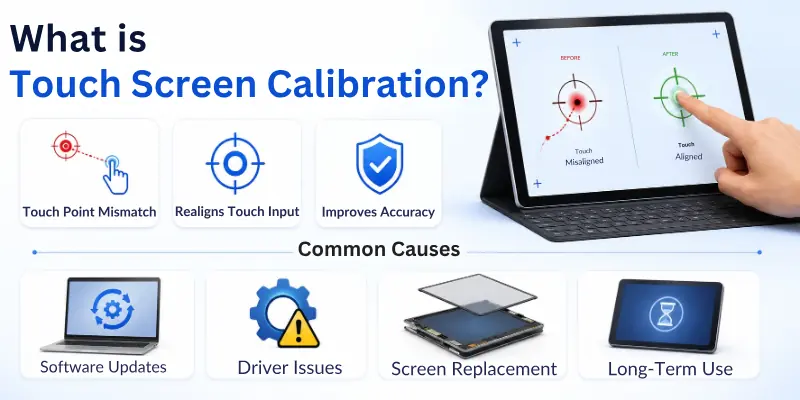
Calibration fixes this mismatch by realigning the touch coordinates. After proper calibration, the system understands your touch more accurately, and the screen responds exactly where you tap.
In simple words, it brings your touch accuracy back to normal.
Why Touch Screen Calibration Becomes Necessary
In normal conditions, modern devices do not easily lose calibration. However, real-life usage can slowly create issues. For example, I once tested a tablet used in a retail store where employees complained that buttons were not responding correctly. The issue was not hardware damage but misalignment caused by frequent software updates.
Here are some common reasons why calibration becomes necessary:
- Software updates that change system behaviour
- Long-term usage that affects touch alignment
- Screen replacement or repair
- Driver conflicts or system bugs
- Environmental impacts, such as heat or dust in industrial systems
These small changes may not look serious, but they directly affect how accurately your device responds.

Clear Signs Your Touch Screen Needs Calibration
Before fixing anything, it is important to identify the real problem. Many users assume the screen is damaged when it is actually just misaligned.
You may need calibration if you notice:
- The touch response appears slightly shifted from your tap point
- You need to tap more than once for the same action
- Some areas of the screen respond more slowly than others
- Random or ghost touches appear without touching the screen
- The issue started after a system update or screen replacement
For example, I once worked with a user who thought his phone was faulty because the keyboard letters were registering incorrectly. After calibration, the issue was completely gone.
How to Calibrate Touch Screen on Windows Devices
Windows provides built-in tools that make calibration fairly simple, especially for laptops and tablets.
Step-by-step process:
First, open the Start Menu and search for “Calibrate the screen for pen or touch input.” This tool is already part of Windows settings, so you don’t need to install anything.
Once you open it, follow these steps:
- Select the touch input option
- The screen will display crosshair points
- Tap each point carefully and accurately
- Avoid rushing the process
- Save the calibration settings after completion
When I tested this on a Windows tablet used in a classroom, the improvement was noticeable immediately. The touch response became more stable, and the students stopped facing selection errors during use.
Practical tip: If you have a stylus, use it instead of your fingers. It improves precision during calibration.
How to Calibrate a Touch Screen on Android Devices
Android devices usually manage touch accuracy automatically, but issues can still occur due to software glitches or screen sensitivity changes.
In real use, I’ve seen Android phones feel “off” after heavy app usage or system updates, especially in budget devices.
Try these methods:
Start with simple steps:
- Restart your device to clear temporary bugs
- Clean the screen properly to remove oil or dust
- Remove thick or low-quality screen protectors
- Check display or accessibility settings for touch sensitivity options
If the problem continues, some devices allow deeper touch settings or calibration apps from trusted sources.
However, it is important to be careful. Not all third-party apps are reliable, so always choose highly rated and well-reviewed tools.
How to Fix Touch Issues on iPhone and iPad
Apple devices do not support manual calibration, and this is intentional. iOS uses a highly controlled system where touch accuracy is handled automatically.
From my experience, most iPhone touch issues are not calibration-related. They usually come from software glitches, screen protectors, or physical damage.
What you can do instead:
- Restart the device to clear temporary system issues
- Update iOS to the latest version
- Clean the screen surface carefully
- Remove any thick or damaged screen protector
- Reset all settings if the issue persists
Important real-world insight:
In most cases where users think calibration is needed on iPhones, the real issue is either a faulty protector or internal digitizer damage. If basic steps fail, hardware inspection is the only solution.
How to Calibrate Touch Screens in POS and Industrial Systems
Industrial and POS systems are a different category because they are used heavily in continuous operations. Even a small touch error can affect business performance.
I once observed a retail billing system where staff were selecting the wrong items during checkout. The issue was not software failure, but calibration drift after long-term use.
General process:
- Open system settings or manufacturer’s utility
- Start calibration mode
- Tap each target point carefully and slowly
- Save and confirm settings
Why regular calibration matters:
- Prevents billing or input errors
- Improves speed at checkout counters
- Reduces operational delays
- Maintains system accuracy over time
Recommended practice:
- Calibrate every 3 to 6 months
- Always recalibrate after screen replacement
- Check after major software updates

Common Mistakes People Make During Calibration
Many users think touch screen calibration is a quick process, but small mistakes can easily reduce its accuracy or even make the problem worse. Paying attention to how you calibrate the screen is just as important as the calibration itself.
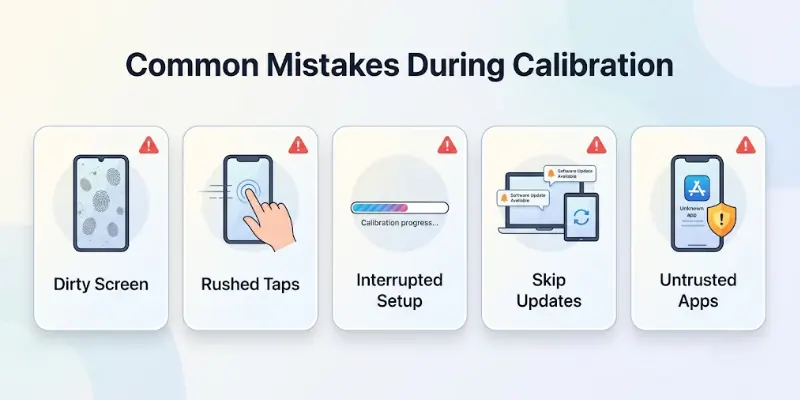
- Not cleaning the screen properly before starting: Dust, fingerprints, or oil can affect touch detection and lead to wrong calibration results.
- Tapping too fast or rushing through the process: Calibration needs calm and precise input. Quick or careless taps often create inaccurate alignment.
- Interrupting the calibration process midway: Stopping before completion can leave the system partially configured, causing more touch issues.
- Ignoring driver or system updates: Outdated drivers can interfere with touch accuracy, making calibration less effective.
- Using untrusted third-party apps: Low-quality apps may not follow proper calibration methods and can create further instability.
From experience, I’ve seen most failed calibration cases happen because users rushed the process instead of doing it carefully.
What to Do If Calibration Does Not Fix the Problem
Sometimes calibration is not enough because the issue is deeper. In such cases, try these steps:
- Update touchscreen drivers from the official website
- Restart or reset system settings
- Check for physical damage on the screen
- Remove external interference like faulty chargers or accessories
- Run hardware diagnostic tools if available
If the issue still continues, it usually points to hardware damage, such as a faulty digitizer or internal connection problem. At that stage, professional repair becomes necessary.
How Often Should You Calibrate a Touch Screen?
Most modern devices do not need regular calibration. However, real-world usage creates exceptions.
You should consider calibration when:
- The screen feels inaccurate after updates
- You replace or repair the display
- Touch response becomes noticeably off
- Industrial systems show input errors over time
For general users, calibration is occasional. For business systems, it should be part of routine maintenance.
Understanding Touch Screen Types
Knowing the type of screen helps you understand calibration needs better, especially when comparing capacitive vs resistive touchscreens, since each technology behaves differently in terms of touch accuracy and calibration requirements:
- Resistive Touch Screens: These work through pressure. They are common in older systems and require frequent calibration because physical layers shift over time.
- Capacitive Touch Screens: These detect electrical signals from your finger. They are used in modern smartphones and rarely need calibration due to stable sensor technology.
Final Thoughts
Learning how to calibrate touch screen is one of the easiest ways to solve common touch accuracy problems. In most cases, users assume the device is damaged when the issue is actually just misalignment.
From smartphones to laptops and POS systems, calibration restores smooth performance without technical complexity. When done correctly, it improves accuracy, reduces frustration, and extends the usability of your device.
In real usage, I’ve seen many devices “come back to normal” just after proper calibration, without any repair needed. That is why this simple process is worth understanding.
Common FAQs
If your touchscreen isn’t responding properly or seems inaccurate, these frequently asked questions can help you understand touchscreen calibration, fixes, and what to do next:
You can calibrate a touch screen on Windows by using the built-in calibration tool in the Control Panel. Search for “Calibrate the screen for pen or touch input” from the Start Menu and follow the on-screen instructions carefully. This method helps improve touch accuracy and screen responsiveness.
A touch screen may stop responding correctly because of software glitches, outdated drivers, dirt on the screen, or hardware damage. In many cases, restarting the device or performing touch screen calibration fixes the issue. If the problem continues, the screen may need professional repair.
Yes, some Android devices allow touch screen calibration through built-in settings or trusted calibration apps. Modern phones usually auto-calibrate, but manual adjustments can still help improve touch sensitivity. Cleaning the screen and restarting the device should always be your first step.
An inaccurate touch screen response is usually caused by calibration issues, software bugs, or screen protectors affecting sensitivity. Learning how to calibrate touch screen can help restore proper alignment and smoother interaction. Updating the device software may also improve performance.
Capacitive vs resistive touchscreens differ in the way they detect touch input. Capacitive screens use electrical signals and are common in smartphones, while resistive screens work through pressure and often require more calibration. Understanding this difference helps you know which screens need calibration more frequently.
Most modern devices do not need regular calibration unless touch accuracy becomes inconsistent. Industrial systems and older resistive screens may require calibration every few months. You should also recalibrate after screen replacement or major software updates.
Yes, a cracked or physically damaged screen can interfere with touch accuracy and make calibration ineffective. In such cases, the issue is usually related to hardware rather than software settings. Replacing the damaged screen is often the best solution.
Software updates can sometimes change touch drivers or system settings, which may affect touch alignment temporarily. Restarting the device or recalibrating the screen usually solves the issue. If the problem continues, check for additional updates or driver fixes.
Trusted and well-reviewed touch screen calibration apps are generally safe for Android devices. However, low-quality apps can create unnecessary settings issues or reduce performance. Always choose apps with positive reviews and reliable developer support.
Yes, proper touch screen calibration can improve precision during gaming, digital drawing, and detailed touch tasks. Accurate touch response helps reduce delays and incorrect input positions. This is especially important for designers, artists, and competitive mobile gamers.

- Be Respectful
- Stay Relevant
- Stay Positive
- True Feedback
- Encourage Discussion
- Avoid Spamming
- No Fake News
- Don't Copy-Paste
- No Personal Attacks
- Be Respectful
- Stay Relevant
- Stay Positive
- True Feedback
- Encourage Discussion
- Avoid Spamming
- No Fake News
- Don't Copy-Paste
- No Personal Attacks