How to Fix Unresponsive Touch Screen: A Guide to Make Your Screen Work Again
When your touch screen suddenly stops responding, even simple tasks start feeling impossible. You tap the screen again and again, but nothing happens. Sometimes the phone freezes completely, while other times only certain parts of the screen stop working. It can feel stressful, especially if you need your device urgently for calls, work, classes, payments, or important files.
I’ve personally seen this issue happen on different devices, from Android phones and tablets to touchscreen laptops and POS systems. In many cases, users think the screen is permanently damaged, but surprisingly, the real issue is often much smaller. Sometimes it’s just a software glitch, a faulty app, a thick screen protector, or even dirt affecting the screen’s sensitivity.
The good news is that many touchscreen problems can be fixed at home without technical skills.
In this guide, you’ll learn how to fix unresponsive touch screen step by step using beginner-friendly methods that actually work in real situations.
Ways to Fix an Unresponsive Touch Screen
When your screen doesn’t work, it can feel like your phone is useless. But don’t worry, most problems have simple fixes. Try these easy steps one by one to see what works for you.
- Restart the Device Properly
- Clean the Screen Carefully
- Remove the Screen Protector or Phone Case
- Keep Your Hands Clean and Dry
- Boot the Device into Safe Mode
- Update the Device Software
- Free Up Device Storage
- Calibrate the Touch Screen
- Test Unresponsive Areas of the Screen
- Connect a Mouse or Keyboard
- Reset the Device as a Last Software Solution
- Seek Professional Repair Support
Let’s look at them in detail.
1. Restart the Device Properly
Restarting the device may sound basic, but it is one of the most effective solutions for temporary touchscreen problems.
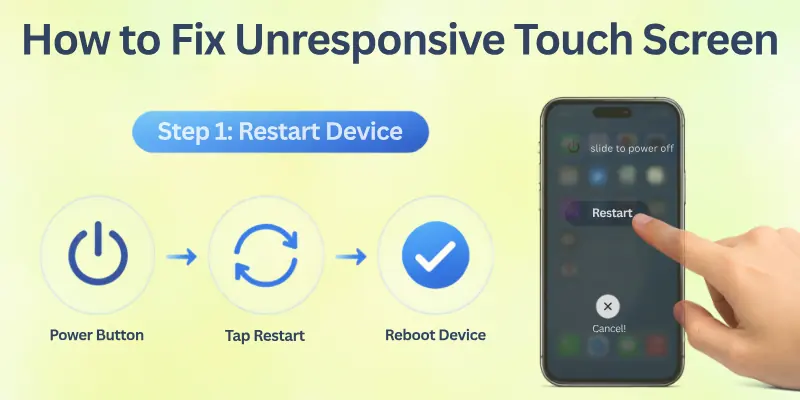
When too many apps run in the background, the device memory becomes overloaded. This can interrupt touch processing and make the screen freeze or lag. Restarting clears temporary system errors and refreshes the operating system.
How to restart the device:
- Press and hold the Power button
- Tap Restart if available
- If the screen is fully frozen, force restart the device using hardware buttons
- Wait for the device to reboot completely
After restarting, test the touchscreen slowly instead of opening many apps immediately.
Important tip: If the screen starts working normally after a restart but freezes again later, the issue is likely connected to apps, storage, or overheating rather than hardware damage.
2. Clean the Screen Carefully
A dirty screen affects touch sensitivity more than most people realize. Modern smartphones mainly use capacitive touch technology, which depends on the electrical conductivity of your fingers.
Oil, sweat, dust, or moisture can interfere with this process and reduce touch accuracy. This issue becomes especially common:
- During hot weather
- After long gaming sessions
- In kitchens or dusty workplaces
- When using the phone with wet hands
To clean the screen properly:
- Use a soft microfiber cloth
- Wipe gently in circular motions
- Avoid spraying liquid directly on the display
- Never use harsh cleaners or rough fabric
After cleaning, give the screen a few seconds before testing the touch response again. A surprisingly large number of touch problems improve immediately after proper cleaning.
3. Remove the Screen Protector or Phone Case
Many users never suspect their screen protector, but low-quality tempered glass is one of the most common causes of touch sensitivity issues.
Cheap or thick protectors can create poor touch conductivity between your finger and the screen. Sometimes air bubbles or improper fitting also interfere with responsiveness.
Heavy phone cases may create pressure near screen edges, especially on curved displays.
What you should do:
- Remove the screen protector carefully
- Test the screen without it
- Clean any dust underneath
- Remove thick or tight phone cases temporarily
If touch performance improves afterwards, the accessory itself was causing the problem.
This issue is especially common on budget Android phones, where low-quality tempered glass protectors reduce screen sensitivity noticeably.
4. Keep Your Hands Clean and Dry
Touchscreens are designed to detect natural electrical signals from human skin. Wet, oily, or dirty hands can interrupt this detection process. Gloves can also block touch input on devices that do not support glove mode.
Before testing the screen again:
- Wash and dry your hands
- Remove gloves
- Avoid touching the screen with fingernails
- Use gentle fingertip contact
This may sound minor, but environmental conditions affect touchscreen performance more than people expect.
5. Boot the Device into Safe Mode
Sometimes the touchscreen itself is not the problem. A faulty app running in the background may overload the system and freeze touch input.
Safe Mode helps identify whether a third-party app is causing the issue because it temporarily disables all installed apps except essential system software.
How to use Safe Mode on Android:
- Press and hold the Power button
- Touch and hold Power Off
- Select Safe Mode
- Wait for the phone to restart
Once the device enters Safe Mode, test the touchscreen carefully.

If the screen works normally:
A recently installed app is likely responsible. Remove suspicious apps one by one, especially:
- launcher apps
- RAM cleaners
- gaming boosters
- unofficial customization tools
Poorly optimized apps often create touchscreen lag and freezing issues.
6. Update the Device Software
Outdated software can create serious touchscreen issues. Manufacturers regularly release updates to fix bugs, improve performance, and stabilize touch responsiveness. Ignoring updates for long periods increases the chances of software conflicts.
To check for updates:
- Open Settings
- Go to Software Update
- Download available updates
- Restart the device after installation
System updates are especially important if touchscreen problems started recently after a buggy version release. Keeping the software updated also improves battery efficiency and security.
7. Free Up Device Storage
Low storage affects overall device performance, including touchscreen responsiveness.
When storage becomes nearly full, the operating system struggles to manage temporary files and app processes efficiently. As a result, the phone may freeze, lag, or ignore touch input temporarily.
This problem becomes worse on older devices with limited RAM.
Free up storage by:
- Deleting unused apps
- Removing duplicate photos and videos
- Clearing app cache
- Moving files to cloud storage
- Deleting old downloads
Even freeing a few gigabytes can noticeably improve system responsiveness.
8. Calibrate the Touch Screen
Sometimes the touchscreen responds, but the touch location feels inaccurate. You tap one area, but another part reacts instead. This usually indicates calibration or alignment problems rather than a completely dead touchscreen.
Learning how to calibrate a touch screen helps improve touch precision and restores smoother interaction.
To calibrate the screen:
- Open device Settings
- Search for Touch Calibration
- Follow the on-screen instructions
- Tap calibration targets carefully
- Save the settings after completion
Calibration is particularly useful after:
- software updates
- screen replacement
- touch alignment issues
9. Test Unresponsive Areas of the Screen
Testing the display helps determine whether the issue affects the entire touchscreen or only specific areas. This step is important because partial touch failure often points toward physical damage inside the digitizer layer.
Simple ways to test the screen:
- Open a drawing app
- Drag your finger slowly across the entire screen
- Check for gaps or broken touch lines
- Test keyboard responsiveness in all corners
What the results mean:
- Random lag across the whole screen usually suggests software issues
- One permanently dead area often indicates hardware damage
This small test provides valuable clues before spending money on repairs.
10. Connect a Mouse or Keyboard
If the touchscreen becomes completely unusable, external accessories can help you access the device again. Using an OTG cable with a USB mouse allows you to control the phone without touching the screen.
This method helps you:
- Backup important files
- Transfer photos and videos
- Access settings
- Perform resets safely
It is especially useful before attempting factory reset or repair.
11. Reset the Device as a Last Software Solution
If all troubleshooting methods fail, a factory reset may solve deep software corruption or system conflicts.
However, this step erases everything from the device, so it should only be used after trying all other solutions.
Before resetting:
- Backup important data
- Save passwords and contacts
- Charge the device fully
Then follow these steps:
- Open Settings
- Go to Reset Options
- Select Factory Reset
- Confirm the process
If the touchscreen still does not respond properly after a reset, the issue is most likely hardware-related.
12. Seek Professional Repair Support
Some touchscreen problems cannot be solved at home because the internal hardware is physically damaged.
Professional repair becomes necessary if:
- The phone fell recently
- Water entered the device
- The screen cracked badly
- Touch stopped working permanently
In these situations, the digitizer, motherboard, or internal connectors may require replacement.
Important advice: Always choose trusted repair centres. Poor-quality replacement screens often create even worse touch sensitivity problems later.
Signs Your Touch Screen Has a Software Issue vs Hardware Issue
Not all touchscreen problems are equally serious. Some are caused by simple software bugs, while others indicate internal hardware damage.
Signs of a software-related issue:
- The screen works after restarting the device
- Touch problems started after installing apps or updates
- The device becomes hot or slows down before freezing
- Only certain apps stop responding
- Touch works sometimes and stops randomly
Signs of a hardware-related issue:
- Cracked or physically damaged display
- Black spots or flickering on the screen
- Certain screen areas never respond
- Water entered the device
- Touch completely stopped after dropping the phone
This difference matters because software problems can usually be fixed at home, while hardware problems often require professional repair.
Common Mistakes People Make While Fixing an Unresponsive Touch Screen
Here are some common mistakes you should avoid while trying to fix an unresponsive touch screen:
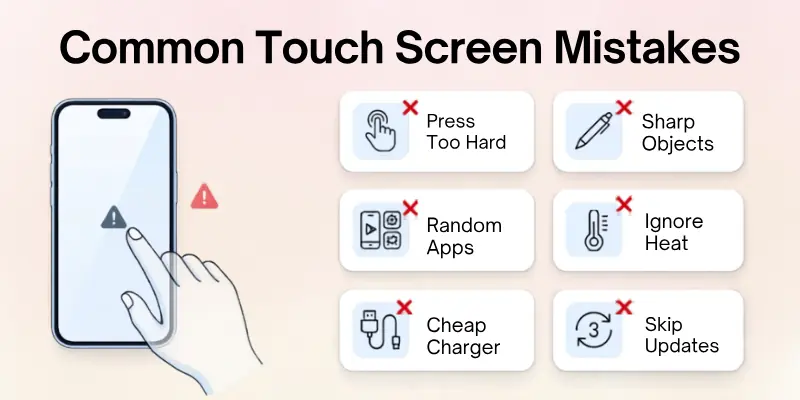
- Pressing the screen too hard: Many people think applying extra pressure will make the screen respond again, but this can damage the display or internal touch layer.
- Using sharp objects on the screen: Pens, pins, or metal objects can scratch the display and permanently affect touch sensitivity.
- Installing random “touchscreen fix” apps: Untrusted apps may contain ads, malware, or useless settings that create more software problems instead of solving them.
- Ignoring overheating issues: Excessive heat can slow down the processor and affect touchscreen responsiveness, especially during gaming or charging.
- Using damaged charging cables or cheap chargers: Faulty accessories sometimes create electrical interference that affects touch performance on capacitive touch screens.
- Restarting the device repeatedly without checking the real cause: Constant force restarts may temporarily hide the issue without actually fixing the underlying problem.
- Skipping software updates for long periods: Outdated software can contain bugs and compatibility issues that affect touch response and overall system stability.
- Continuing to use a cracked or water-damaged screen: Physical damage often worsens over time and can eventually make the touchscreen completely unusable.

Conclusion
Alright, friends, we’ve reached the end. Today, we explored how to fix unresponsive touchscreen step by step.
From simple restarts to factory resets, these steps can help you bring your screen back to life. Personally, I recommend starting with the easiest fixes, like cleaning your screen or removing the case, before trying anything advanced.
Don’t give up if the first step doesn’t work; keep trying! If you found this guide helpful, share it with someone who might need it or leave a comment below with your experience.
Important FAQs
Here are a few questions many users have about the unresponsive touchscreen fix:
An unresponsive touchscreen can happen because of software bugs, low storage, overheating, moisture, or physical damage. Sometimes the device freezes temporarily and stops detecting touch input correctly. Restarting the phone and cleaning the screen often fixes minor touchscreen issues quickly.
You can try these simple steps first:
- Restart the Android phone
- Remove the screen protector
- Boot the device into Safe Mode
- Update the software version
- Clear storage space
If the touch screen still freezes after these steps, the issue may be hardware-related.
Yes, low storage can slow down the entire system and affect touch responsiveness. When the phone storage becomes almost full, apps and background processes struggle to run smoothly. This can make the touch screen lag, freeze, or stop responding for short periods.
Water can interfere with the electrical signals used by capacitive touch screens. First, turn off the device immediately and dry it completely before trying to use it again. If the touchscreen still does not respond afterwards, internal hardware damage may require professional repair.
A cracked display can damage the digitizer layer underneath the screen, which controls touch input. In some cases, only one section stops responding, while other areas continue working normally. If the crack becomes worse over time, the touchscreen issue may also increase.
Software issues usually appear randomly and may improve after restarting or updating the device. Hardware problems are more consistent and often happen after drops, pressure damage, or water exposure.
Common hardware signs include:
- Dead touch areas
- Flickering display
- Cracked screen
- Permanent touch failure
Yes, thick or low-quality screen protectors can reduce touch sensitivity significantly. This is especially common with cheap tempered glass protectors that do not fit properly. Removing the protector and testing the screen again can help identify the real issue.
Touch screen calibration helps align touch input with the correct display area. This is useful when the screen responds in the wrong location instead of being completely dead. You can usually find touch calibration settings inside the device settings or accessibility options.
This issue is often caused by faulty charging cables or low-quality chargers, creating electrical interference. Some devices become less responsive when unstable power affects the touchscreen sensors.
To fix this problem:
- Use the original charger
- Replace damaged cables
- Avoid cheap charging accessories
- Test the screen without charging
If the touchscreen remains unresponsive after restarting, updating, calibrating, and performing a factory reset, hardware damage is likely the cause. Severe cracks, water damage, or dead touch zones usually require screen replacement. In such situations, repair becomes more effective than repeated troubleshooting.



- Be Respectful
- Stay Relevant
- Stay Positive
- True Feedback
- Encourage Discussion
- Avoid Spamming
- No Fake News
- Don't Copy-Paste
- No Personal Attacks
- Be Respectful
- Stay Relevant
- Stay Positive
- True Feedback
- Encourage Discussion
- Avoid Spamming
- No Fake News
- Don't Copy-Paste
- No Personal Attacks