
How to Record with Your Webcam – Steps to Record Video
Recording a video with your webcam is one of the easiest ways to create videos on your computer. You can use your webcam to record online lessons, work presentations, video messages, tutorials, interviews, or content for social media. Most computers have a built-in webcam, and you can also connect an external webcam for better video quality.
Many people use webcam recording because it is quick, simple, and does not need expensive equipment. You only need a working webcam, a microphone, and a recording app to get started. With the right setup, you can record clear videos from your home, office, or classroom.
In this guide, you will learn how to record video with your webcam on Windows and Mac computers. You will also learn how to record with free software, improve your video quality, fix common webcam problems, and save or share your recordings with confidence.
What You Need Before Recording a Webcam Video
Before you start recording, make sure you have everything ready. A few simple things can help you record a clear video with good sound and avoid problems during recording.
- A Working Webcam: Use your computer’s built-in webcam or connect an external webcam.
- A Computer or Laptop: Make sure your device is turned on and works properly.
- Webcam Recording Software: Choose a recording app that matches your needs.
- A Microphone: Use a built-in or external microphone for clear audio.
- Good Lighting: Record in a bright place so your face looks clear.
- A Quiet Room: Reduce background noise to improve sound quality.
- Enough Storage Space: Check that your computer has enough free space to save the video.
How to Check if Your Webcam Is Working Before Recording
Testing your webcam before you record helps you avoid camera or audio problems. Spend a few minutes checking your webcam to make sure everything works correctly.
- Open the Camera App: Turn on the Camera app to see if your webcam displays live video.
- Test the Webcam Online: Use a trusted webcam testing website to check both video and audio.
- Check Camera Permissions: Make sure your computer allows apps to access your webcam.
- Update Webcam Drivers: Install the latest webcam drivers if your camera does not work properly.

How to Record a Webcam on Windows
Windows makes it easy to record a video with your webcam. Most Windows computers come with the built-in Camera app, so you do not need to install extra software.
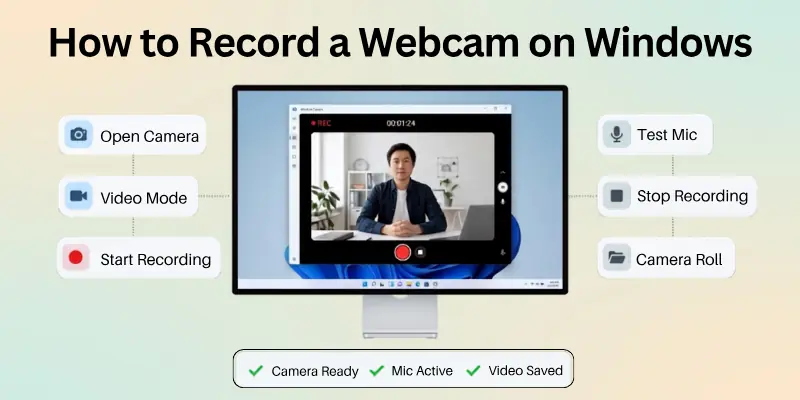
Follow these simple steps to record your video:
Step 1: Open the Camera App: Click the Start menu and type Camera in the search bar. Open the Camera app from the search results.
Step 2: Switch to Video Mode: When the Camera app opens, click the Video icon. This changes the app from taking photos to recording videos.
Step 3: Check Your Webcam View: Look at the preview on the screen. Make sure your face is in the center and the lighting is bright enough. If needed, move your webcam or adjust your seat.
Step 4: Test Your Microphone: Speak a few words before you begin. Make sure your microphone is connected and selected as the recording device if you use an external microphone.
Step 5: Click the Record Button: Click the Record button to start recording your video. Speak clearly and look at the webcam while you record.
Step 6: Stop the Recording: When you finish, click the Stop button. The Camera app will save your recording automatically.
Step 7: Find Your Recorded Video: Open the Pictures folder and then the Camera Roll folder. Your recorded webcam video should be saved there. You can watch it, rename it, move it to another folder, or share it with others.
How to Record with a Webcam on Mac
Mac computers let you record webcam videos with built-in apps, so you do not need to install extra software. You can use QuickTime Player or Photo Booth to record a video in just a few steps:
Method 1: Record a Webcam Video with QuickTime Player
- Step 1: Open QuickTime Player: Open Finder, go to Applications, and launch QuickTime Player.
- Step 2: Start a New Movie Recording: Click File in the top menu and select New Movie Recording.
- Step 3: Select Your Webcam and Microphone: If you have more than one camera or microphone, click the small arrow next to the Record button and choose the devices you want to use.
- Step 4: Check the Camera Preview: Look at the preview window. Make sure your face is clear and the lighting is good before you begin.
- Step 5: Click the Record Button: Click the Record button to start recording. Speak clearly and look at the webcam while you record.
- Step 6: Stop the Recording: Click the Stop button when you finish your video.
- Step 7: Save Your Video: Click File and then Save. Choose a location, enter a file name, and save your recording.
Method 2: Record a Webcam Video with Photo Booth
- Step 1: Open Photo Booth: Open Photo Booth from the Applications folder or use Spotlight Search to find it.
- Step 2: Switch to Video Mode: Click the Video recording icon at the bottom of the window.
- Step 3: Position Yourself: Check the camera preview and adjust your position if needed. Make sure the room has enough light.
- Step 4: Start Recording: Click the red Record button to begin recording your webcam video.
- Step 5: Stop and Save the Video: Click the Stop button when you finish. Your video will be saved in the Photo Booth library, and you can export or share it whenever you need.
How to Record Webcam Video Online Without Installing Software
If you do not want to download or install a recording app, you can use an online webcam recorder. These tools work in your web browser and let you record videos quickly.
Most online recorders only need permission to use your webcam and microphone.
- Step 1: Open an Online Webcam Recorder: Open your web browser and visit a trusted online webcam recording website.
- Step 2: Allow Camera and Microphone Access: When your browser asks for permission, click Allow so the website can use your webcam and microphone.
- Step 3: Check the Camera Preview: Make sure your webcam shows a clear picture. Adjust your position, lighting, and background if needed.
- Step 4: Start Recording: Click the Record button to begin recording your webcam video. Speak clearly and look at the camera while you record.
- Step 5: Stop the Recording: Click the Stop button when you finish recording.
- Step 6: Preview Your Video: Watch the recorded video to check the picture and sound. If you are not happy with the result, record another video.
- Step 7: Download or Save the Video: Click the Download or Save button to store the video on your computer. Some online tools also let you share the video or save it to cloud storage.
How to Use a Webcam to Record Video With Free Software
You do not need to buy expensive software to record videos with your webcam. Many free programs let you record high-quality videos with sound.
Some also include editing tools, screen recording, and video sharing features.
1. Camera App (Windows)
The Camera app comes with Windows and is easy to use.
- Open the Camera app.
- Switch to Video mode.
- Check your webcam preview.
- Click Record to start recording.
- Click Stop when you finish.
- Find your video in the Camera Roll folder.
2. QuickTime Player (Mac)
QuickTime Player is built into macOS and lets you record webcam videos in a few steps.
- Open QuickTime Player.
- Click File > New Movie Recording.
- Select your webcam and microphone if needed.
- Click Record to start.
- Click Stop when you finish.
- Save the video to your Mac.
3. OBS Studio
OBS Studio is a free program that offers more recording options.
- Install and open OBS Studio.
- Add your webcam as a Video Capture Device.
- Select your microphone.
- Click Start Recording.
- Record your video.
- Click Stop Recording to save the file.
4. Clipchamp
Clipchamp is a free video editor and recorder for Windows users.
- Open Clipchamp.
- Start a new project.
- Allow access to your webcam and microphone.
- Click the Record option.
- Record your video.
- Save or edit the recording.
5. VLC Media Player
Many people know VLC Media Player for playing videos, but it can also record webcam videos.
- Open VLC Media Player.
- Select the webcam as the capture device.
- Start the capture.
- Record your video.
- Stop the recording.
- Save the video to your computer.
How to Record Webcam and Screen at the Same Time
Recording your webcam and screen together is useful for tutorials, online classes, presentations, product demos, and gameplay videos. Many free recording programs let you capture both at the same time.
- Step 1: Choose a Screen Recording Program: Use a screen recorder that supports both screen and webcam recording, such as OBS Studio or Clipchamp.
- Step 2: Open the Recording Software: Launch the program on your computer and create a new recording if needed.
- Step 3: Add Your Screen: Select the screen, window, or application you want to record.
- Step 4: Turn On Your Webcam: Enable your webcam in the recording software. A small webcam window will appear on the screen.
- Step 5: Select Your Microphone: Choose the microphone you want to use and test the audio before you start recording.
- Step 6: Arrange the Webcam Window: Move the webcam window to a corner of the screen where it does not cover important content.
- Step 7: Start Recording: Click the Start Recording button. Your screen, webcam, and audio will all record at the same time.
- Step 8: Stop and Save the Recording: Click the Stop Recording button when you finish. Save the video to your computer and review it before sharing.

How to Make a Video with a Webcam with Audio
A good webcam video needs clear sound as well as clear picture quality. Before you start recording, make sure your microphone works properly and is selected in your recording software.
Follow these steps to record your webcam video with audio:
Step 1: Connect or Select Your Microphone: Use your computer’s built-in microphone or connect an external microphone. If you have more than one microphone, select the one you want to use in your recording software.
Step 2: Allow Microphone Access: Check that your computer allows the recording app to use your microphone. Without permission, your video may record without sound.
Step 3: Test the Audio: Speak a few words and check the microphone level. Record a short test video to make sure your voice is clear and easy to hear.
Step 4: Reduce Background Noise: Record in a quiet room. Turn off fans, TVs, or other devices that create unwanted noise.
Step 5: Start Recording: Click the Record button and begin speaking. Keep a steady distance from the microphone and speak clearly throughout the recording.
Step 6: Stop and Review the Video: When you finish, stop the recording and play the video. Check that both the video and audio are clear. If needed, adjust your microphone settings and record again.
Tips to Record Better Webcam Videos
You do not need expensive equipment to create a good webcam video. A few simple changes can make your video look more professional and improve both the picture and sound quality.
- Use Good Lighting: Record in a bright room or face a window so your face is easy to see.
- Clean the Webcam Lens: Wipe the lens with a soft cloth to remove dust and fingerprints.
- Place the Webcam at Eye Level: Keep the camera at the same height as your eyes for a natural view.
- Look at the Webcam: Look into the camera instead of the screen to make better eye contact.
- Choose a Clean Background: Keep the area behind you neat and free from distractions.
- Record in a Quiet Room: Reduce background noise so your voice sounds clear.
- Speak Clearly: Talk at a steady pace and pronounce your words clearly.
- Wear Simple Clothing: Avoid clothes with busy patterns that can distract viewers.
- Keep the Camera Steady: Place your webcam on a stable surface to prevent shaky video.
- Record a Short Test Video: Watch a test recording to check the video and audio before recording the final version.
How to Save, Edit, and Share Your Webcam Video
After recording your webcam video, save it correctly, make simple edits if needed, and share it in the best format. These steps help you keep your video organized and ready to send or upload.
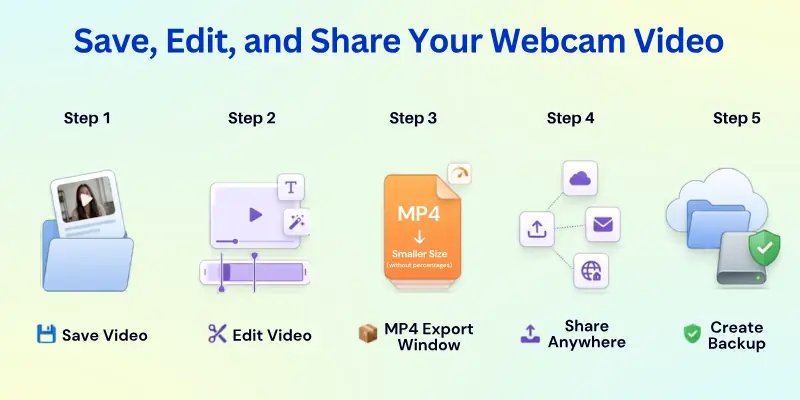
- Step 1: Save the Video: Save your recording in an easy-to-find folder. Give the file a clear name so you can find it later.
- Step 2: Edit the Video: Trim the beginning or end, remove mistakes, and add text or simple effects if needed. Keep your edits clean and easy to follow.
- Step 3: Choose the Right File Format: Save your video in a common format like MP4. This format works on most devices and websites.
- Step 4: Compress Large Video Files: If your video file is too large, compress it to reduce its size. This makes it easier to upload, email, or store.
- Step 5: Share Your Video: Upload your video to a website, attach it to an email, or share it through cloud storage. Make sure the video plays correctly before sending it to others.
- Step 6: Keep a Backup Copy: Save another copy of your video on an external drive or cloud storage. A backup helps protect your recording if the original file is lost or deleted.
Common Webcam Recording Problems and How to Fix Them
Even with the right setup, you may face problems while recording a webcam video. The good news is that most issues are easy to fix.
Below are some common webcam recording problems and simple solutions:
- Problem 1: Webcam Is Not Detected: How to Fix: Reconnect the webcam, restart your computer, and make sure the correct camera is selected in your recording software.
- Problem 2: Webcam Shows a Black Screen: How to Fix: Close other apps that may be using the webcam, allow camera permissions, and reopen the recording program.
- Problem 3: Webcam Video Is Blurry: How to Fix: Clean the webcam lens, improve the lighting, and make sure the camera is focused properly.
- Problem 4: No Sound in the Recording: How to Fix: Check that the correct microphone is selected, allow microphone access, and test the audio before recording.
- Problem 5: Audio and Video Are Out of Sync: How to Fix: Close unnecessary programs, update your recording software, and lower the recording quality if your computer is slow.
- Problem 6: Webcam Keeps Freezing: How to Fix: Restart your computer, update the webcam driver, and disconnect other USB devices if you use an external webcam.
- Problem 7: Video Recording Is Laggy: How to Fix: Close background programs, free up system resources, and record at a lower resolution if needed.
- Problem 8: Recording Looks Too Dark: How to Fix: Turn on more lights, face a window, or use a desk lamp to brighten your face.
- Problem 9: Webcam Is Being Used by Another App: How to Fix: Close video calling apps or other programs that are using the webcam, then start recording again.
- Problem 10: Recording Stops Unexpectedly: How to Fix: Check your available storage space, keep your computer charged or plugged in, and make sure the recording software is up to date.
Conclusion
So guys, we’re at the end now. In this guide, we’ve gone through how to record using a webcam step by step.
I suggest starting small: webcam video recording a test video, fixing your setup, and growing from there. Don’t worry if it’s not perfect at first; the more you practice, the better you’ll get. Just focus on clear sound, good lighting, and speaking with confidence.
Go ahead and take the first step: hit that record button and share your message with the world!
FAQs
Here are answers to popular questions on how to use your webcam for recording:
You can record a video on your PC using the built-in Camera app or another recording program. Open the app, switch to Video mode, and click the Record button. When you finish, stop the recording and save the video.
Yes. You can use:
- The built-in Camera app on Windows.
- QuickTime Player on Mac.
- An online webcam video recorder that works in your web browser.
These options let you record videos without downloading extra software..
Most webcams can record video and sound at the same time. Before you begin, select the correct microphone and test the audio. Record a short sample to make sure your voice is clear before creating the final video.
A webcam recording is a video captured with a webcam. It records your face and, in most cases, your voice through a microphone. People use webcam recordings for online meetings, lessons, presentations, tutorials, and video messages.
The save location depends on the recording software. On most Windows computers, videos are stored in the Pictures folder inside Camera Roll. Many recording apps also let you choose a custom folder before recording.
Your webcam may not record because:
- Another app is using the camera.
- Camera permissions are turned off.
- The webcam driver is outdated.
- The wrong webcam is selected.
- The recording software has a problem.
Check these issues and try recording again..
The recording time depends on your available storage space, battery life, and recording software. Most webcam programs let you record until your storage is full or you stop the recording.
MP4 is the best choice for most users. It offers good video quality with a smaller file size and works on almost all computers, phones, and video-sharing websites.



- Be Respectful
- Stay Relevant
- Stay Positive
- True Feedback
- Encourage Discussion
- Avoid Spamming
- No Fake News
- Don't Copy-Paste
- No Personal Attacks
- Be Respectful
- Stay Relevant
- Stay Positive
- True Feedback
- Encourage Discussion
- Avoid Spamming
- No Fake News
- Don't Copy-Paste
- No Personal Attacks









