
How to Pair Bluetooth Speakers – Easy Steps for Beginners
Bluetooth speakers make listening to music, podcasts, or calls easy and wireless. But to enjoy them, you first need to pair your speaker with your device. Proper pairing ensures clear sound, no interruptions, and a smooth connection every time.
In this guide, you’ll learn step-by-step how to pair Bluetooth speakers with phones, tablets, computers, and even smart TVs We’ll also cover tips for connecting multiple speakers, solving common problems, and using extra features so you can get the most out of your devices.
By the end, you’ll be confident in pairing any Bluetooth speaker quickly and easily.
What You Need Before Pairing
Before you start pairing your Bluetooth speaker, make sure you have these ready. This makes the process smooth and avoids frustration.
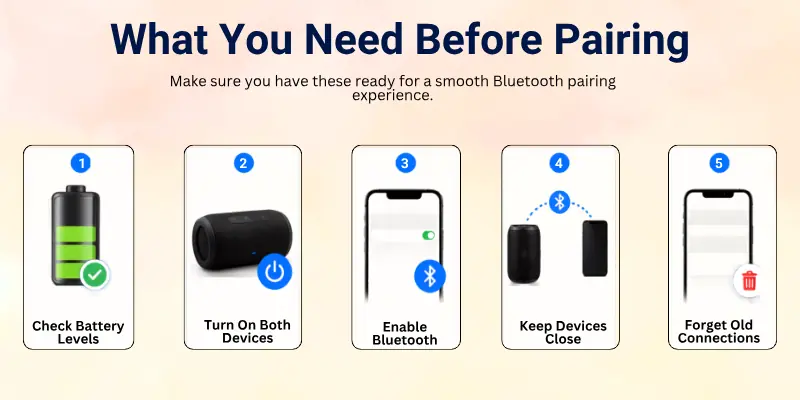
- Check Battery Levels: Ensure both your speaker and device (phone, tablet, or computer) have enough battery. Low power can cause pairing failures or drops in connection.
- Turn On Both Devices: Switch on your speaker and the device you want to connect. Most speakers will show a blinking light or play a sound when powered on.
- Enable Bluetooth: Open your device’s Bluetooth settings and make sure Bluetooth is turned on. Your device needs this to detect the speaker.
- Keep Devices Close: For best results, keep your speaker and device within 10 meters (about 30 feet) of each other. Obstacles like walls can weaken the signal.
- Forget Old Connections (if needed): If your speaker was paired with another device, it may not connect immediately. You can remove old pairings from your speaker or device to avoid conflicts.
How to Connect Bluetooth Speaker to Phone or Any Device
Pairing your Bluetooth speaker is quick and easy when you follow these steps:
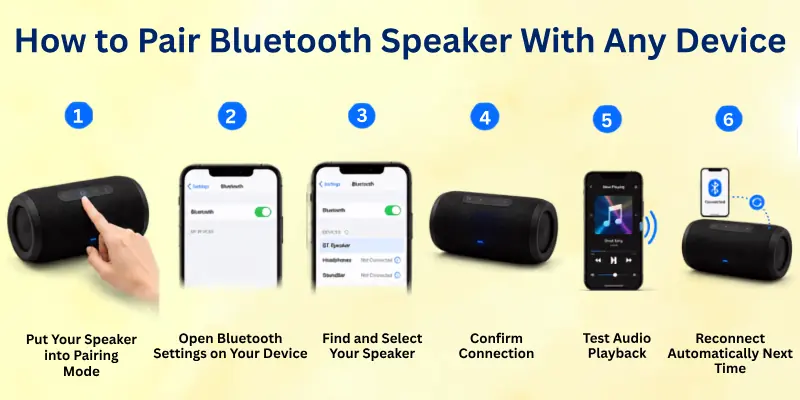
- Put Your Speaker into Pairing Mode: Most Bluetooth speakers have a dedicated pairing button. Press and hold it until a light flashes, or you hear a tone. This signals the speaker is ready to connect.
- Open Bluetooth Settings on Your Device: Phone or Tablet: Go to Settings → Bluetooth and make sure it’s on. Computer: Open Bluetooth & Devices in your system settings.
- Find and Select Your Speaker: Your device will show a list of nearby Bluetooth devices. Tap or click the name of your speaker to connect.
- Confirm Connection: Some speakers may ask for a PIN (often 0000 or 1234). Once connected, the LED light usually stays solid, or you hear a confirmation sound.
- Test Audio Playback: Play some music or a video to make sure the sound comes through your speaker. Adjust the volume as needed.
- Reconnect Automatically Next Time: Once paired, your speaker usually remembers the device. Next time you turn both on, they should connect automatically.
Pairing With Different Devices
Bluetooth speakers can connect to many types of devices. Here’s how to pair with each one easily:
1. Connect Bluetooth Speaker to Android Phone
- Open Settings → Bluetooth.
- Make sure Bluetooth is on.
- Tap your speaker’s name from the available devices.
- Wait for the “Connected” message.
2. How to Pair Bluetooth Speaker with an iPhone
- Open Settings → Bluetooth.
- Turn Bluetooth on if it isn’t already.
- Select your speaker from the list.
- Look for a checkmark or “Connected” status.
3. Windows Computers
- Go to Settings → Devices → Bluetooth & other devices.
- Click Add Bluetooth or other device → Bluetooth.
- Select your speaker and click Connect.
4. Mac Computers
- Open System Settings → Bluetooth.
- Make sure Bluetooth is on.
- Find your speaker in the device list and click Connect.
5. Smart TVs & Streaming Devices
- Access the Bluetooth or Audio settings on your TV or streaming device (like Roku or Fire TV).
- Search for new devices and select your speaker.
- Confirm connection and test audio playback.
Tip: Keep the device and speaker close together during pairing to avoid interference.

Tips for Multiple Speakers
Some Bluetooth speakers let you connect two or more speakers at the same time. This creates stereo sound or a party mode for louder, richer audio.
1. Connecting Two Speakers
- Make sure both speakers are powered on and in pairing mode.
- Connect the first speaker to your device as usual.
- Follow the manufacturer’s instructions to link the second speaker. Some speakers use a “Pair” or “Party” button.
2. Brand‑Specific Modes
- JBL PartyBoost: Press the PartyBoost button on both JBL speakers to link them.
- Sony Party Connect: Press the Party Connect button to sync multiple Sony speakers.
- Bose SimpleSync: Open the Bose app to pair speakers together.
3. Tips for Best Results
- Keep speakers close together for a stable connection.
- Use the same brand if possible; cross-brand pairing may not work.
- Adjust the volume on both speakers to balance sound.
With these tips, you can enjoy bigger, clearer sound and create a mini home sound system anywhere.
Troubleshooting Common Issues
Sometimes pairing a Bluetooth speaker doesn’t go smoothly. Here’s how to fix the most common problems:
1. Speaker Doesn’t Appear in Bluetooth List
- Make sure the speaker is in pairing mode (blinking light or tone).
- Turn Bluetooth off and on again on your device.
- Move your device closer to the speaker and remove obstacles like walls.
2. Pairing Fails Repeatedly
- Restart both devices to reset the connection.
- Forget old pairings on your device and speaker.
- Make sure no other devices are currently connected to the speaker.
3. Poor or Intermittent Audio
- Keep devices within 10 meters (30 feet).
- Avoid interference from Wi-Fi routers, microwaves, or other Bluetooth devices.
- Reduce the number of devices trying to connect at the same time.
4. Speaker Connected but No Sound
- Check the volume on both the device and the speaker.
- Ensure the speaker is set as the default audio output on your device.
5. Resetting the Speaker
- If all else fails, consult your speaker’s manual to reset it to factory settings. This clears old pairings and solves stubborn issues.

Advanced Pairing Features
Some Bluetooth speakers offer extra features that make pairing faster or give you more control.
1. Google Fast Pair
- Available on many Android devices.
- When you turn on your speaker near your phone, a pop-up appears automatically asking to connect.
- No need to open Bluetooth settings; just tap Connect.
2. Quick Connect Methods
- Some brands (like Samsung or Sony) have a Quick Connect or Smart Pairing feature.
- Your speaker automatically shows up in your device’s list when powered on.
- Works best if your device was paired before.
3. Speaker Apps
- Many speakers come with their own apps (e.g., JBL, Bose, Sony).
- Apps can help you: Pair multiple speakers, Update firmware for better performance, Adjust sound settings or EQ
Tip: Using these features saves time and ensures a stable, high-quality connection every time you use your speaker.
Safety and Best Practices
When you use a Bluetooth speaker, simple care can help it last longer and work better. These basic steps keep your device safe, improve sound quality, and reduce connection problems.
Follow these easy habits every time you use your speaker:
- Keep your speaker and device within 10 meters for a stable connection
- Turn off Bluetooth when you are not using it to save battery
- Avoid water, heat, and very cold places unless your speaker is fully waterproof
- Handle your speaker carefully to prevent drops and damage
- Clean it with a soft, dry cloth to avoid dust build-up
- Update your speaker software or firmware when updates are available
- Avoid connecting too many devices at the same time
- Store your speaker in a safe place when not in use
Conclusion
Pairing a Bluetooth speaker is simple when you follow the right steps. You can connect it to phones, tablets, computers, and smart TVs in just a few minutes.
Just make sure your devices are charged, Bluetooth is turned on, and your speaker is in pairing mode. If something goes wrong, use the troubleshooting tips to fix it quickly.
With these easy steps and best practices, you will enjoy clear and stable sound every time. Whether you use one speaker or a full party setup, you can get the best audio experience without any stress.
Popular FAQs
Here are some common questions readers have about pairing Bluetooth speakers, with easy answers to help you get connected quickly and solve common problems:
Your Bluetooth speaker may not connect if it is not in pairing mode. First, make sure the speaker is turned on and ready to pair.
Restart Bluetooth on your phone or laptop and try again. Move closer to the speaker and remove any old saved connections if needed.
Press and hold the Bluetooth or power button on your speaker. Wait until you see a blinking light or hear a sound.
This blinking light means your speaker is now ready to connect. Now you can open Bluetooth on your device and select it.
Yes, you can connect most Bluetooth speakers to almost any modern phone. Android and iPhone both support Bluetooth connections.
Just turn on Bluetooth on your phone. Then select your speaker from the list of available devices and tap Connect.
This problem usually happens when the volume is too low or muted. Check both your phone and speaker volume settings first.
Also make sure the speaker is selected as the main audio output device. If it still does not work, disconnect and reconnect the speaker.
Bluetooth speakers usually work within a range of about 10 meters. This is the best distance for clear sound.
- Walls and doors can reduce the range
- Other wireless devices can cause interference
- Closer distance gives better audio quality
Yes, but only if your speakers support this feature. Many brands offer “party mode” or “stereo mode” for dual connection.
You usually need:
- Same brand speakers
- Pairing or party button
- Or a mobile app like the JBL or Bose app
Resetting helps fix connection problems and clears old devices. Turn off your speaker first. Then press and hold the power or Bluetooth button for a few seconds until it resets. After that, try pairing again from scratch.
This usually happens due to a weak signal or a low battery. Keep your speaker charged and close to your device.
Also, avoid placing it near Wi-Fi routers, microwaves, or other wireless devices. These can disturb the connection.
No, you do not need Wi-Fi for Bluetooth speakers. They work directly through Bluetooth technology.
- No internet needed
- No mobile data required
- Just turn on Bluetooth and connect
This makes them easy to use anywhere.
First, turn on Bluetooth on your laptop. Then go to settings and search for new devices.
Select your speaker from the list and click Connect. Once paired, your laptop will send all audio to the speaker automatically.



- Be Respectful
- Stay Relevant
- Stay Positive
- True Feedback
- Encourage Discussion
- Avoid Spamming
- No Fake News
- Don't Copy-Paste
- No Personal Attacks
- Be Respectful
- Stay Relevant
- Stay Positive
- True Feedback
- Encourage Discussion
- Avoid Spamming
- No Fake News
- Don't Copy-Paste
- No Personal Attacks









