
Types of Keyboard Keys for Beginners in 2026
Have you ever wondered why a keyboard has so many different keys? Why are some keys used for typing, while others perform special actions?
Understanding the types of keyboard keys clears this confusion and helps you use your computer more confidently. Each group of keys has a specific role, from writing text to controlling programs.
Once you understand their functions, everyday tasks like typing, editing, and navigating become much simpler and faster.
Let’s get started!
Different Types of Keyboard Keys
Keyboards have many buttons, and each button does a different job. These buttons are called keyboard keys. Knowing the types of keys helps you type faster, use shortcuts, and work more efficiently.
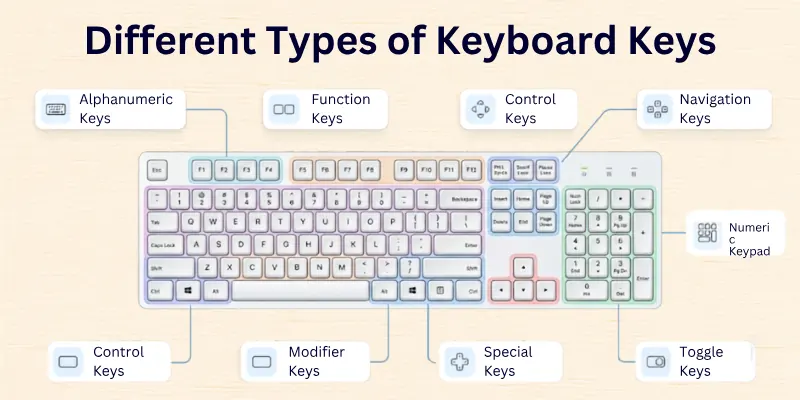
Here’s a list of keyboard key types:
- Alphanumeric Keys
- Function Keys
- Control Keys
- Navigation Keys
- Numeric Keypad Keys
- Special Keys
- Modifier Keys
- Toggle Keys
Let’s explore all the types and how they work.
1. Alphanumeric Keys
Alphanumeric keys are the most common keys on the keyboard. They include:
- Letters (A–Z): Used to type words and sentences.
- Numbers (0–9): Used for typing numbers in documents or forms.
- Symbols (@, #, $, %, etc.): Used in emails, passwords, and coding.
Practical Uses:
- Typing documents, emails, and messages
- Entering passwords and login codes
- Daily tasks like writing notes or filling out forms
2. Function Keys (F1–F12)
Function keys sit on the top row of the keyboard. They are labelled F1 to F12. Each key performs a special task:
- F1: Opens help menus
- F2: Renames files or folders
- F3: Opens search boxes
- F4: Closes windows or address bars
- F5: Refreshes or reloads pages
- F6: Moves the cursor to the address bar
- F7: Checks spelling and grammar
- F8: Opens startup menus in Windows
- F9: Refreshes documents in Word
- F10: Shows the menu bar
- F11: Toggles full-screen mode
- F12: Opens the “Save As” dialogue in Word
Tip: Function keys are great for speeding up work without using the mouse.

3. Control Keys
Control keys help you give commands to the computer. They are mostly used with other keys:
- Ctrl: Used for shortcuts like Ctrl + C (copy) and Ctrl + V (paste)
- Alt: Switches between tasks or opens menus
- Windows Key: Opens the Start menu
- Esc: Cancels tasks or exits menus
Pro Tip: Combining keys makes tasks faster. For example, Ctrl + S quickly saves your work.
4. Navigation Keys
Navigation keys help you move the cursor or scroll through documents:
- Arrow Keys: Move the cursor up, down, left, or right
- Home: Jumps to the start of a line
- End: Jumps to the end of a line
- Page Up / Page Down: Scrolls a page up or down
- Insert: Switches typing modes (insert or overwrite)
- Delete: Removes the character after the cursor
These keys save time when editing text or browsing large documents.
5. Numeric Keypad
The numeric keypad looks like a small calculator on the right side of many keyboards. It is mainly used for typing numbers quickly.
- Numbers 0–9
- Symbols: +, -, *, /
- Math: Quick calculations
- Phone Numbers & Data Entry: Speeds up input
Tip: Turn on Num Lock to use the numeric keypad efficiently.
6. Special Keys
Special keys control typing and commands. They are not letters or numbers but make work easier:
- Enter: Moves the cursor to a new line or runs a command
- Backspace: Deletes the character before the cursor
- Spacebar: Adds space between words
- Tab: Moves the cursor forward by a few spaces
- Esc: Stops a task or closes a menu
These keys are essential for everyday typing and document editing.
7. Modifier Keys
Modifier keys change the function of other keys when pressed together:
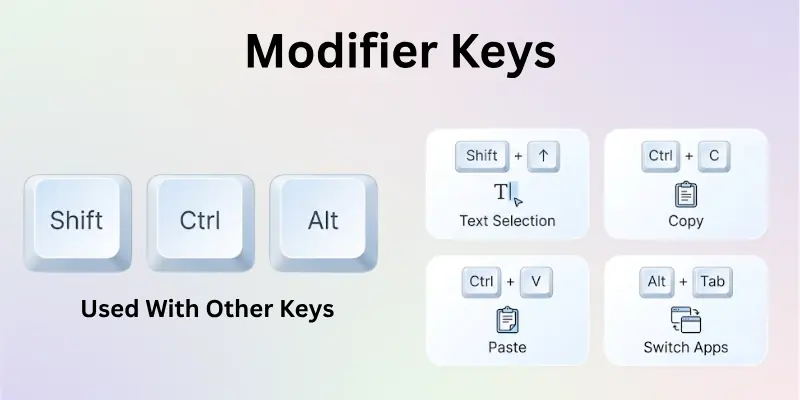
- Shift: Makes letters uppercase and types symbols
- Ctrl: Works with other keys for shortcuts
- Alt: Opens menus or switches windows
Example Combos:
- Shift + Arrow → Select text
- Ctrl + C → Copy
- Ctrl + V → Paste
- Alt + Tab → Switch between open apps
Modifier keys greatly improve efficiency when used with other keys.
8. Toggle Keys
Toggle keys turn a function on or off like a switch. Press once to start and again to stop:
- Caps Lock: Turns capital letters on/off
- Num Lock: Enables/disables numeric keypad
- Scroll Lock: Changes scrolling behaviour in some applications
- Indicator Lights: Show which toggle is active
These keys help manage typing modes and numeric input.
Importance of Learning Keyboard Key Types
When you understand the different kinds of keyboard keys, you use your computer with more confidence. You stop guessing and start working smarter.

Each key has a purpose, and knowing that purpose saves time. It also helps you avoid mistakes while typing or using shortcuts.
- Helps you type faster and more accurately
- Saves time by using keyboard shortcuts
- Makes navigation inside documents easier
- Improves productivity at school or work
- Reduces dependence on the mouse
- Builds strong basic computer skills
Final Note
In this article, we’ve covered categories of keyboard keys in detail. From alphanumeric to toggle keys, each key has a unique function that can make your computer work faster and more smoothly.
Personally, I recommend practicing shortcuts with modifier and function keys; they save a lot of time every day.
Start using what you’ve learned, explore each key, and watch your typing and navigation skills improve immediately.
Important FAQs
Many people still have small doubts about keyboard keys and how they work. This section answers the most common questions in simple words:
There are mainly 8 types of keyboard keys: alphanumeric, function, control, navigation, numeric keypad, special, modifier, and toggle keys. Each type has a different purpose on the keyboard. Learning these types helps you understand how a computer keyboard works.
For beginners, the most important keyboard keys are:
- Alphanumeric keys
- Enter and Backspace
- Shift and Ctrl
These keys are used in daily typing and basic computer tasks. Once you master them, using other key types becomes easier.
Modifier keys like Shift, Ctrl, and Alt change the function of other keys when pressed together. Control keys also give commands, but they often work as shortcut keys in Windows or other systems. Both are important for using keyboard shortcuts efficiently.
Most standard computer keyboards include the same main key types. However, compact keyboards and laptop keyboards may not have a numeric keypad. Gaming or mechanical keyboards may also add extra programmable keys.
Function keys (F1 to F12) perform quick actions like opening Help, refreshing a page, or saving a file. Their function may change depending on the software you use. They help improve speed and productivity while working on a computer.
Toggle keys like Caps Lock and Num Lock turn certain features on or off. They help control typing modes without holding down another key. Small indicator lights usually show when these keys are active.
Navigation keys help you move the cursor inside documents and web pages. They include arrow keys, Home, End, Page Up, and Page Down. These keys make editing long documents faster and easier.
When you understand different keyboard key types, you use shortcuts instead of relying on the mouse. This reduces hand movement and saves time. With practice, your typing speed and accuracy improve naturally.


- Be Respectful
- Stay Relevant
- Stay Positive
- True Feedback
- Encourage Discussion
- Avoid Spamming
- No Fake News
- Don't Copy-Paste
- No Personal Attacks
- Be Respectful
- Stay Relevant
- Stay Positive
- True Feedback
- Encourage Discussion
- Avoid Spamming
- No Fake News
- Don't Copy-Paste
- No Personal Attacks









