
Components of a Computer Mouse for Office and Gaming
The components of a mouse may look simple at first glance, but inside that small device lies impressive technology. Whether you’re clicking through school assignments, browsing the web, designing graphics, or gaming, your computer mouse plays a vital role.
A computer mouse is an input device that helps users interact with a computer screen. It moves the pointer, selects items, opens files, and performs many tasks quickly and accurately. But what exactly makes it work?
In this guide, we’ll explore every important part of a mouse, from the visible buttons to the hidden sensors and circuit boards.
By the end, you’ll understand how these parts function together and why each one matters.
Components of Computer Mouse
A computer mouse is one of the most important input devices. It helps you move the cursor, click, scroll, and interact with your computer easily.
There are two of parts of a mouse:
- External Parts: The parts you can see and touch.
- Internal Parts: The hidden parts inside that make the mouse work.
Let’s discuss parts of computer mouse in detail below.
1. External Components of a Computer Mouse
The external parts of a computer mouse are the parts you can see and touch. These parts help you control your computer in a simple and fast way. Each part has a clear job, and together they make the mouse easy to use for office work, study, and gaming.
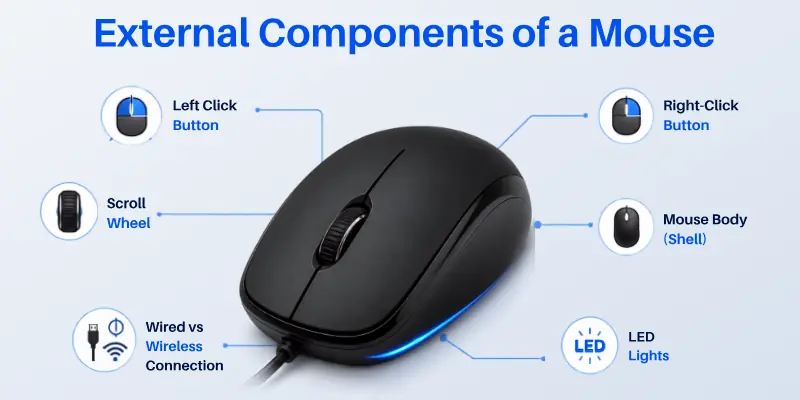
Let’s understand each part in detail:
1. Left Click Button
The left-click button is the main button on a mouse. You use it more than any other part.
Function and daily uses
You use the left click button for most computer tasks, such as:
- Opening files and folders
- Selecting text or images
- Dragging items on the screen
- Clicking apps and buttons
It works as your main control tool on the computer.
Why is it the most used button
You use this button because it handles basic actions. Every time you open something or select something, you use the left click. That is why it wears out faster than other buttons in many cases.

2. Right-Click Button
The right-click button gives you extra options on the screen.
Menu access and extra options
When you right-click on something, a menu appears. This menu gives you useful shortcuts like:
- Copy and paste options
- File properties
- Open or rename options
- Additional settings
How does it help with faster work
Instead of going through many steps, you get quick access to tools. This saves time and makes your work easier, especially in office tasks and file management.
3. Scroll Wheel
The scroll wheel sits between the left and right buttons.
Scrolling up and down pages
Its main job is simple. You use it to move through long pages, documents, or websites without clicking.
It helps you:
- Read long articles easily
- Move through Excel sheets
- Browse websites faster
Middle click function
When you press the scroll wheel, it acts as a middle button. You can:
- Open links in a new tab
- Close tabs in browsers
- Use special features in software
Use in office and browsing
In office work, it helps you move through data quickly. In browsing, it makes navigation smooth and fast.
4. Mouse Body (Shell)
The body is the outer shape of the mouse. It holds all internal parts and gives you a comfortable grip:
Shape, design, and comfort
Mouse designs vary in shape and size. Some are:
- Small for travel use
- Large for gaming comfort
- Simple for office work
Ergonomic benefits for long use
Ergonomic design means the mouse fits your hand naturally. This helps reduce:
- Hand pain
- Wrist strain
- Fatigue during long work hours
A good mouse body improves your overall comfort and control.
5. Wired vs Wireless Connection
This part connects the mouse to your computer.
USB cable connection (Wired Mouse)
A wired mouse uses a USB cable. It:
- Connects directly to the computer
- Gives a stable and fast response
- Does not need charging or batteries
Bluetooth and USB receiver (Wireless Mouse)
A wireless mouse connects in two ways:
- USB receiver (dongle)
- Bluetooth connection
It runs on batteries or rechargeable power.
Basic difference in use and performance
- Wired mouse: More stable and slightly faster response
- Wireless mouse: More freedom and less cable clutter
Gamers often prefer wired, while office users like wireless for comfort.
6. LED Lights
Some mice come with small LED lights. These are not required for function but add extra features.
Power indicator: This light shows whether the mouse is on or off. It helps you know battery or power status.
DPI indicator: Some mice use lights to show DPI settings. DPI controls cursor speed. Higher DPI means faster movement.
Gaming RGB effects: Gaming mice often include RGB lights. These lights:
- Make the mouse look stylish
- Allow color customization
- Improve gaming setup appearance
They do not affect performance but improve visual experience.
2. Internal Components of a Computer Mouse
The internal components of a computer mouse are hidden parts inside the device. You cannot see them, but they control everything your mouse does. These parts work together to track movement, process clicks, and send signals to your computer in real time.
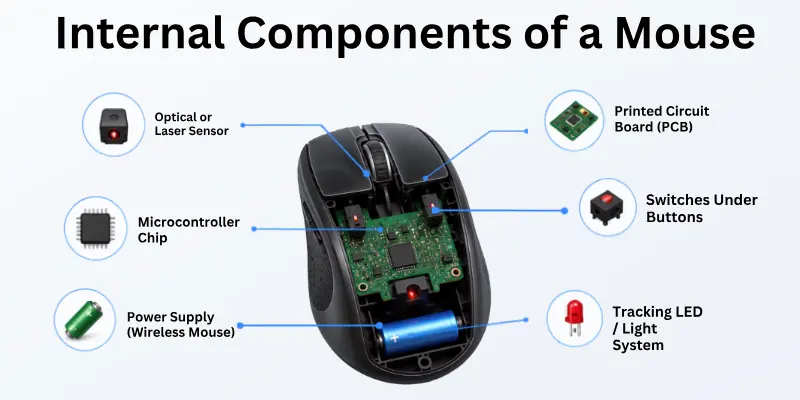
Let’s understand each internal part in a simple and clear way.
1. Optical or Laser Sensor
The sensor is one of the most important parts inside a mouse. It tracks how you move the mouse on a surface.
How movement is tracked
The sensor works by reading the surface under the mouse. When you move the mouse, it:
- Captures tiny images of the surface
- Detects changes in position
- Converts movement into cursor motion on the screen
This process happens very fast, so your cursor moves smoothly.
Difference between optical and laser sensors
There are two main types:
Optical Sensor
- Uses LED light
- Works well on most normal surfaces
- Best for daily use and office work
Laser Sensor
- Uses laser technology
- Works on more surfaces, even shiny ones
- Offers higher precision for gaming and design work
Importance for accuracy
The sensor decides how accurate your mouse feels. A better sensor gives:
- Smooth cursor movement
- Better control in gaming
- More precision in design tasks
2. Printed Circuit Board (PCB)
The PCB is the main control system inside the mouse.
Main control system inside the mouse: The PCB is a flat electronic board that connects all internal parts. It acts like a central hub where everything communicates.
How it connects all parts
It links:
- Buttons
- Sensor
- Microcontroller
- Lights and power system
When you click or move the mouse, signals travel through the PCB.
3. Microcontroller Chip
The microcontroller is the brain of the mouse. It sits on the PCB and controls all actions. Without it, the mouse cannot process any input.
Converts signals into actions
It does this job:
- Takes signals from buttons and sensors
- Processes the data
- Sends instructions to the computer
This is how your click becomes an action on the screen.
4. Switches Under Buttons
Every click you make comes from small switches inside the mouse.
How clicking works
When you press a button:
- The switch inside gets pressed
- It closes an electrical circuit
- A signal is sent to the PCB
That signal becomes a click on your computer.
Mechanical vs optical switches
There are two main types:
Mechanical switches
- Most common type
- Use physical contact
- Reliable and affordable
Optical switches
- Use light instead of contact
- Faster response time
- Used in high-end gaming mice
Durability in gaming mice
Gaming mice use stronger switches because:
- They handle fast clicking
- They last longer under heavy use
- They reduce delay during gameplay
5. Power Supply (Wireless Mouse)
Wireless mice need power to work.
Battery types (AA, AAA, rechargeable)
They use:
- AA batteries (common and easy to replace)
- AAA batteries (smaller size)
- Built-in rechargeable lithium batteries
Rechargeable mice are more modern and eco-friendly.
Power saving system
Modern mice include power-saving features like:
- Auto sleep mode when not used
- Low-power usage sensors
- Efficient Bluetooth or wireless chips
These features help the battery last longer.
6. Tracking LED / Light System
The tracking LED helps the mouse see movement.
Role in motion detection
In optical mice, the LED:
- Lights the surface under the mouse
- Helps the sensor detect movement patterns
- Improves tracking accuracy
How optical mice use light
The process is simple:
- LED shines light on the surface
- Sensor reads reflected light
- Changes in reflection show movement direction
This is how the mouse knows where you are moving it.

Types of Computer Mouse Based on Components
Different computer mice use different internal and external components. These differences change how the mouse works, how fast it responds, and how comfortable it feels in daily use.
Some mice are built for simple office tasks, while others are designed for high-performance gaming or professional work.
Below are the main types of computer mice based on their components:
- Wired Mouse: Connects through a USB cable and gives stable, fast, and reliable performance without battery needs.
- Wireless Mouse: Uses Bluetooth or USB receiver and runs on battery or rechargeable power for cable-free use.
- Optical Mouse: Uses an LED sensor to track movement on most surfaces with good accuracy for everyday tasks.
- Laser Mouse: Uses a laser sensor for higher precision and works well on smooth or glossy surfaces.
- Gaming Mouse: Includes high DPI sensors, extra programmable buttons, and fast switches for better speed and control in games.
- Ergonomic Mouse: Designed with a hand-friendly shape to reduce strain during long hours of use.
Common Problems in Mouse Components
Here are the most common problems in mouse components:
- Broken Left Click Button: The switch inside wears out, causing double clicks or no response when you press it.
- Right Click Not Working: Internal switch damage or dust can stop the button from responding properly.
- Scroll Wheel Issue: The wheel may feel stuck, jump randomly, or stop scrolling due to dust or sensor damage.
- Sensor Not Tracking Properly: The optical or laser sensor may fail on dirty or uneven surfaces, causing cursor delay or movement glitches.
- Cursor Freezing or Lagging: A weak connection, damaged PCB, or low battery in wireless mice can cause slow response.
- Wireless Connection Problem: Bluetooth or USB receiver issues can break communication between mouse and computer.
- Battery Drain Issue: In wireless mice, poor power management or old batteries can cause fast battery drain.
- Loose Cable (Wired Mouse): A damaged USB cable can cause sudden disconnection or unstable performance.
Final Thoughts
Knowing the components of a mouse lets you pick the right one and fix issues quickly. From the outer buttons to the small internal microcontroller, every piece ensures smooth and precise performance.
Whether you’re a student, office professional, or gamer, understanding how a mouse functions helps you choose the device that fits your needs best.
Mouse designs keep changing with technology, but at their heart, all mice depend on well-designed components working seamlessly together.
Frequently Asked Questions About Components of a Mouse
Here are some frequently asked questions related to the parts of the mouse:
A computer mouse has both external and internal components that work together to control your computer. External parts help you interact directly, while internal parts process your actions.
Main components include:
- Left and right click buttons
- Scroll wheel
- Optical or laser sensor
- Printed Circuit Board (PCB)
- Microcontroller chip
- Switches under buttons
- Power source (in wireless mice)
Each part plays an important role in making cursor movement smooth and accurate.
The mouse sensor tracks your movement on a surface and turns it into cursor movement on the screen. It reads small changes in position and sends signals to the computer.
The sensor works very fast, so even small hand movements appear smoothly on your screen. There are two main types of sensors:
- Optical sensor: Uses LED light and works well on normal surfaces
Laser sensor: Gives higher accuracy and works on more surface types
PCB stands for Printed Circuit Board. It is the main electronic board inside the mouse that connects all parts together.
It works like a control system that:
- Links buttons, sensor, and chip
- Processes all signals
- Sends data to the computer
Without the PCB, the mouse cannot function because no part would be able to communicate.
The main difference is the type of technology used to track movement.
Optical Mouse
- Uses LED light
- Works best on standard surfaces
- Good for office and daily use
Laser Mouse
- Uses laser technology
- Works on more surfaces, including shiny ones
- More precise and better for professional or gaming tasks
Both are useful, but the choice depends on your needs.
The best mouse depends on how you use it.
For gaming, a gaming mouse is best because it offers:
- High DPI sensor for fast movement
- Extra programmable buttons
- Fast response switches
- Better grip and comfort
For office use, a simple wireless or optical mouse works well because it:
- Is easy to use
- Gives smooth performance
- Offers comfort for long hours
A good ergonomic design is helpful for both office work and gaming.
A mouse may stop working due to:
- Dust on the sensor
- Weak battery in wireless mouse
- Damaged cable or USB port
- Faulty internal switch or PCB
Cleaning the mouse or changing the battery often fixes the issue.
You can improve performance by:
- Using a clean and smooth mouse pad
- Replacing weak batteries
- Keeping the sensor clean
- Avoiding rough handling of the cable or body
If the mouse sensor is damaged, the cursor will not move smoothly or may stop working. You may see jumping, freezing, or delayed movement. Try cleaning the sensor and using a different surface first. If the problem stays, the sensor is likely faulty and needs repair or replacement.


- Be Respectful
- Stay Relevant
- Stay Positive
- True Feedback
- Encourage Discussion
- Avoid Spamming
- No Fake News
- Don't Copy-Paste
- No Personal Attacks
- Be Respectful
- Stay Relevant
- Stay Positive
- True Feedback
- Encourage Discussion
- Avoid Spamming
- No Fake News
- Don't Copy-Paste
- No Personal Attacks