
Mouse vs Touchpad: Comparison Guide for Users
Struggling with slow navigation, hand discomfort, or choosing the right device for your laptop? The mouse vs touchpad debate often creates confusion for many users. Some feel a mouse is bulky, while others think a touchpad is less accurate.
In this article, we will compare both devices in detail, covering their features, pros and cons, and real-world usage. You will also learn which option improves comfort, speed, and productivity.
By the end, you will know exactly what works best for you.
Let’s solve this problem step by step!
What is a Mouse?
A mouse is a small input device that helps us control a computer screen easily. We use it to move the cursor, open files, click buttons, and select different options on a computer. Most people connect a mouse through a USB cable or a wireless connection. It makes computer navigation faster and more comfortable for daily tasks.
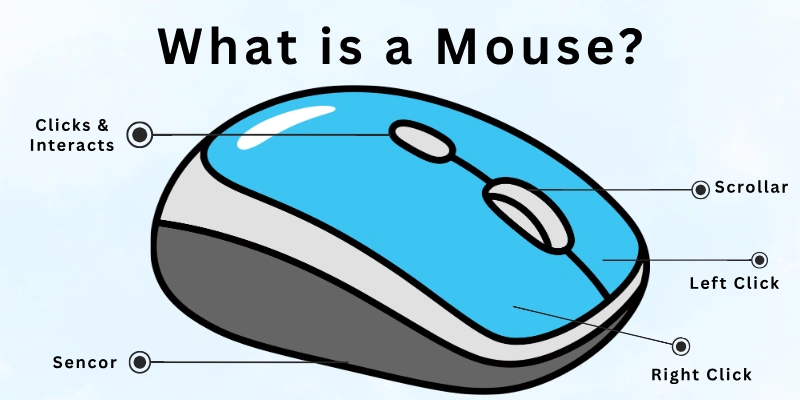
You can find different types of computer mice, including wired, wireless, gaming, and ergonomic models. Many users prefer a mouse because it gives better control and smoother movement than other input devices. It also helps people work more accurately while browsing, editing, designing, or playing games on a computer.
Common Uses of a Mouse
- Moving the cursor on the screen
- Opening files and programs
- Clicking, dragging, and dropping items
- Playing computer games
- Editing photos and videos
- Designing graphics and presentations
- Browsing websites more easily
- Scrolling through documents and pages
- Selecting text and files quickly
- Improving speed and accuracy during work

What is a Touchpad?
A touchpad is a flat pointing device mostly built into laptops. We use our fingers to move the cursor, click options, scroll pages, and control different tasks on the screen. It works by detecting finger movement and touch gestures. Many people use a touchpad because it does not need extra space or separate accessories.
Modern touchpads support features like tapping, two-finger scrolling, zooming, and swipe gestures. They help users perform everyday computer tasks without carrying a separate mouse. Students, travellers, and casual laptop users often prefer touchpads because they are simple, portable, and easy to use anywhere.
Common Uses of a Touchpad
- Moving the cursor on the screen
- Clicking and selecting items
- Scrolling through webpages and documents
- Zooming in and out with finger gestures
- Opening files and applications
- Browsing the internet on a laptop
- Switching between windows quickly
- Dragging and dropping files
- Using laptops while travelling
- Performing basic daily computer tasks
Comparison Table of Touchpad vs Mouse
Here is a quick difference between touchpad and mouse to help you understand their main differences in a simple way:
| Feature | Mouse | Touchpad |
| Control | Gives strong and precise control | Control depends on finger movement |
| Speed | Faster for most tasks | Slightly slower for detailed work |
| Accuracy | High accuracy for clicking and design work | Moderate accuracy for daily use |
| Portability | Needs extra space and carrying | Built into a laptop, very portable |
| Gaming | Best choice for gaming | Not suitable for most games |
| Comfort | Comfortable for long hours | Can cause finger strain over time |
| Setup | Needs connection (USB or wireless) | No setup needed, already built-in |
| Space Use | Needs desk space | No extra space needed |
| Power Use | May need battery (wireless) | Uses a laptop battery |
| Ease of Use | Easy after practice | Easy for beginners and basic tasks |
Detailed Comparison of Mouse and Touchpad Features
To understand the real difference between mouse and touchpad, we need to look at their main features.
These features show how each device performs in daily use and how they affect your comfort, speed, and control while working on a computer.
- Control and Navigation
- Speed of Use
- Accuracy and Precision
- Comfort and Ergonomics
- Portability and Travel Use
- Desk Space Requirement
- Gaming Experience
- Multi-Touch Gestures
- Setup and Connectivity
- Power Usage
- Durability and Maintenance
- Learning Curve (Ease for Beginners)
Let’s discuss each point clearly and step by step.
1. Control and Navigation
To understand how both devices handle movement on the screen, let’s first look at their control and navigation style.
A mouse gives direct and precise control over the cursor. You move it on a flat surface, and the pointer follows your hand smoothly. It feels natural for detailed tasks like editing, designing, or selecting small items on the screen.
A touchpad works through finger movement on a flat surface. You slide your finger to move the cursor and tap to click. It is simple to use, but it may feel less precise for detailed control compared to a mouse.
2. Speed of Use
Now let’s see how both devices perform when it comes to speed during daily computer tasks.
A Mouse allows faster movement across the screen because you can cover large distances quickly. This makes it useful for gaming, browsing, and office work where speed matters.
A Touchpad depends on finger gestures, so movement can feel slower at first. Once users get used to it, it becomes smooth, but it still may not match the speed of a mouse for heavy tasks.
3. Accuracy and Precision
Here we will compare how accurately both devices help you select or work on small details.
A mouse offers high accuracy, especially for tasks like graphic design, video editing, or selecting small icons. It reduces mistakes and gives better control over fine movements.
A touchpad provides moderate accuracy. It works well for basic tasks, but handling very detailed work can be slightly difficult because finger movement is less precise.
4. Comfort and Ergonomics
Let’s now understand how both devices feel during long hours of use and how they affect comfort.
A mouse is designed for comfortable hand positioning. It reduces strain when used properly and is better for long working sessions at a desk.
A touchpad is built into the laptop, so it is always available. However, continuous use can sometimes cause finger or wrist strain during long working hours.
5. Portability and Travel Use
Now we look at how easy it is to carry and use both devices while travelling or moving around.
A mouse needs extra space and sometimes cables or batteries. This makes it slightly less convenient for travel, even though wireless options improve portability.
A touchpad is already built into the laptop, so it is very easy to carry and use anywhere. You do not need any extra device, which makes it perfect for travel.
6. Desk Space Requirement
Let’s compare how much space both devices need to work properly on a desk.
A mouse requires a flat surface and extra space to move freely. Without proper space, it can feel restricted during use.
A touchpad does not need any external space because it is part of the laptop. This makes it ideal for small desks or tight working areas.
7. Gaming Experience
Here, we compare how both devices perform during gaming activities.
A mouse is the preferred choice for gaming because it offers fast response and accurate control. Gamers rely on it for better performance.
A touchpad is not suitable for most games. It lacks speed and precision, which can affect gameplay and overall control.
8. Multi-Touch Gestures
Now let’s see how both devices support modern gesture controls.
A mouse mainly focuses on basic clicking and scrolling. Some advanced models offer extra buttons, but gesture control is limited.
A touchpad supports multi-touch gestures like zooming, scrolling, and switching windows. These gestures make navigation faster and more interactive.
9. Setup and Connectivity
Let’s understand how easy it is to connect and start using both devices.
A mouse needs to be set up through USB or Bluetooth. Wireless models may require pairing or battery setup before use.
A touchpad does not need any setup because it is already built into the laptop. You can start using it immediately without extra steps.
10. Power Usage
Now we will compare how both devices depend on power and energy.
A mouse (wireless) runs on batteries or charges. This means you need to manage power to keep it working.
A touchpad uses the laptop’s internal power. It does not need separate charging, which makes it more convenient for daily use.
11. Durability and Maintenance
Let’s look at how long both devices last and how much care they need.
A mouse is durable but may need cleaning and battery replacement over time. Heavy use can also affect its buttons and scroll wheel.
A touchpad is built inside the laptop, so it needs less maintenance. However, damage to the touchpad can be harder and more costly to fix.
12. Learning Curve (Ease for Beginners)
Finally, let’s compare how easy it is for new users to learn both devices.
A mouse is very easy to learn and use. Most people get comfortable with it within a short time.
A touchpad may take some practice, especially for beginners. Once users learn gestures and control, it becomes easier for daily use.
Advantages and Disadvantages of Mouse and Touchpad
Now let’s understand the real benefits and limitations of both a mouse and a touchpad. This will help you clearly decide which device works better for your daily computer use.
Advantages of a Mouse
Let’s first look at why many users prefer a mouse for work, gaming, and design tasks:
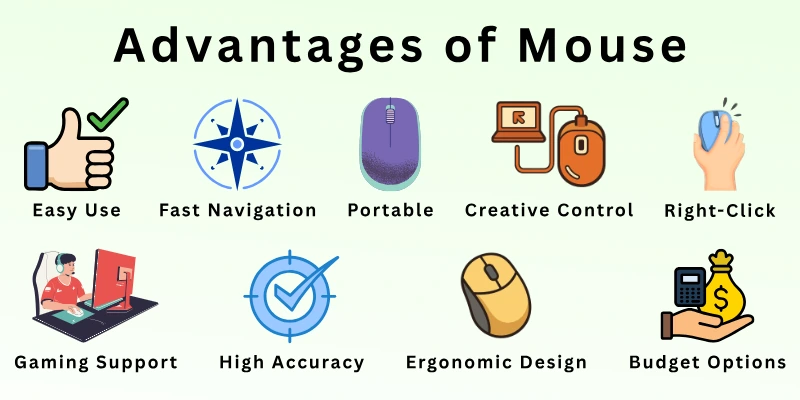
- High Accuracy and Precision: A mouse gives very accurate control over the cursor. You can easily select small items, edit details, and work on design tools without mistakes.
- Faster Movement and Better Speed: It allows quick movement across the screen. This makes it useful for gaming, browsing, and office tasks where speed matters.
- Comfort for Long Use: A mouse supports natural hand positioning. This reduces strain during long working hours, especially on a desk setup.
- Better for Professional Work: Tasks like graphic design, video editing, and data work feel easier and more controlled with a mouse.
- Extra Buttons for Productivity: Many mice come with extra buttons for shortcuts. These help users work faster and save time.
Disadvantages of a Mouse
Now let’s look at the limitations you may face while using a mouse:
- Needs Extra Space: A mouse requires a flat surface to move properly. Without enough desk space, it becomes less comfortable to use.
- Not Easy to Carry Everywhere: It is an extra device that you need to carry separately. This makes it less convenient for travel.
- Battery or Charging Needed (Wireless Models): Wireless mice need batteries or charging. If the battery runs out, you cannot use it until it is replaced or charged.
- Can Be Expensive (Advanced Models): High-quality or gaming mice can cost more compared to basic touchpad use.

Advantages of a Touchpad
Now let’s explore why touchpads are useful for everyday laptop users and students:
- Built into the Laptop: A touchpad is already part of the laptop. You do not need any extra device to use it.
- Highly Portable: You can use it anywhere because it is always available on your laptop. This makes it perfect for travel and mobile work.
- No Extra Setup Needed: It works instantly without installation or connection. You just start using your laptop, and it is ready.
- Supports Multi-Touch Gestures: You can zoom, scroll, and switch windows using finger gestures. This makes navigation faster and smoother.
- Saves Desk Space: Since it is built-in, it does not take any extra space on your table.
Disadvantages of a Touchpad
Now, let’s understand the limitations of using a touchpad for daily computer work.
- Less Accurate for Detailed Work: It is not very precise for tasks like editing, designing, or gaming, where fine control is needed.
- Slower Compared to a Mouse: Cursor movement can feel slower, especially during heavy tasks or long sessions.
- Can Cause Finger Fatigue: Continuous use may cause discomfort in fingers or wrists over time.
- Not Ideal for Gaming: Most games require fast response and accuracy, which a touchpad cannot fully provide.
- Limited Control Options: It has fewer physical buttons compared to a mouse, which can limit advanced shortcuts.
Who Should Use a Mouse?
Now, let’s understand which type of users get the most benefit from using a mouse. This will help you decide if it matches your daily work and needs:
- Best for Gamers: A mouse is perfect for gaming because it offers fast response and high accuracy. Gamers can aim, move, and control actions quickly, which improves overall performance.
- Best for Graphic Designers and Editors: Designers and video editors need precise control for detailed work. A mouse makes it easier to edit images, adjust timelines, and work on small elements accurately.
- Best for Office and Productivity Work: Office tasks like spreadsheets, reports, and presentations become faster with a mouse. It helps in smooth navigation and quick clicking between files and tools.
- Best for Users Who Need Better Precision: If your work requires accuracy, a mouse is a better choice. It reduces mistakes and gives more control over detailed screen activities.
Who Should Use a Touchpad?
Now, let’s look at the type of users who can rely on a touchpad for their everyday computer tasks:
- Best for Students: Students can use a touchpad easily for assignments, browsing, and online learning. It is simple and does not need any extra devices.
- Best for Travellers: A touchpad is built into the laptop, so it is always ready to use. This makes it ideal for people who work or study while travelling.
- Best for Casual Laptop Users: If you only use a laptop for browsing, watching videos, or light tasks, a touchpad works perfectly without any extra setup.
- Best for People Who Prefer Portability: Users who want a lightweight and simple setup benefit from a touchpad. It removes the need to carry or connect a separate mouse.
Tips for Choosing the Right Device
Choosing between a mouse and a touchpad depends on how and where you use your laptop or computer.
Here are some simple tips to help you make the right decision.
- Think About Your Daily Work: If you do gaming, design, or heavy office tasks, a mouse will give you better control. For basic browsing, typing, and simple tasks, a touchpad works well.
- Check Your Comfort Level: Pick the device that feels easy and natural for your hand. A mouse supports long working hours, while a touchpad suits short and light use.
- Consider Portability Needs: If you travel often, a touchpad is more practical because it is already built into your laptop. A mouse is better when you work at a fixed desk.
- Look at Your Workspace: A mouse needs enough desk space to move smoothly. If your working area is small, a touchpad becomes a better option.
- Think About Accuracy Requirements: A mouse is more suitable for tasks that need high precision. A touchpad is fine for general everyday use.
- Check Your Budget: A touchpad comes with the laptop, so it costs nothing extra. A mouse is an additional purchase, so it depends on your budget.
- Try Both If Possible: The best way to decide is to test both devices. You will quickly understand which one feels more comfortable for your daily work.
Mistakes to Avoid When Choosing Between Mouse and Touchpad
Many users choose between a mouse and a touchpad without thinking carefully. This can affect comfort, speed, and daily work experience.
Here are the most common mistakes you should avoid.
- Ignoring Your Daily Work Needs: Many people choose randomly without checking their tasks. If you do design, editing, or gaming, a mouse is better. For simple use, a touchpad is enough.
- Choosing Only Based on Price: Some users pick the cheapest option without thinking about comfort or performance. A low-cost choice may not always give the best experience.
- Not Considering Comfort and Hand Strain: People often forget about long-term use. A mouse supports better hand position, while long touchpad use can sometimes cause discomfort.
- Using the Wrong Device for the Wrong Task: A touchpad is not ideal for gaming or detailed editing. Using it for heavy tasks can slow you down and reduce accuracy.
- Ignoring Workspace and Portability Needs: Some users buy a mouse even when they have very limited desk space. Others avoid it even when they need better control for work.
- Overlooking Ease of Use and Learning Time: Beginners may struggle with advanced mouse settings or touchpad gestures. It is important to choose what feels easier for your skill level.
- Not Testing Before Deciding: Many people never try both options. Testing both devices helps you understand which one feels more natural and comfortable.
Conclusion
In this article, we’ve covered mouse vs touchpad in detail, including their advantages, limitations, and real-world usage. You now have a clear idea of which device fits different types of users and tasks.
Personally, I would recommend a mouse for people who want speed, accuracy, and comfort during long working hours. A touchpad is still a good choice for students and travellers who need portability.
Don’t skip the next part of the FAQs. I hope you will find something more interesting, so don’t miss it. If you miss it, you may lose something new.
Frequently Asked Questions (FAQs)
Let’s answer some frequently asked questions about mouse or touchpad for better understanding and clarity:
A mouse is often better when you need speed, accuracy, and comfort for long working sessions. It gives better control for detailed tasks like design, editing, and gaming. However, a touchpad is still useful for basic laptop use and travel needs. So, the better choice depends on your daily tasks and comfort.
Gamers prefer a mouse because it offers fast response and high precision during gameplay. It helps in quick aiming, smooth movement, and better control in competitive games.
- Faster reaction time in games
- Better accuracy for shooting or aiming
- Smooth control during fast movements
- Extra buttons for shortcuts in gaming
A touchpad works well for simple office tasks like typing, browsing, and basic file work. It is built into the laptop, so it is easy to use anywhere. However, for heavy office work, a mouse can feel more comfortable and faster. It really depends on how intensive your tasks are.
Comfort depends on how you use the device. A mouse supports a natural hand position, which reduces strain during long working hours. A touchpad is fine for short use, but long sessions may cause finger or wrist fatigue.
A mouse is generally better for comfort because:
- It supports better hand posture
- It reduces repeated finger movement
- It works well for long desk sessions
Yes, you can use both a mouse and a touchpad together on most laptops. Many users switch between them based on their task and comfort level. For example, you may use a mouse for work and a touchpad when travelling. Both devices can work side by side without any problem.
Yes, a mouse can improve productivity in many cases. It helps you work faster, reduce errors, and manage tasks more smoothly. This is especially useful for office work, editing, and design tasks.
- Faster navigation between files and tools
- More accurate selection and clicking
- Better control in multitasking
- Useful for professional work environments
Students can use both devices depending on their needs. A touchpad is good for note-taking, browsing, and simple assignments. A mouse becomes helpful when students work on projects, presentations, or design tasks.
A touchpad is better for:
- Quick laptop use
- Online classes
- Travelling or studying anywhere
A mouse is better for:
- Project work
- Presentations
- Better control during long study sessions
Wireless mice are more convenient because they offer freedom of movement without cables. They are great for portability and clean desk setups.
However, wired mice are more reliable because they do not need charging or batteries.
- Wireless mouse: Portable, clean setup, easy to carry
- Wired mouse: Stable connection, no charging needed, usually cheaper
- Choice depends on personal preference and usage needs



- Be Respectful
- Stay Relevant
- Stay Positive
- True Feedback
- Encourage Discussion
- Avoid Spamming
- No Fake News
- Don't Copy-Paste
- No Personal Attacks
- Be Respectful
- Stay Relevant
- Stay Positive
- True Feedback
- Encourage Discussion
- Avoid Spamming
- No Fake News
- Don't Copy-Paste
- No Personal Attacks









