
How to Connect Speakers to a Computer – Easy Tips for Better Music
Connecting external speakers to your computer can completely change your listening experience. Built-in laptop or desktop speakers often sound small and weak, while external speakers give you richer, clearer audio, perfect for music, movies, gaming, or video calls.
You can choose wired speakers, which connect through cables like a 3.5mm jack or USB, for reliable sound and no battery worries. Or you can go wireless with Bluetooth speakers, which give you freedom to move around and reduce cable clutter.
In this article, we will guide you step by step on how to connect speakers to a computer. You’ll learn how to identify your audio ports, set up your speakers, adjust audio settings, and fix common problems.
By the end, you’ll be ready to enjoy crisp, high-quality sound without any hassle.
What You Need Before Connecting Speakers
Before you connect your speakers, make sure you have everything ready. This will help you complete the setup quickly and avoid common problems.
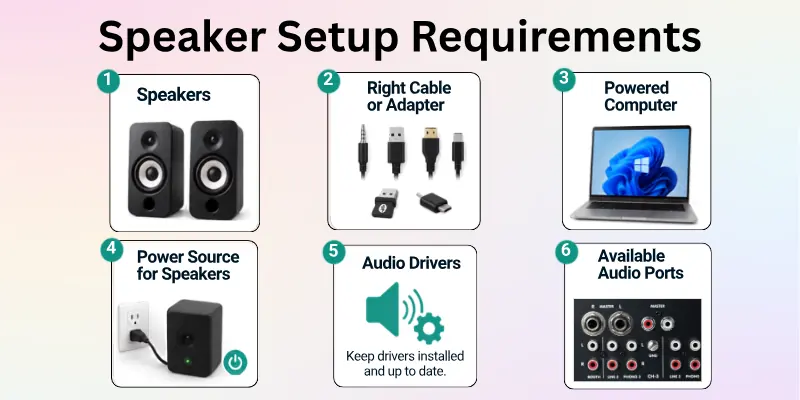
1. Speakers
First, check what type of speakers you have. The connection method depends on the speaker type.
- 3.5mm speakers connect through the headphone or audio-out port.
- USB speakers connect through a USB port.
- Bluetooth speakers connect wirelessly.
- HDMI or USB-C speakers use their matching ports.
2. The Right Cable or Adapter
Make sure you have the correct cable for your speakers.
- 3.5mm audio cable
- USB cable
- HDMI cable
- USB-C cable
- Bluetooth adapter (if your computer does not have built-in Bluetooth)
- Audio adapter (if your computer uses different ports)
3. A Powered Computer
Turn on your desktop or laptop before connecting the speakers. Wait until the operating system finishes loading.
4. A Power Source for the Speakers
Some speakers need external power.
- Plug powered speakers into a wall outlet.
- Turn on the speaker power switch.
- Charge Bluetooth speakers before pairing them.
5. Audio Drivers
Most computers install audio drivers automatically. If your speakers are not detected, check that your audio drivers are installed and up to date.
6. Available Audio Ports
Take a quick look at your computer to see which ports are available.
- 3.5mm audio jack
- USB-A port
- USB-C port
- HDMI port
- Optical audio port (on some computers)
Knowing your available ports makes it easier to choose the correct connection method.

Understanding Your Computer’s Audio Ports
Before connecting your speakers, it’s important to know which ports your computer has. Different ports support different types of speakers, and using the right one ensures the best sound quality.
1. 3.5mm Audio Jack
- This is the most common port for wired speakers.
- Usually green on desktops or marked with a headphone icon on laptops.
- Plug your speaker’s 3.5mm cable here for quick, simple audio.
2. USB Port
- Some speakers use USB for power and sound.
- USB connections are plug-and-play and often provide clearer sound than the 3.5mm jack.
3. Bluetooth
- If your computer has Bluetooth, you can connect wireless speakers without any cables.
- Check your computer’s settings to make sure Bluetooth is turned on and discoverable.
4. Other Ports (Optional)
- HDMI or Optical Audio: Mostly for high-end setups or connecting to TVs/receivers.
- Not required for most desktop or laptop speakers, but useful if you want advanced setups.
Knowing your ports will make it easy to choose the right connection and avoid mistakes. Next, we’ll go step by step on how to connect speakers using each method.
How to Connect Wired Speakers to a Computer
Wired speakers are very easy to connect. You only need the right cable and the correct port. Follow these simple steps:
Check Your Speaker Cable: First, look at the speaker cable. Most wired speakers use a 3.5mm audio jack. It looks like a small round metal pin. Some speakers may also use USB power along with audio.
Find the Green Audio Port: Now check your computer. Look for the green port on the back of a desktop or on the side of a laptop. This green port is made for sound output, like speakers and headphones.
Plug the Cable into the Computer: Take the speaker jack and gently plug it into the green port. Do not force it. It should go in smoothly. If your speaker uses USB power, plug the USB cable into a USB port at the same time.
Turn On the Speakers: Now press the power button on your speakers. Check the volume knob and turn it up slightly so you can hear sound.
Set Sound on Your Computer: Sometimes your computer may not switch automatically.
Do this:
- Go to sound settings
- Choose “Output device”
- Select your speakers
Test the Sound: Play a song or video. If you hear sound, your speakers are working fine.
If there is no sound:
- Check the cable connection
- Check volume level
- Try another USB or audio port

How to Connect Bluetooth Speakers to a Computer
Bluetooth speakers connect without any wires. You just need to pair them with your computer. Follow these simple steps:
1. Turn On Your Bluetooth Speaker
First, press the power button on your speaker. Then turn on “pairing mode.” Most speakers show a blinking light when they are ready to connect.
2. Turn On Bluetooth on Your Computer
Now open your computer settings. Do this:
- Go to Settings
- Open Bluetooth & Devices
- Turn Bluetooth ON
Wait a few seconds for devices to appear.
3. Pair the Speaker with Your Computer
Look for your speaker name in the list. Click on it to connect. Your computer may show a “Pair” button. Click it to confirm. Wait a few seconds until it says “Connected.”
4. Set the Speaker as Default Output
Sometimes sound still plays from laptop speakers. Fix it like this:
- Open Sound Settings
- Go to Output Device
- Select your Bluetooth speaker
5. Test the Sound
Play a video or music file. Check if sound comes from the Bluetooth speaker.
If there is no sound:
- Turn the volume up on both devices
- Reconnect the speaker
- Move closer to the computer
How to Set Speakers as Default Output
Sometimes your computer does not send sound to your new speakers. It may still use the laptop or built-in speakers.
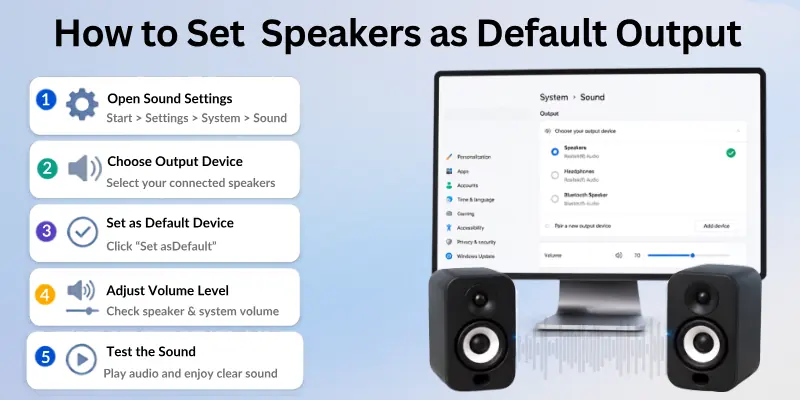
You can fix this by setting your speakers as the default output device:
Open Sound Settings
First, go to your computer settings. Do this:
- Click on the Start menu
- Open Settings
- Go to System
- Click Sound
This page shows all audio options.
Choose Output Device
Now look for the Output section. You will see a list of sound devices like:
- Speakers
- Headphones
- Bluetooth speaker
Click on your connected speakers.
Set as Default Device
After selecting your speakers, your computer will send all sound to them. On some systems, you may need to:
- Click Set as Default
- Or select Use as default sound device
Adjust Volume Level
Make sure the volume is not low or muted. Check:
- Speaker volume knob
- Computer volume slider
- App volume (like YouTube or media player)
Test the Sound: Play a video or song. If sound comes from your speakers, the setup is correct.
How to Test If Speakers Are Working
Before you start using your speakers, you should test them. This helps you make sure everything works fine and the sound is clear.
How to Test Your Speakers:
- Play a video or song on your computer
- Check if sound comes from the speakers
- Increase the volume if the sound is low
- Try different audio apps like YouTube or music player
- Check both left and right speakers for sound
- Use the sound test option in computer settings
- Unplug and reconnect if no sound comes
- Restart the computer if sound still does not work
Common Problems and Easy Fixes
Sometimes speakers do not work the right way after you connect them. This is normal and easy to fix. Below are the most common problems and simple solutions:
Common Problems and Easy Fixes
- No sound from speakers: Check the volume level and make sure speakers are plugged into the correct port.
- Computer does not detect speakers: Unplug the cable and plug it again. Try another USB or audio port.
- Low sound issue: Increase volume on both the computer and the speakers. Also check app volume settings.
- Only one speaker works: Check the cable connection. Make sure it is fully inserted.
- Bluetooth speaker not connecting: Turn Bluetooth off and on again. Restart pairing mode on the speaker.
- Sound is breaking or unclear: Move closer if using Bluetooth. Remove other devices that may cause interference.
- Wrong audio device selected: Go to sound settings and choose your speakers as the output device.
Tips for Better Speaker Setup
A good speaker setup makes your sound clear and strong. Small changes can improve audio quality a lot. Follow these simple tips for better results.
Tips for Better Speaker Setup:
- Place speakers at ear level for clear sound
- Keep equal space between left and right speakers
- Do not place speakers too close to walls
- Keep speakers on a stable, flat surface
- Avoid placing objects in front of speakers
- Keep volume at a medium level to avoid distortion
- Use good quality cables for wired speakers
- Clean speakers regularly to remove dust
- Adjust equalizer settings for better sound balance
- Keep Bluetooth speakers close to the computer for a stable connection
Conclusion
Connecting speakers to your computer is easier than it seems, and knowing how to connect computer speakers ensures you get the best sound experience. Whether you’re using wired speakers with a 3.5mm or USB connection or wireless Bluetooth speakers, following the right steps guarantees clear, high-quality audio.
By understanding your computer’s audio ports, adjusting audio settings, and troubleshooting common issues, you can enjoy music, movies, and games without interruptions.
Now that you know how to connect speakers to computer properly, you can set up your speakers quickly and get the most out of your audio system.
Common FAQs
Here are some frequently asked questions related to how to connect speakers to a pc:
Connect your speakers using a 3.5mm audio jack, USB cable, or Bluetooth. Then open your computer’s Sound Settings and choose your speakers as the default output device. If the sound still comes from the built-in speakers, reconnect the speakers and try again.
Your Bluetooth speaker must be in pairing mode before your computer can find it.
Try these steps:
- Turn on Bluetooth on your computer.
- Put the speaker in pairing mode.
- Keep the speaker close to your computer.
- Restart Bluetooth if needed.
Static or distorted sound is often caused by a loose cable or high volume. Check all cable connections, lower the volume, and try another audio port. If the problem continues, update your audio drivers.
Open Settings > Bluetooth & Devices and look for a Bluetooth switch. If you see it, your computer supports Bluetooth. If your computer does not have Bluetooth, you can add it with a USB Bluetooth adapter.
If your speakers are connected but there is no sound, make sure they are turned on and selected as the default output device. Also, check the computer and speaker volume before trying again.
Yes. Most USB speakers are plug-and-play, so your computer detects them automatically after you connect them.
If they do not work:
- Try another USB port.
- Restart your computer.
- Install drivers only if requested.
Yes, you can connect both types of speakers. However, most computers play sound through only one device at a time. You may need to change your sound settings or use audio software to play sound through both.
Wired speakers usually provide better sound quality and a stable connection. Bluetooth speakers are wireless, easy to move, and quick to connect. The better choice depends on how you plan to use them.
A weak Bluetooth signal, low battery, or outdated drivers can cause disconnections. Keep the speaker close to your computer, charge the battery, and reconnect it. Updating Bluetooth drivers may also solve the problem.
Most speakers work as soon as you connect them. If your computer does not detect the speakers or there is no sound, restarting the computer can refresh the audio settings and fix the problem.

- Be Respectful
- Stay Relevant
- Stay Positive
- True Feedback
- Encourage Discussion
- Avoid Spamming
- No Fake News
- Don't Copy-Paste
- No Personal Attacks
- Be Respectful
- Stay Relevant
- Stay Positive
- True Feedback
- Encourage Discussion
- Avoid Spamming
- No Fake News
- Don't Copy-Paste
- No Personal Attacks










