
How to Use Histogram for Perfect Exposure and Photos
Many photographers rely on their camera screen to judge exposure. The problem is that the screen can look different depending on brightness settings, sunlight, and viewing conditions. As a result, a photo may appear correctly exposed on the display but look too dark or too bright when viewed later on a computer.
This is where the camera histogram becomes useful. A histogram gives you a visual breakdown of the tones in your image, from dark shadows to bright highlights. It helps you see whether important details are being lost and allows you to make better exposure decisions while taking photos.
If you want to learn how to read camera histogram data correctly, this guide will walk you through everything step by step. You will learn what the histogram shows, how to understand its shape, how to spot exposure problems, and how to use it to capture better photos in different situations.
How to Read a Camera Histogram
Learning how to read camera histogram data is easier than many beginners think. A histogram is simply a graph that shows the brightness levels in your photo. It helps you understand whether your image is too dark, too bright, or properly exposed.
When you know what each part of the graph represents, you can make better exposure decisions and capture more balanced photos.
Understanding the Horizontal Axis
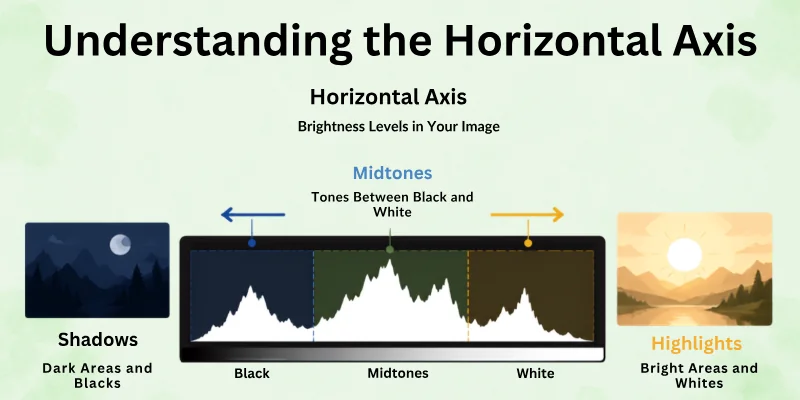
The horizontal axis runs from left to right. It represents the different brightness levels in your image.
Blacks and Shadows on the Left
The left side of the histogram shows the darkest parts of your photo. This area includes deep blacks and shadow details.
If most of the graph is crowded on the far left side, your image may be too dark. In some cases, important shadow details can disappear completely.
Midtones in the Center
The center of the histogram represents midtones. These are the tones between pure black and pure white.
Many everyday subjects contain a large amount of midtone information. Skin tones, grass, buildings, and many natural scenes often create data in the middle area of the histogram.
Highlights and Whites on the Right
The right side shows the brightest areas of the image. This includes highlights and pure whites.
If a large amount of data reaches the far right edge, the image may contain very bright areas. When brightness exceeds the camera’s recording limit, highlight details can be lost.
Understanding the Vertical Axis
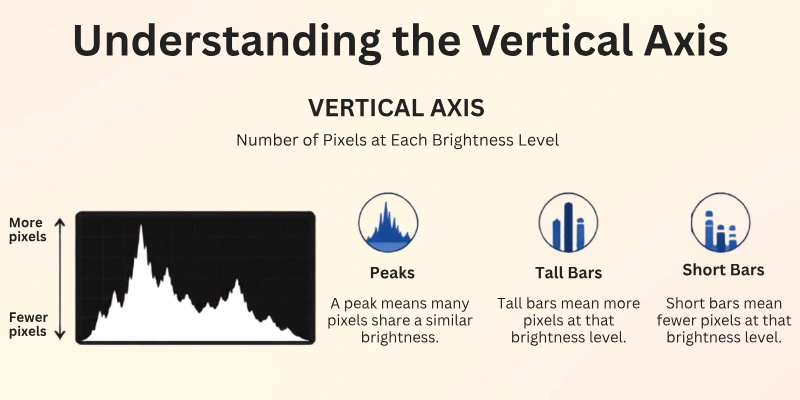
The vertical axis shows the number of pixels at each brightness level. In simple terms, it tells you how much of the image contains a particular tone.
What Histogram Peaks Mean
A peak appears when many pixels share a similar brightness value. For example, a photo of a blue sky may create a large peak because much of the image contains similar tones.
Peaks are normal and do not automatically indicate exposure problems.
What Tall and Short Bars Tell You
Tall bars mean a large number of pixels exist at that brightness level. Short bars mean fewer pixels exist at that brightness level. The height of the bars helps you understand how tones are distributed throughout the image.
How the Histogram Represents Exposure
The histogram provides a visual summary of your image’s exposure. Instead of relying on the camera screen, you can use the histogram to see where brightness information is concentrated.
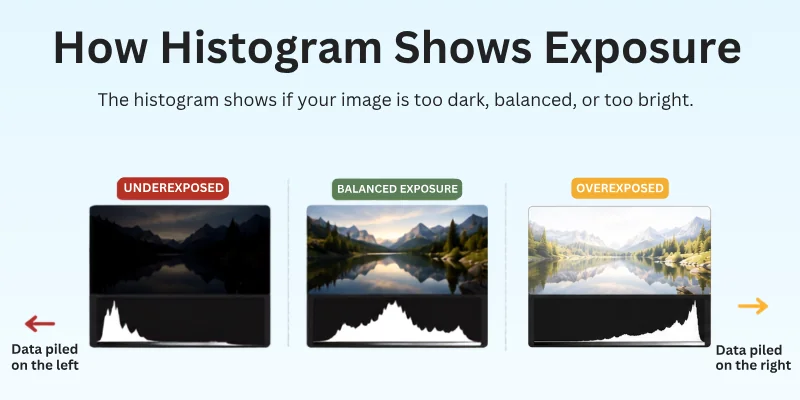
This makes it easier to identify exposure issues before you leave the scene. A histogram does not judge whether a photo is good or bad. It simply shows how tones are distributed across the image.

Understanding the Left, Middle, and Right Sides of a Histogram
The position of the graph can reveal a lot about exposure. Looking at where most of the data falls helps you understand whether the image is dark, balanced, or bright.
When the Histogram Is Pushed to the Left
A histogram that leans heavily toward the left side usually indicates a dark image.
Signs of Underexposure
Common signs of underexposure include:
- Dark overall appearance
- Hidden shadow details
- Lack of visible information in darker areas
If the graph is packed against the left edge, exposure may need adjustment.
Loss of Shadow Detail
When the histogram touches the far left edge, some shadow information may become clipped. Clipped shadows contain little or no detail and can be difficult to recover later, even with photo editing software.
When the Histogram Is Centered
A centered histogram often shows a balanced distribution of tones. This means brightness information is spread across shadows, midtones, and highlights.
Balanced Tonal Distribution
Many well-exposed images display data across most of the histogram without being heavily concentrated at either edge. This often results in good detail throughout the image.
When This Is Useful
A centered histogram works well for many types of photography, including:
- Portrait photography
- Travel photography
- Street photography
- General everyday photography
However, not every photo should have a perfectly centered histogram.
When the Histogram Is Pushed to the Right
A histogram that leans toward the right side usually represents a brighter image.
Bright Images and Highlights
Photos with snow, beaches, bright skies, or white backgrounds often create histograms that shift toward the right. This is normal because these scenes naturally contain more bright tones.
When This Is Normal
A right-leaning histogram is not always a problem. The key is to avoid pushing important highlights beyond the right edge, where clipping occurs.
As long as important details remain visible, a bright histogram can be completely correct for the scene you are photographing.

How to Identify Clipping on a Histogram
One of the most important reasons to use a histogram is to detect clipping. Clipping happens when parts of an image become so dark or so bright that the camera can no longer record detail in those areas.
When clipping occurs, important information is lost. Even advanced editing software may not be able to recover those missing details.
By checking your histogram while taking photos, you can spot clipping early and adjust your exposure before it becomes a problem.
What Is Shadow Clipping?
Shadow clipping occurs when dark areas of an image become completely black. On a histogram, shadow clipping appears when the graph is pressed against the far left edge. This indicates that some pixels have reached the darkest value the camera can record.
As a result, details in shadows may disappear. For example, dark clothing, tree bark, or shaded areas of a landscape may lose texture and become solid black.
A small amount of shadow clipping can sometimes be acceptable, especially in high-contrast scenes. However, excessive clipping often reduces image quality and limits editing options later.
What Is Highlight Clipping?
Highlight clipping occurs when bright areas become completely white and lose detail. On a histogram, this happens when the graph touches the far right edge. The camera can no longer capture information in those bright regions.
Highlight clipping often appears in areas such as:
- Bright clouds
- Sunlit snow
- Reflections on water
- White clothing
- Light sources
Once highlights become clipped, important details may be impossible to recover. This is why many photographers pay close attention to the right side of the histogram.
How Clipping Affects Image Quality
Clipping can reduce the overall quality of a photo because it removes information from the image. When shadows are clipped, dark areas lose texture and depth. When highlights are clipped, bright areas lose detail and appear flat or washed out.
Common effects of clipping include:
- Missing details in important areas
- Reduced dynamic range
- Less flexibility during editing
- Unnatural-looking bright or dark regions
The more clipping an image contains, the harder it becomes to achieve a balanced final result.
How to Avoid Losing Important
The easiest way to prevent clipping is to check your histogram before finishing a shot. If the graph is heavily pressed against either edge, consider adjusting your exposure settings.
You can often reduce clipping by:
- Lowering the exposure when highlights are too bright
- Increasing the exposure when shadows are too dark
- Using exposure compensation
- Shooting in RAW format for greater editing flexibility
- Bracketing exposures in difficult lighting conditions
Keep in mind that some scenes naturally contain very bright or very dark areas. The goal is not to avoid every bit of clipping. Instead, focus on protecting the details that matter most in your image.
A quick glance at the histogram can help you preserve important shadow and highlight information and capture a better-exposed photo.
Common Histogram Shapes and What They Mean
Every photo creates a different histogram shape based on lighting and exposure. You do not need to memorize complex rules.
You just need to understand what each shape usually tells you about your image. These patterns help you quickly judge exposure and fix mistakes while shooting.
Here are the most common histogram shapes and their meaning:
- Histogram of an Underexposed Photo: The graph stays mostly on the left side. It shows strong shadows and very dark areas. This often means the image is too dark and may lose shadow detail.
- Histogram of an Overexposed Photo: The graph moves mostly to the right side. It shows very bright tones and highlights. This often means the image is too bright and may lose highlight detail.
- Histogram of a Well-Exposed Photo: The graph spreads more evenly across the middle. It shows a balanced mix of shadows, midtones, and highlights. This usually means good overall exposure.
- Histogram of a High-Key Image: The graph shifts toward the right but does not fully clip. It shows bright tones and soft shadows. This is common in bright, airy, and soft-lit scenes.
- Histogram of a Low-Key Image: The graph shifts toward the left side. It shows deep shadows and dark tones. This is common in moody, dramatic, or night photography.
- Histogram of a High-Contrast Scene: The graph spreads toward both ends with a dip in the middle. It shows strong dark and bright areas at the same time. This happens in scenes with harsh light and strong shadows.
How to Use a Camera Histogram While Taking Photos
Using a camera histogram in real time helps you fix exposure while you are still shooting. It saves you from guessing and reduces the need for heavy editing later.
Here is how you can use it in a simple and practical way:
- Check the histogram after every shot: Look at the histogram on your camera screen right after taking a photo. This helps you see if the exposure looks correct or needs changes.
- Watch the edges first: Focus on the left and right sides of the histogram. If the graph touches either edge too much, it can mean loss of detail in shadows or highlights.
- Adjust exposure based on the scene: If the image is too dark, increase exposure. If it is too bright, reduce exposure. Use exposure compensation or manual settings to fix it.
- Do not chase a perfect shape: There is no single “perfect” histogram. A good histogram depends on the lighting of your scene. A dark room and a sunny beach will not show the same pattern.
- Use a histogram for different photography types: In landscape photography, check for clipped skies or shadows. In portraits, make sure skin tones are not too dark or too bright.
- Combine the histogram with your eyes: Do not rely only on the graph. Also, look at your subject. Use both together for better results.
- Practice in different lighting conditions: Shoot in sunlight, shade, and indoor light. Check how the histogram changes in each situation. This builds your confidence quickly.
With regular use, the histogram becomes a simple guide that helps you control exposure with more accuracy and less guesswork.
Conclusion
So guys, this was our article for today. Today, we covered everything about how to read camera histogram in simple and clear steps. We learned what a histogram is, how to read it, and how it helps you control exposure in your photos.
Now you know how to understand shadows, midtones, and highlights. You also know how to spot clipping and avoid losing important details in your images. We also looked at different histogram shapes and what they mean in real photography situations.
If you use the histogram while taking photos, you will see a big improvement in your exposure skills. It helps you make better decisions in any lighting condition and gives you more control over your camera.
Keep practicing with your camera. The more you use the histogram, the easier it becomes. Soon, you will read it without thinking and capture better, well-balanced photos every time.
Common FAQs
Here are some common questions photographers have about how to use camera histogram, along with clear answers to help you understand and apply it better in your photography:
If you are new, start by checking your camera screen after every photo. This helps you connect the graph with real images. This is the best way to begin with a camera histogram for beginners. Practice slowly in different lighting to build confidence.
Look at the left side for shadows, center for midtones, and the right side for highlights. This simple check gives fast exposure feedback. This is how you begin to understand the camera histogram in real shooting. Over time, you will read it without thinking.
Camera screens can look brighter or darker depending on light conditions. This can mislead your exposure judgment.
Histograms give real data about brightness levels, not screen settings. That is why many photographers rely on the camera histogram explained concepts for accuracy.
Here are a few problems to avoid:
- Do not try to make a “perfect” middle graph every time
- Do not ignore scene lighting
- Do not rely only on the screen
These mistakes often confuse new users who are learning camera histogram skills. A histogram changes based on the scene, not rules.
First, check if the graph touches the left or right edge. Then look at how tones spread across the middle. This is the basic process of how to read camera histogram in photography. Always compare it with your actual photo for better learning.
Yes, you can check it after every shot on your camera display. This helps you fix exposure immediately.It is a key part of using a camera histogram in real shooting. It improves your accuracy in changing light conditions.
Reading means understanding what the graph shows in basic form. Interpreting means using that data to fix exposure. This is where how to interpret camera histogram becomes important. Both skills work together for better photography results.
Yes, most photography guides cover shadows, highlights, and exposure balance. These topics help you build a full understanding step by step. A good camera histogram guide also includes real examples and practice tips. This makes learning easier for beginners.
Yes, practice is very important because every scene creates a different graph. You learn faster by testing in real situations. This is why a camera histogram tutorial is more useful than theory alone. Try shooting in sunlight, shade, and indoor light for better results.
Histograms help you avoid overexposed and underexposed images. They give you better control over light and detail. This is a core part of how to use camera histogram effectively.
With practice, your photos become more balanced and professional-looking.



- Be Respectful
- Stay Relevant
- Stay Positive
- True Feedback
- Encourage Discussion
- Avoid Spamming
- No Fake News
- Don't Copy-Paste
- No Personal Attacks
- Be Respectful
- Stay Relevant
- Stay Positive
- True Feedback
- Encourage Discussion
- Avoid Spamming
- No Fake News
- Don't Copy-Paste
- No Personal Attacks