What is a Webcam: Upgrade Your Streaming and Meetings in 2026
Blurry video calls and low-quality streams can be frustrating, especially during work meetings or online classes. A good webcam captures live video and audio, helping you communicate clearly and look professional.
Whether you’re attending virtual lessons, streaming content, or connecting with friends and family, a high-quality webcam makes a big difference.
Understanding key features like resolution, frame rate, and audio quality, along with proper setup tips, ensures smoother calls, sharper video, and a more enjoyable online experience every day.
So, let’s dive right into what is a webcam without wasting any time!
What is Webcam? (Definition of Webcam)
A webcam is a small digital camera that captures video and sends it to a computer or the internet in real time. It is mainly used for live video communication, not for storing photos or videos like a normal camera.
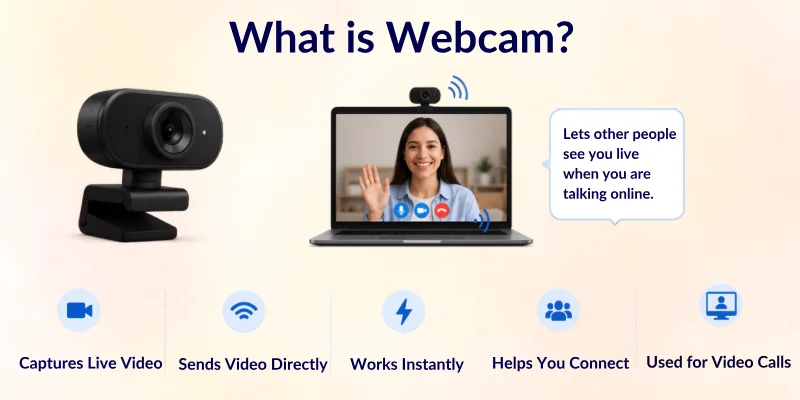
In simple words, a webcam lets other people see you live when you are talking online. You can use it for video calls, online meetings, classes, and live streaming.
Here is what a webcam does clearly:
- It captures live video from your face or surroundings
- It sends video directly to your computer or online apps
- It works instantly without saving files like a normal camera
- It helps you connect with people through video calls
A webcam is different from a regular camera because it is made for live use, not for photography.
Key Differences Between a Webcam and a Regular Camera:
Purpose
- Webcam: Used for live video calls and online meetings
- Camera: Used for taking photos and recording videos for later use
Connection
- Webcam: Connects to a computer or the internet using USB or Wi-Fi
- Camera: Stores media on memory cards or internal storage
Design
- Webcam: Small, simple, and often built into laptops
- Camera: Larger and designed for high-quality photography
Features
- Webcam: Often includes a microphone and is optimized for streaming
- Camera: Offers higher image quality and advanced settings
In short, a webcam is designed for instant video sharing. It helps you stay connected in real time, whether you are working, studying, or talking to friends online.
How Webcams Work?
A webcam works in a very simple way. It captures your video, changes it into digital data, and sends it to your computer or the internet in real time. This whole process happens in seconds, so you can talk and see others live without delay.
Here is a simple step-by-step breakdown:
Lens
- The lens collects light from your face or scene
- It focuses that light to create a clear image
- Think of it like your eye that helps you see clearly
Image Sensor
- The image sensor receives the light from the lens
- It converts light into digital signals
- Most webcams use a CMOS sensor for better speed and quality
Microphone
- Many webcams come with a built-in microphone
- It captures your voice along with the video
- This helps in clear video calls and meetings
Connection
- The webcam connects to your device using USB, Wi-Fi, or Bluetooth
- It sends video and audio data to your computer or phone
- USB is the most common and stable option
Software Processing
- Your computer or app processes the video data
- It compresses the video so it runs smoothly
- Then it shows your live video on apps like Zoom or Google Meet
In short, a webcam captures light, turns it into digital video, and streams it live so you can connect with people anywhere in real time.

Types of Webcams
Webcams come in different types based on how they are built and how they connect to devices. Each type is used for different needs, like studying, working, or streaming.
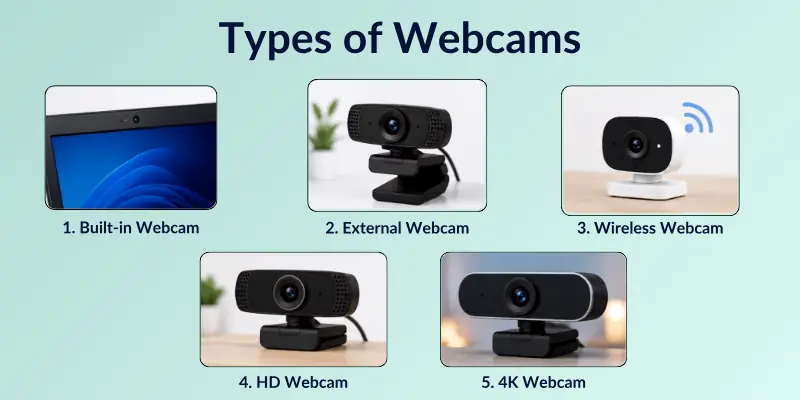
Let’s look at the main types simply:
- Built-in Webcam: A camera already fixed inside laptops and some desktop screens.
- External Webcam: A separate camera that connects to a computer for better video quality.
- Wireless Webcam: A camera that works without cables and connects through Wi-Fi or Bluetooth.
- HD Webcam: A high-definition camera that gives clear and sharp video quality.
- 4K Webcam: An advanced webcam that records ultra-clear video for professional use.
Main Uses of a Webcam
A webcam is used in many daily tasks where people need live video communication. It helps you connect with others quickly, no matter where you are.
Today, webcams are a basic tool for work, study, and online activities.
- Video Calls: Used for talking face-to-face on apps like Zoom, Skype, and Google Meet
- Online Classes: Help students attend live lectures and interact with teachers
- Work Meetings: Used in remote jobs for team meetings and discussions
- Live Streaming: Helps creators stream videos on YouTube, Facebook, and other platforms
- Content Creation: Used for making tutorials, vlogs, and reaction videos
- Security Monitoring: Used in some systems for home or office surveillance
- Online Interviews: Helps candidates attend job interviews from home
- Social Communication: Used for chatting with friends and family in real time

Key Features of a Good Webcam
A good webcam gives you clear video, smooth performance, and easy communication. If you choose the right one, your video calls and online meetings look more professional and natural.
Here are the key features you should check before buying a webcam:
- High Video Quality: Gives clear and sharp video, usually HD or Full HD
- Good Frame Rate: Keeps video smooth without lag or freezing
- Clear Microphone: Captures your voice clearly during calls
- Low Light Performance: Works well even in dark or low-light rooms
- Wide Viewing Angle: Shows more background and fits more people in the frame
- Auto Focus: Keeps your face clear even if you move
- Easy Connectivity: Connects quickly through USB or wireless options
- Noise Reduction: Reduces background noise for better sound quality
- Plug and Play Setup: Works instantly without complex installation
A good webcam makes your online communication smooth, clear, and professional in every situation.
Advantages of Using a Webcam
A webcam makes online communication easier, clearer, and more professional. It helps you connect with people in real time, whether you are working, studying, or talking with friends.
Here are the main advantages of using a webcam:
- Clear Video Communication: Let others see you in real time with good video quality
- Easy Online Meetings: Makes video calls simple on apps like Zoom, Skype, and Google Meet
- Better Learning Experience: Helps students attend online classes and understand lessons better
- Professional Use: Improves work meetings and gives a more serious, presentable look
- Live Streaming Support: Useful for YouTube, gaming, and social media live sessions
- Easy Setup: Most webcams work instantly when you plug them in
- Better Interaction: Makes conversations more natural than voice-only calls
- Affordable Option: Good webcams are available at low and reasonable prices
In short, a webcam improves how you connect, communicate, and present yourself online.
Disadvantages of a Webcam
A webcam is useful, but it also has some limits. It may not always give the best experience in every situation. Here are the main disadvantages of using a webcam.
- Depends on Internet Speed: Video can lag or freeze if the internet is slow
- Lower Quality in Built-in Cameras: Laptop webcams often give basic video quality
- Privacy Risks: Hackers can access webcams if security is weak
- Lighting Issues: Poor light can make the video look dark or unclear
- Extra Cost for Good Quality: High-quality external webcams can be expensive
- Limited Flexibility: Built-in webcams cannot be moved or adjusted easily
- Software Problems: Sometimes drivers or apps may not work properly
- Background Noise: Built-in microphones may pick up unwanted sounds
Webcam Safety & Privacy Tips
Keeping your webcam secure is essential to protect your video feed and personal information. Here are some easy ways to stay safe:
- Cover Your Webcam: Use a slide-on cover or tape to block it when not in use.
- Update Software Regularly: Keep webcam drivers and apps up to date to fix security issues.
- Manage App Access: Only allow trusted applications to use your webcam.
- Use Strong Passwords: Protect your accounts and Wi-Fi connected to the webcam.
- Turn Off When Idle: Unplug or disable external webcams when not in use.
- Watch for Unusual Activity: Be alert for unexpected webcam lights or warnings from security programs.
By following these tips, you can safely use your webcam for calls, streaming, and recording without risking your privacy.
Final Note
In this article, we’ve covered what is a webcam in detail. We explored its definition, how it works, the different types, key features, uses, advantages, and even buying tips.
From my experience, the most important step is choosing a webcam that fits your needs and keeping it secure. A well-chosen webcam not only improves video quality but also makes communication, learning, and streaming much easier and more enjoyable.
Start by checking your purpose and budget, then look for the features that matter most—like resolution, frame rate, and audio quality. Once you set it up safely, you’ll get the best performance for work, learning, or creative projects.
Don’t wait, explore your options today and pick a webcam that keeps you connected, productive, and safe online!
FAQs About Webcam
Below is the list of frequently asked questions related to what is webcam:
A webcam is used for live video communication over the internet. People use it for meetings, classes, and video calls. It helps you see and talk to others in real time.
Most modern laptops come with a built-in webcam. It is usually placed at the top of the screen. Some older models may not have one, so you need an external webcam.
A computer webcam is made for live video calls and online use. A camera is mainly used for taking photos and recording videos. Webcams connect directly to a computer for streaming.
You can turn on a webcam by opening apps like Zoom, Skype, or Camera. The app automatically detects the webcam. You may also need to allow camera permission in settings.
A webcam is better for long video calls and computer work. A phone camera is better for mobile photography and quick videos. Both are useful, but for meetings, a webcam is more stable.
Webcams come in different types based on use and quality. The main types include:
- Built-in webcam (inside laptops)
- External webcam (separate device)
- Wireless webcam (connects via Wi-Fi or Bluetooth)
Yes, you can use a webcam without internet for local recording. It will capture video on your computer. But for video calls and streaming, the internet is required.
A good webcam for online classes should have clear video and a built-in microphone. HD or Full HD quality is best for smooth learning. It should also work well in low-light conditions.
There can be many reasons if your webcam is not working:
- Camera permission is blocked in settings
- Drivers are missing or outdated
- The app is not detecting the device
A good webcam should give clear and smooth video. It should also work easily with your device. Key features include HD quality, a good microphone, and auto focus for better clarity.

- Be Respectful
- Stay Relevant
- Stay Positive
- True Feedback
- Encourage Discussion
- Avoid Spamming
- No Fake News
- Don't Copy-Paste
- No Personal Attacks
- Be Respectful
- Stay Relevant
- Stay Positive
- True Feedback
- Encourage Discussion
- Avoid Spamming
- No Fake News
- Don't Copy-Paste
- No Personal Attacks